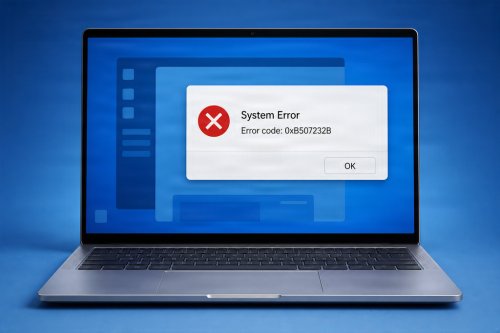

A DLL error is a common Windows computer problem that occurs when an application or Windows component cannot find, load, or properly use a Dynamic Link Library (DLL) file. DLL files contain code, functions, and other resources that Windows and applications can use to perform specific tasks.
When a DLL becomes missing, corrupted, outdated, incompatible, or damaged, Windows may display an error message and prevent a program from starting or functioning correctly.
DLL errors can be frustrating because they may appear when launching an application, starting Windows, installing software, or performing a specific task. Fortunately, many DLL problems can be resolved by repairing system files, reinstalling affected software, updating Windows and drivers, or restoring the missing component.
DLL stands for Dynamic Link Library.
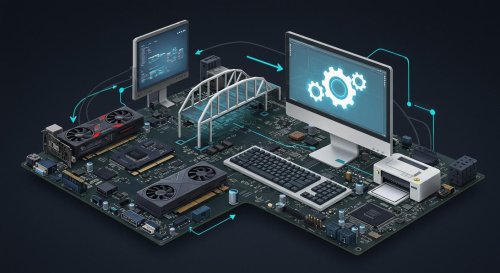
A DLL is a type of Windows file that contains reusable code and resources that multiple programs can access. Instead of every application containing its own copy of the same functions, Windows and software can share DLL files.
DLL files can contain:
Examples of commonly encountered Windows DLL files include:
kernel32.dlluser32.dlladvapi32.dllntdll.dllmsvcp140.dllvcruntime140.dlld3d11.dllDifferent DLL files serve different purposes, and the specific file mentioned in an error message can provide clues about the underlying problem.
![Full Guide] How to Fix Missing DLL Files?](https://4ddig.tenorshare.com/images/win-data-recovery/missing-dll-files.png?w=886&h=590)
A DLL error generally means that Windows or an application cannot properly access a required DLL file.
You might see messages such as:
“The program can't start because [filename].dll is missing from your computer.”
Other errors may say:
“Error loading [filename].dll.”
or:
“The code execution cannot proceed because [filename].dll was not found."
A DLL may technically exist on the computer but still produce an error if it is corrupted, incompatible, incorrectly registered, or dependent on another missing component.
:max_bytes(150000):strip_icc()/kernel32-dll-error-message-505f4a4601424a99b54a62308aedc666.png)
There are several reasons why a DLL error can occur.
A required DLL may have been accidentally deleted or removed during software cleanup.
An application may also expect a DLL that was never installed correctly.
Windows system files can become corrupted because of interrupted updates, unexpected shutdowns, storage problems, malware, or other system issues.
If a critical DLL is damaged, Windows or an application may fail to start correctly.
An incomplete or unsuccessful software installation can leave required DLL files missing or improperly configured.
This is particularly common when an installation is interrupted or when files are removed by security software.
Major Windows updates or upgrades can sometimes create compatibility issues between older applications and newer Windows components.
Applications that rely on outdated libraries may display DLL errors after a Windows update.
Malware can modify, delete, or replace system files. Some malicious programs may also disguise themselves as legitimate DLL files.
If a DLL error appears unexpectedly along with other unusual computer behavior, running a security scan is recommended.
Although drivers are not always directly responsible for DLL errors, outdated or incompatible hardware drivers can contribute to system instability and application failures.
Graphics-related problems may be particularly noticeable when launching games or applications that depend on specific graphics libraries.
Many Windows applications are developed using Microsoft Visual C++. These applications may require specific Microsoft Visual C++ Redistributable packages.
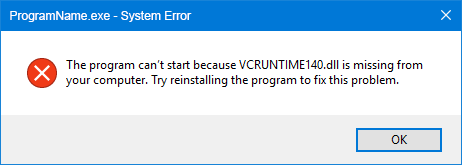
If the required runtime is missing, damaged, or incompatible, the application may display errors involving files such as MSVCP140.dll or VCRUNTIME140.dll.
Games and multimedia applications may depend on DirectX components. Missing or damaged DirectX files can cause errors when launching graphics-intensive software.
Some DLL errors are more frequently encountered than others.
This error is commonly associated with the Microsoft Visual C++ runtime. Installing or repairing the appropriate Microsoft Visual C++ Redistributable package may resolve the issue.

This is another error frequently associated with Microsoft Visual C++ runtime components.
This DLL is associated with Direct3D 11. Errors involving it may occur when launching games or applications that use DirectX graphics.
:max_bytes(150000):strip_icc()/d3d11-dll-error-message-59b1bc9cd088c000116c2342.png)
This DLL is associated with older versions of DirectX and may be required by some games or applications.

Errors involving files beginning with api-ms-win- can be related to Windows components, application compatibility, or missing runtime dependencies.
The exact solution depends on the application and Windows version involved.
![SOLVED] api-ms-win-crt-runtime-l1-1-0.dll is missing - Driver Easy](https://images.drivereasy.com/wp-content/uploads/2017/05/1-25.jpg)
The appropriate solution depends on what caused the DLL problem. The following troubleshooting methods can help.
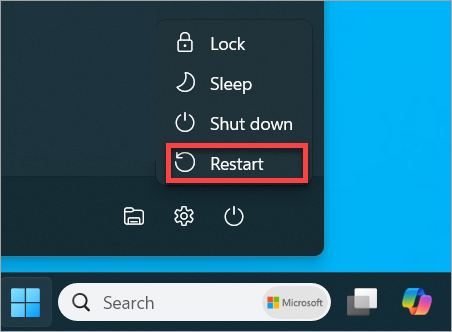
A simple restart can resolve temporary problems with Windows services, memory, or software processes.
If the DLL error disappears after restarting, continue monitoring the system. If it repeatedly returns, investigate the underlying cause.
If only one program produces the DLL error, reinstalling that application may be one of the simplest solutions.
First, uninstall the affected program through Windows Settings or Control Panel. Then restart the computer and reinstall the software using a trusted source.
This can restore missing application-specific DLL files.
Check for available Windows updates.
Go to:
Settings → Windows Update
and install available updates.
Keeping Windows updated can resolve known bugs and improve compatibility with applications and hardware.
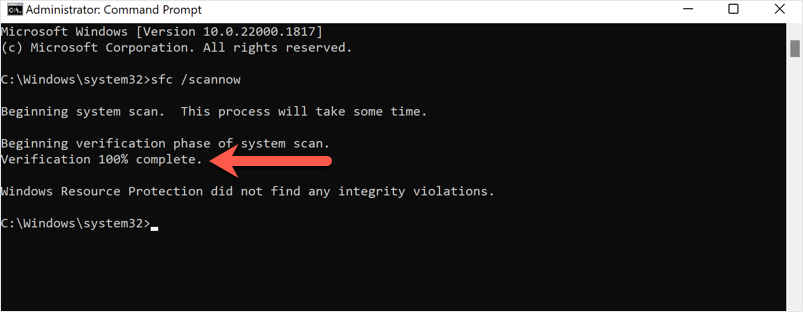
Windows includes a built-in utility called System File Checker (SFC) that can scan protected system files and attempt to repair corrupted files.
Open Command Prompt as Administrator and run:
sfc /scannow
Allow the scan to complete before restarting the computer.
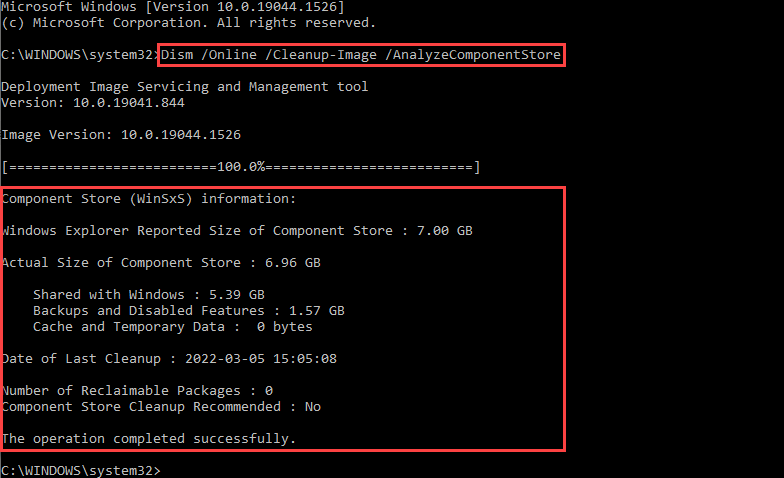
If SFC cannot repair the problem, the Deployment Image Servicing and Management (DISM) tool can be used to check and repair the Windows component store.
A commonly used command is:
DISM /Online /Cleanup-Image /RestoreHealth
After DISM completes, running sfc /scannow Again, it may help repair remaining system file problems.
If the error references files such as MSVCP140.dll or VCRUNTIME140.dll The application may require a Microsoft Visual C++ Redistributable package.
Download runtime components from Microsoft's official website rather than an unknown DLL download site.
The required architecture may depend on the application, so both x64 and x86 versions may sometimes be relevant on a 64-bit Windows computer.
If a DLL error occurs when launching a game or graphics application, check whether the software requires a specific DirectX component.
Use Microsoft's official DirectX-related installation and repair resources when necessary.
Visit the official website of your computer or hardware manufacturer to obtain appropriate drivers.
Important drivers may include:
Avoid downloading drivers from questionable third-party websites.
If a DLL appears suspicious or the problem started unexpectedly, perform a complete malware scan using a trusted security solution.
Do not assume that every DLL error is caused by malware, but unexplained system file changes should be investigated.
One of the most important rules when troubleshooting DLL errors is:
Do not randomly download individual DLL files from unknown websites.
Many websites offer downloadable DLL files, but installing an incorrect, outdated, modified, or malicious DLL can create additional problems.
A DLL may also depend on other files or runtime components. Simply placing a downloaded DLL into a Windows folder does not necessarily solve the underlying problem.
Instead, obtain the required component through:
If a DLL was recently deleted, check the Recycle Bin first.
If the file is a Windows system component, use Windows repair tools such as SFC and DISM rather than downloading a replacement from an unknown website.
If the DLL belongs to a specific application, reinstalling that application may be the safest way to restore it.
Not every DLL error causes a Blue Screen of Death.
Many DLL problems simply prevent a particular application from launching. However, problems involving critical Windows components, drivers, or system libraries can contribute to broader system instability.
If DLL errors are accompanied by frequent crashes, freezes, restarts, or BSODs, the problem may involve a deeper Windows, driver, hardware, or malware issue.
Although DLL problems cannot always be prevented, good computer maintenance can reduce the likelihood of encountering them.
Keep Windows and applications updated, install software from trusted sources, avoid unofficial modifications, and maintain reliable security protection.
Regularly backing up important files is also important. If a serious Windows problem occurs, having a backup can make recovery significantly easier.
Users should also avoid deleting files from Windows system folders simply because they appear unnecessary. Some DLL files are shared by multiple applications and Windows components.
If a DLL error continues after reinstalling the affected application and repairing Windows system files, further investigation may be necessary.
Professional assistance may be appropriate when:
Repeated DLL errors can sometimes be a symptom rather than the actual cause of the problem.
For users who are not comfortable troubleshooting Windows manually, PC maintenance software can simplify some aspects of system diagnosis and repair.
Advanced System Repair is designed to help users identify and address common Windows-related problems, unwanted files, system issues, and performance concerns. Using a system repair solution can be helpful when a computer has accumulated multiple issues, and you want a more convenient way to assess its overall condition.
However, important system repairs should still be performed carefully. Always maintain backups of important files and use trusted software from legitimate sources.
A Windows DLL error occurs when Windows or an application cannot properly access a required Dynamic Link Library. Missing files, corrupted system components, software installation problems, outdated runtimes, driver conflicts, malware, and Windows compatibility issues can all contribute to DLL errors.
The safest approach is to identify which application or Windows component is generating the error and then repair the underlying cause. Reinstalling affected software, installing Windows updates, repairing system files with SFC and DISM, installing the correct Microsoft Visual C++ Redistributable, and updating drivers can resolve many common DLL problems.
Most importantly, avoid downloading random DLL files from unofficial websites. Replacing a single file without understanding why it is missing can potentially create additional security and compatibility problems.
For users who want a simpler way to identify and address common Windows problems, Advanced System Repair can provide tools for system maintenance and troubleshooting. Keeping Windows maintained, applications updated, and important data backed up can help reduce the risk of DLL errors and keep your computer running reliably.
 Like
0
Like
0
 Dislike
0
Dislike
0
 Love
0
Love
0
 Funny
0
Funny
0
 Angry
0
Angry
0
 Sad
0
Sad
0
 Wow
0
Wow
0