Every time you use your computer, various hardware components work behind the scenes to keep everything functioning properly. Whether you are listening to music, connecting to Wi-Fi, watching a video, using a printer, or plugging in a USB device, your computer relies on software called device drivers.
Drivers allow your operating system, such as Windows, to communicate with the hardware installed in or connected to your computer. Without the correct drivers, many devices may not work properly or may not be recognized by the system.
Understanding the different types of computer drivers can help you identify common hardware problems and understand why keeping your drivers properly maintained is an important part of PC care.

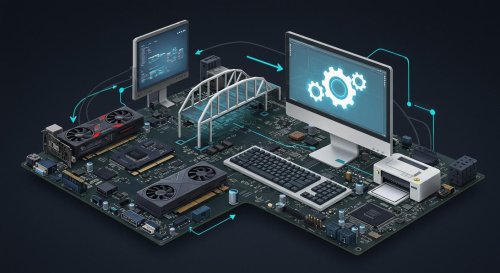
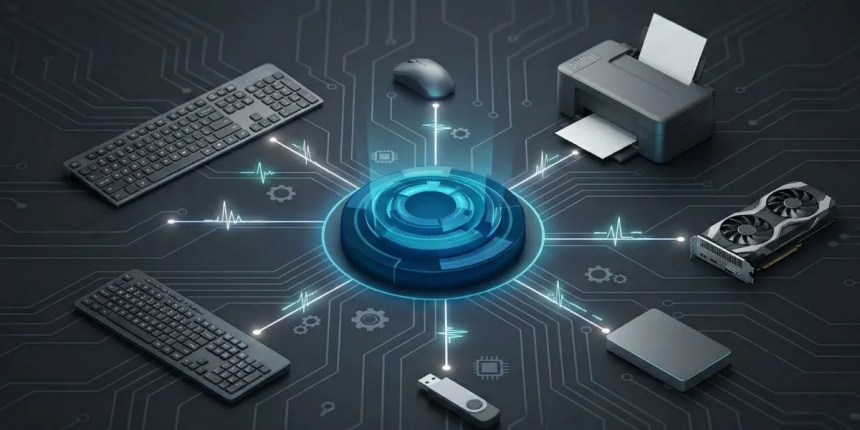
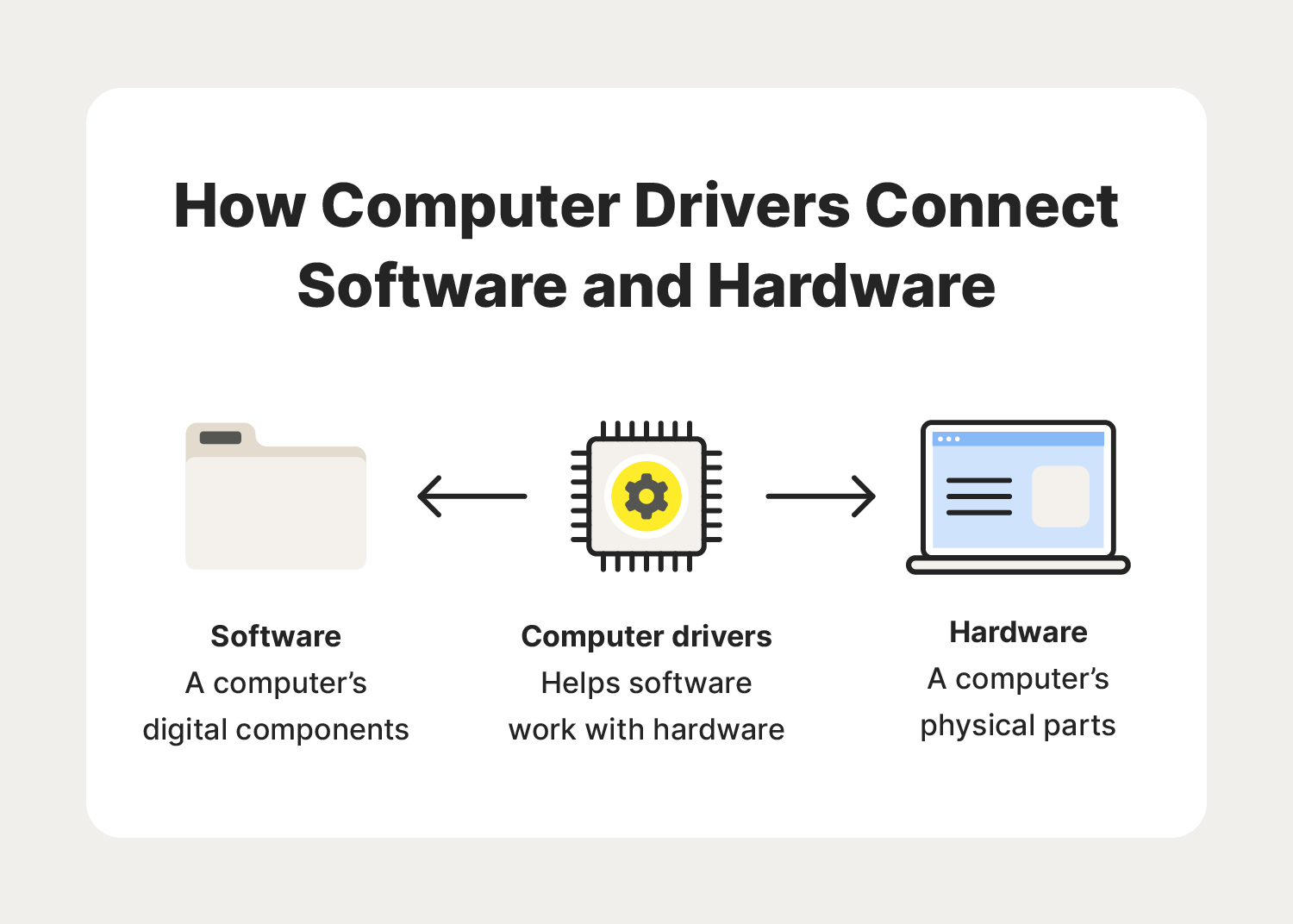
A device driver is a specialized software component that allows an operating system to communicate with a hardware device.
You can think of a driver as a translator between your computer's operating system and its hardware. Windows sends instructions to the driver, and the driver communicates those instructions to the appropriate hardware.
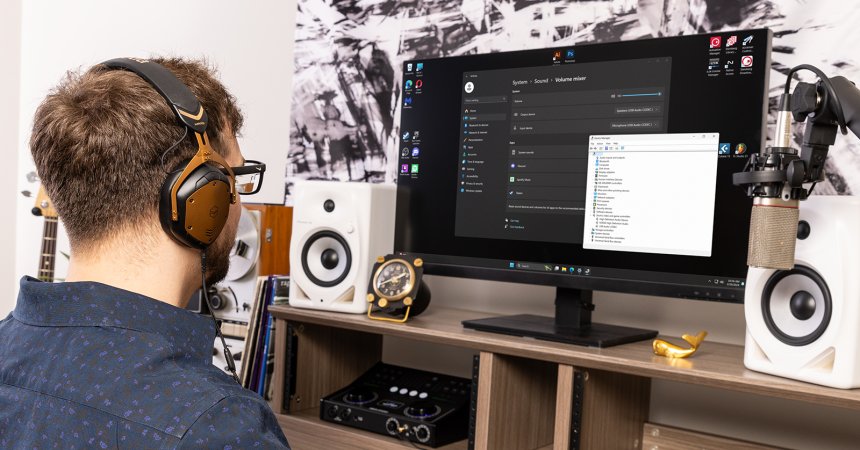
For example, when you play a song, the operating system communicates with the audio driver, which then communicates with the sound hardware to produce audio through your speakers or headphones.
Different hardware components require different drivers because each device has its own functions and technical requirements.
:max_bytes(150000):strip_icc()/sys-files-windows-11-281f50e9ac3e4ae1a3ee956d78a3d39c.png)
Audio drivers allow your operating system to communicate with your computer's sound hardware.
You rely on audio drivers whenever you:
Listen to music
Watch videos
Join video meetings
Use headphones
Record audio
Use a microphone
Play games
If your computer suddenly has no sound, your microphone is not detected, or your audio becomes distorted, a problem with the audio driver may be one possible cause.
However, audio problems can also be caused by incorrect sound settings, hardware issues, damaged cables, or application settings. Driver troubleshooting is therefore only one part of diagnosing an audio problem.
:max_bytes(150000):strip_icc()/device-manager-update-drivers-31a2c22f8dd44fcd8f78f2ef68b6dd0e.png)
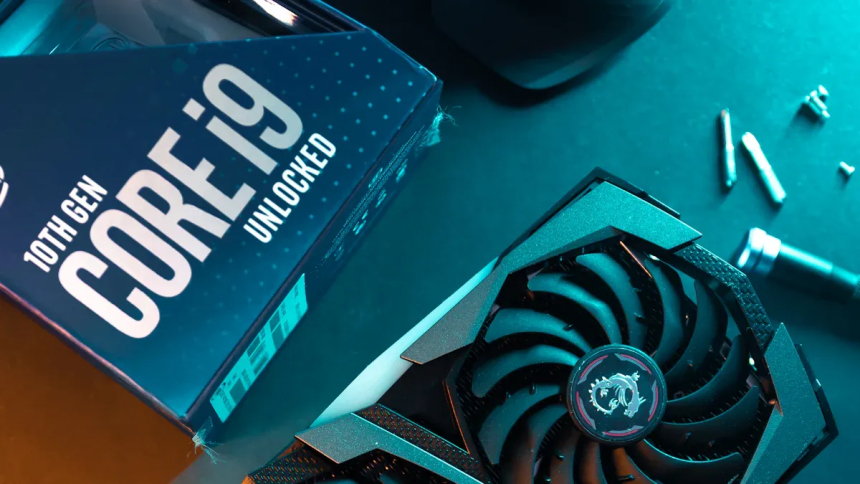
Graphics drivers allow Windows and applications to communicate with your graphics hardware.
They are particularly important for gaming, video editing, graphic design, animation, and other visually demanding tasks.
Graphics drivers help applications communicate with hardware such as integrated graphics or dedicated graphics cards.
Problems with graphics drivers may sometimes result in:
Screen flickering
Display glitches
Application crashes
Poor graphics performance
Game compatibility issues
Incorrect screen resolutions
Black screens
Graphics manufacturers regularly release driver updates that may include bug fixes, compatibility improvements, and support for newer applications and games.
Network drivers allow your computer to communicate with networking hardware.
They are essential when connecting to the internet or another network through devices such as:
Wi-Fi adapters
Ethernet adapters
Wireless network cards
If your computer suddenly cannot connect to Wi-Fi, fails to detect an Ethernet connection, or shows problems with a network adapter, the network driver may be one of several possible causes.
Before changing a driver, it is worth checking other potential causes such as your router, cables, network settings, or internet service.
Bluetooth drivers allow your computer to communicate with Bluetooth-enabled devices.
Many everyday accessories rely on Bluetooth, including:
Wireless headphones
Earbuds
Bluetooth speakers
Wireless keyboards
Wireless mice
Game controllers
Smartphones
If Bluetooth devices are not detected, fail to pair, or repeatedly disconnect, checking the Bluetooth adapter and its driver can be a useful troubleshooting step.
Chipset drivers are important because they help Windows communicate with components connected to the computer's motherboard.
Although most users rarely interact directly with chipset drivers, they can play an important role in system stability and hardware communication.
Chipset-related components can be involved in communication with areas such as:
USB controllers
Storage interfaces
PCI Express components
Power management
Other motherboard functions
When installing or updating chipset drivers, it is important to use the correct drivers for your motherboard or computer platform.
Storage drivers help Windows communicate with storage devices such as SSDs and hard disk drives.
Your computer depends on storage hardware to access the operating system, applications, documents, photos, videos, and other files.
Storage-related driver problems may sometimes be associated with:
Drives not being detected
Boot problems
System instability
Storage compatibility issues
Unexpected errors
However, storage problems can also indicate hardware failure. If a drive begins making unusual noises, repeatedly disconnects, or produces frequent errors, important files should be backed up as soon as possible.
USB drivers help Windows communicate with devices connected through USB ports.
USB devices are extremely common and include:
Keyboards
Mice
Flash drives
External hard drives
Webcams
Printers
Game controllers
Smartphones
If a USB device is not recognized, the problem could involve the driver, USB port, cable, device firmware, or the device itself.
Trying another USB port and testing the device on another computer can help determine whether the problem is related to the computer or the peripheral.
Printers and scanners often require specific drivers to communicate correctly with Windows.
A printer driver allows the operating system and applications to send appropriate instructions to the printer. Scanner drivers perform a similar function by allowing software to communicate with scanning hardware.
If a printer is connected but cannot print, or a scanner is not detected, checking the device driver and connection can be an important troubleshooting step.
Using the correct driver from the device manufacturer is generally recommended.
Webcams and other imaging devices may also require drivers to communicate with Windows.
These drivers can be important for:
Video calls
Online meetings
Streaming
Recording
Facial recognition
Camera applications
If your webcam is not detected or another application cannot access it, check the device settings, privacy permissions, physical connection, and driver status.
Laptops commonly rely on drivers for their touchpads and other input devices.
A touchpad driver can support features such as:
Cursor movement
Scrolling
Multi-finger gestures
Tapping
Right-click functionality
If a laptop touchpad stops responding or certain gestures no longer work, the driver may be one possible cause.
External keyboards and mice may also depend on appropriate drivers or Windows' built-in support.
Hardware manufacturers periodically release driver updates for different reasons.
Updates may provide:
Bug fixes
Improved hardware compatibility
Support for new operating system versions
Performance improvements
Stability improvements
Security-related fixes
However, newer does not always automatically mean better for every computer.
Installing the wrong driver can create compatibility problems or cause a previously working device to malfunction. Before updating a driver, make sure that the driver is intended for your specific hardware and operating system.
Driver problems can appear in many different ways. Some common signs include:
Hardware suddenly stops working
Windows does not recognize a device
Audio disappears
Wi-Fi stops working
Bluetooth devices cannot connect
Graphics become unstable
Devices repeatedly disconnect
Certain hardware features stop working
Applications crash when using specific hardware
These symptoms do not necessarily mean that a driver is responsible. Hardware failure, Windows settings, application conflicts, cables, and other software problems can produce similar symptoms.
Proper troubleshooting is important before making changes to your system.

Windows provides built-in tools that allow users to view installed hardware and drivers.
One commonly used tool is Device Manager.
To open Device Manager:
Right-click the Start button.
Select Device Manager.
Expand a hardware category.
Select the device you want to inspect.
Right-click the device and select Properties.
Open the Driver tab.
Depending on the device, you may be able to view driver information, update the driver, roll it back, disable the device, or uninstall the driver.
If you are unsure about a driver or hardware component, avoid making unnecessary changes.
There is no need to automatically update every driver simply because a newer version exists.
A better approach is to update drivers when there is a specific reason, such as:
A hardware compatibility issue
A known bug
A manufacturer-recommended update
An operating system upgrade
A security-related fix
A specific application or game requiring newer support
Always obtain drivers from trusted sources, preferably the hardware manufacturer's official website or a reliable system update mechanism.
Be cautious with websites that offer large collections of unknown or unofficial drivers.
Good computer maintenance habits can reduce the likelihood of driver-related issues.
Consider the following practices:
Windows updates can include hardware compatibility improvements, security fixes, and other system changes.
Whenever possible, download drivers directly from your computer or hardware manufacturer's official website.
Before making significant system changes, make sure important files are backed up.
If a device is working correctly, there may be no reason to replace its driver without a specific need.
Knowing your computer's manufacturer, model, motherboard, graphics hardware, and other major components can make finding the correct driver much easier.
You may never see a driver while using your computer, but drivers are constantly working in the background.
Every time you connect to Wi-Fi, listen to music, use a webcam, play a game, print a document, or connect a USB device, drivers help Windows communicate with the hardware that makes those tasks possible.
Understanding common driver types can make PC troubleshooting less confusing and help you recognize when a hardware or software issue may need attention.
The key is not simply to install the newest driver available. Instead, focus on using the correct, compatible, and trustworthy driver for your hardware.
With regular system maintenance, safe software practices, and careful driver management, you can help keep your computer reliable, responsive, and ready for everyday use.
 Like
0
Like
0
 Dislike
0
Dislike
0
 Love
0
Love
0
 Funny
0
Funny
0
 Angry
0
Angry
0
 Sad
0
Sad
0
 Wow
0
Wow
0