

Background apps continuously consume system resources such as CPU cycles, memory, and network bandwidth. While some are necessary (like antivirus or cloud sync tools), others can drain power and slow down systems.

Key issues caused by background apps:
Controlling which apps run in the background helps ensure that only essential processes are active, improving efficiency and stability.
Windows systems often have multiple apps configured to run in the background. You can disable them through Settings, Task Manager, or Group Policy.
These steps will help IT admins ensure critical systems don’t run unnecessary processes that waste resources.
Mac systems also allow background processes, which can be managed via Login Items, Activity Monitor, or Energy Saver settings.
This prevents non-essential background tasks from draining your Mac’s performance and battery.
Background app activity is also common on mobile platforms like iOS and Android, impacting battery and data usage.
This is useful for professionals who rely on mobile devices for business tasks and need to maximize battery life and security.
Limiting background activity offers several operational advantages for both personal and enterprise systems:
For IT managers, this can translate to fewer helpdesk tickets and more reliable systems.
For organizations managing multiple devices, manual steps aren’t scalable. Instead, use centralized policies or management tools.
Centralized control ensures consistent performance improvements across the organization.
Even after disabling background apps, new software installations may add new processes. IT teams should routinely monitor background activity to maintain performance.
Best practices:
This proactive approach prevents performance degradation over time.
While stopping background apps is helpful, some common errors can cause disruptions:
Ensure users understand which processes are essential before disabling them to prevent unintended downtime.
Yes, especially on systems with limited RAM or older CPUs. It frees up system resources and can noticeably speed up performance.
Not all. Essential services (antivirus, backup, OS tasks) should remain active. Focus only on unnecessary third-party apps.
Review them monthly or after installing new software to ensure only necessary processes are running.
Some apps may not update automatically when disabled. Enable them temporarily when you need updates.
Yes. Disabling essential system processes can break features or security. Always research the function of an app before disabling it.
Knowing how to stop apps from running in the background is an essential performance and security practice for IT teams, cybersecurity professionals, and everyday users. By controlling which processes stay active, you can significantly improve speed, extend battery life, and minimize potential vulnerabilities.
Empower your team to keep devices optimized, protected, and secure.
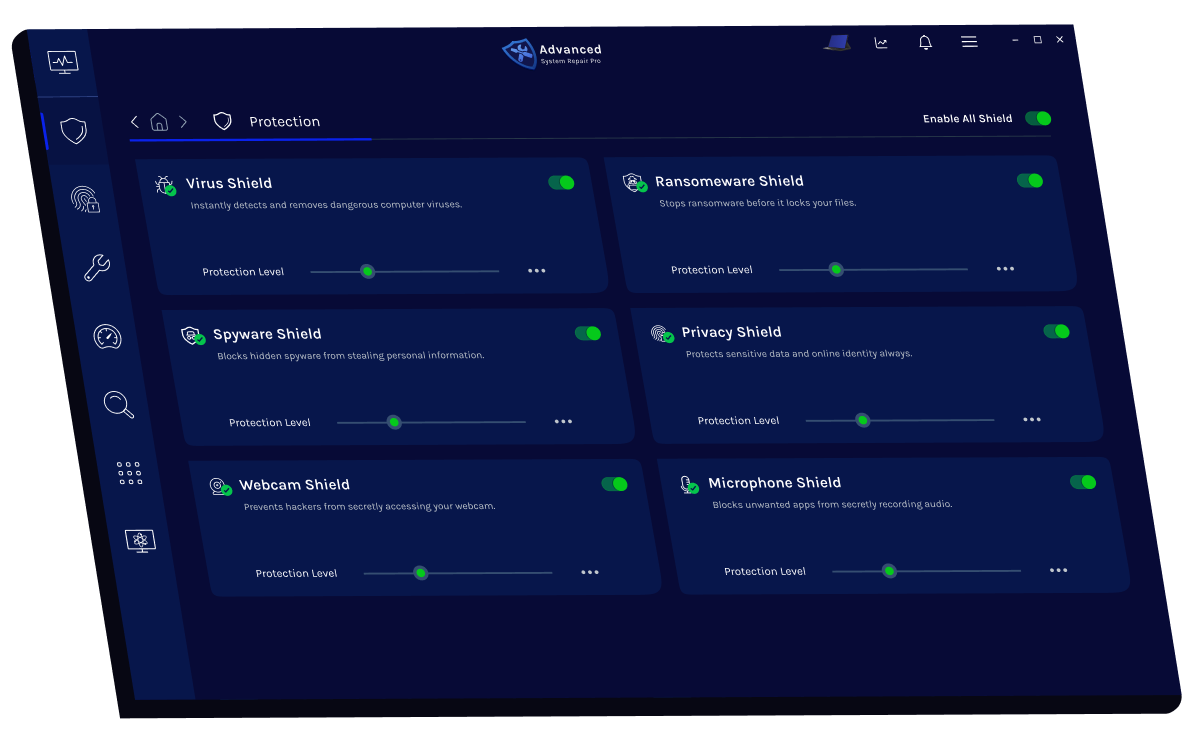
Sign up with Advanced System Repair and get access to enterprise-grade computer management and security tools to boost your computer performance.
 Like
0
Like
0
 Dislike
0
Dislike
0
 Love
0
Love
0
 Funny
0
Funny
0
 Angry
0
Angry
0
 Sad
0
Sad
0
 Wow
0
Wow
0