Nearly everyone has experienced trying to Google something on their device, only to realize they’re waiting much longer than usual for the results to load. Maybe your phone starts getting hot in your hands, or you’re looking for ways to make your laptop faster.
This is likely due to insufficient random access memory (RAM) on your device. Luckily, there’s a simple fix you can do yourself to help your devices run better. Keep reading to learn how to free up RAM and avoid a trip to the repair shop.

RAM is the short-term data that’s stored on your device’s memory chip. Essentially, it’s the memory that allows your devices to run different applications simultaneously so the system can complete multiple tasks at once. If you’re listening to music while sending an email or updating your system while watching your favorite TV show, you can thank your device’s RAM for that.
When you use up all of the available RAM memory, your computer’s performance can slow down because it doesn’t have the storage required to complete its tasks. When you clear RAM space, it gives your computer the capability to carry out tasks. Depending on your device, there are a few different ways you can free up and check your RAM space. Keep reading for our ti
It can be easy to use up your RAM (and then wonder how to lower RAM usage) because it supports so many functions. Before you start removing programs from your computer, try these quick fixes to free up RAM space.
The first thing you can try to free up RAM is restarting your computer. When you restart or turn off your computer, all of your RAM (stored data) will be wiped clean, and programs will be rebooted. This can potentially clear out some processes and programs that are running behind the scenes, taking up your RAM storage.
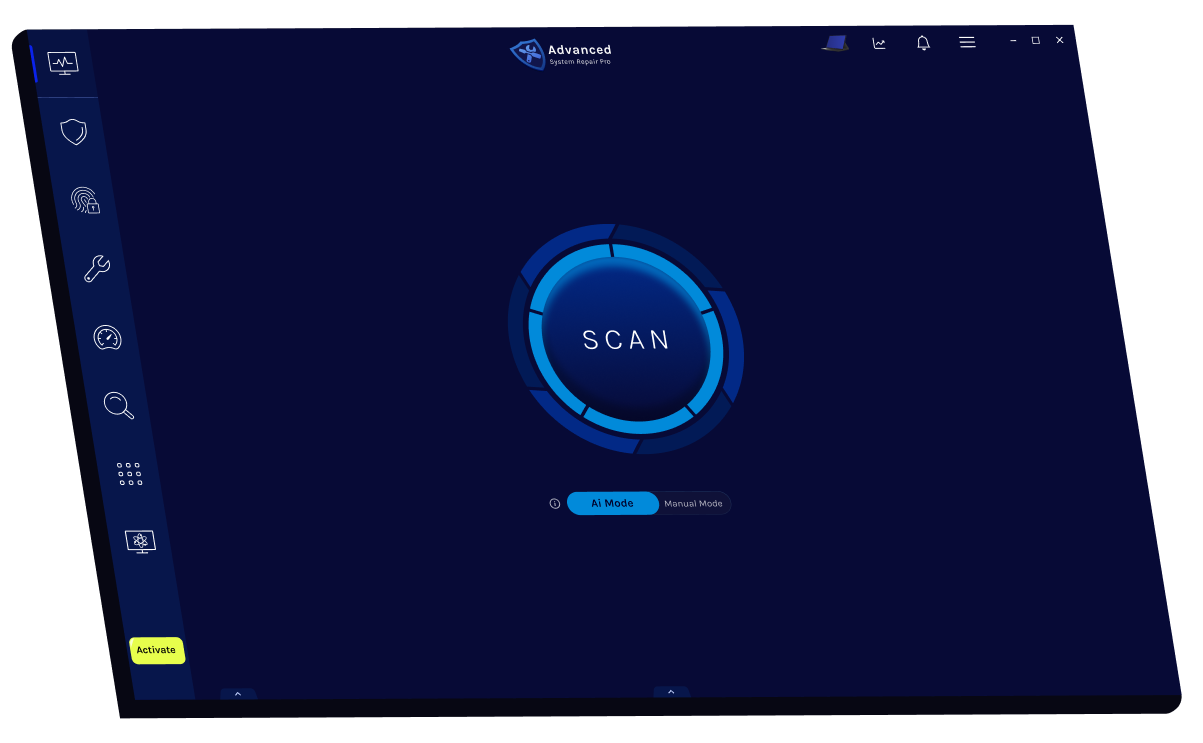
It’s important to run the most up-to-date versions of your computer software and applications. Older renditions of software and apps can take more memory to process, causing your computer to slow down. Advanced System Repair includes Update Manager, ensuring your computer is always up-to-date and running at its best.
If you still find yourself short on RAM, the next option is to try deleting your cache. Like RAM, the cache stores short-term data to keep your device working smoothly. The key difference between cache and RAM is that the cache stores a smaller amount of data and is used for data you’d need to access very quickly.
The cache holds onto information that your computer uses to reload pages it has seen before rather than downloading them again. Sometimes your cache can take up a lot of space because it uses RAM for memory functions. The cache can save you time when browsing, but if you’re short on RAM, it’s something you can sacrifice with minimal effects on your device.
Something else you can try is changing browsers, as some have been known to use more data than others. If you’re not already, try using a browser like Chrome or Firefox, which are typically good browsers for memory management.
Many of your daily work and home computer operations have been made easy by the use of browser extensions. However, they also require memory, so you might want to think about disabling or removing your extensions.
One of the easiest ways to manage the memory of your device is by using optimization software. These tools are designed to clean up unnecessary background processes, freeing up RAM and clearing memory automatically. They also help monitor RAM usage in real time and can lower RAM usage by eliminating resource-hogging applications.
If you are still having trouble figuring out how to lower your RAM usage, you might have too many programs and applications without even knowing. Try these five ways to free up RAM storage for Windows 11 computers and speed up your Windows PC.
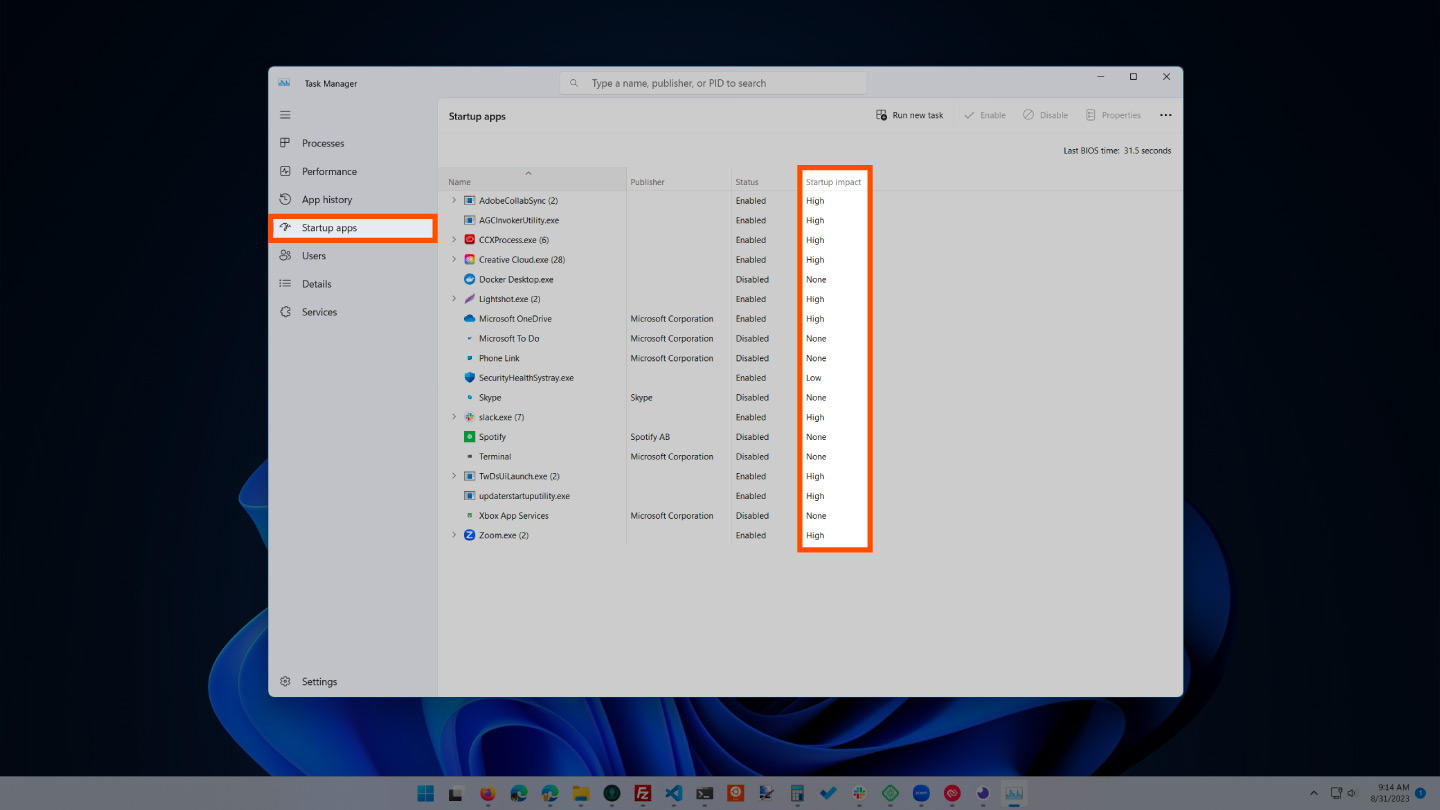
If you have used your computer for at least a few years, then you have probably downloaded a fair amount of software that you either forgot about or no longer use. After the processes tab tells you which programs use the most space, you will want to maneuver to the startup tab to stop those you no longer need.
To disable startup programs:
Startup programs are those that activate when your computer is booted up. When these programs start, each one takes up a little bit of RAM in the background without your consent. After a while, all of the software and programs can add up. Be sure the ones that aren’t needed are disabled or removed.
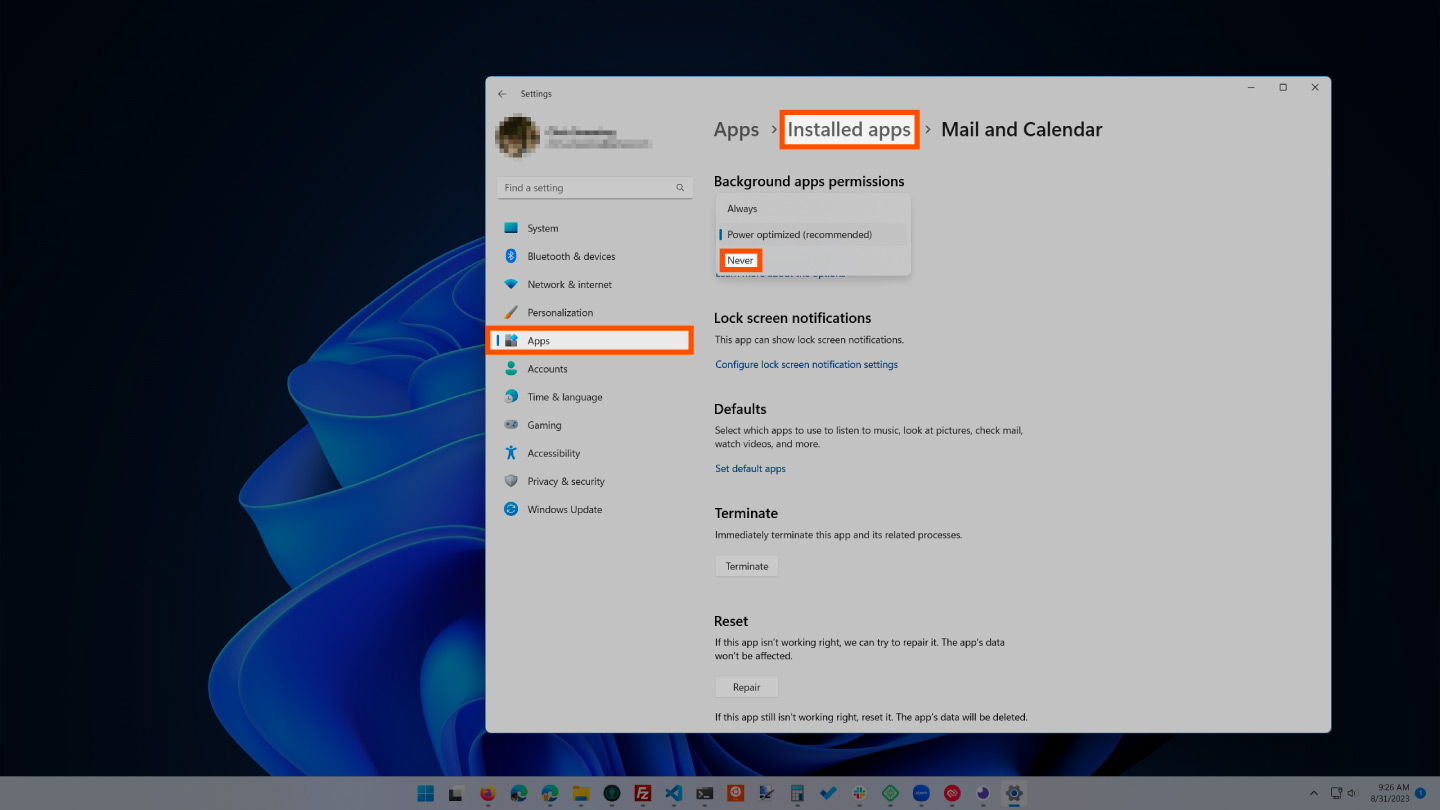
The next items that could be taking up RAM are applications that are set to automatically run in the background. You may have used your computer for years before noticing some of these apps taking up your RAM storage. This can quickly exhaust your memory, battery and data bandwidth.
To stop background apps:
Applications are often automatically set to run in the background of your device. This enables them to display notifications and update their software automatically. Turning this off on apps you don’t use can save RAM storage.
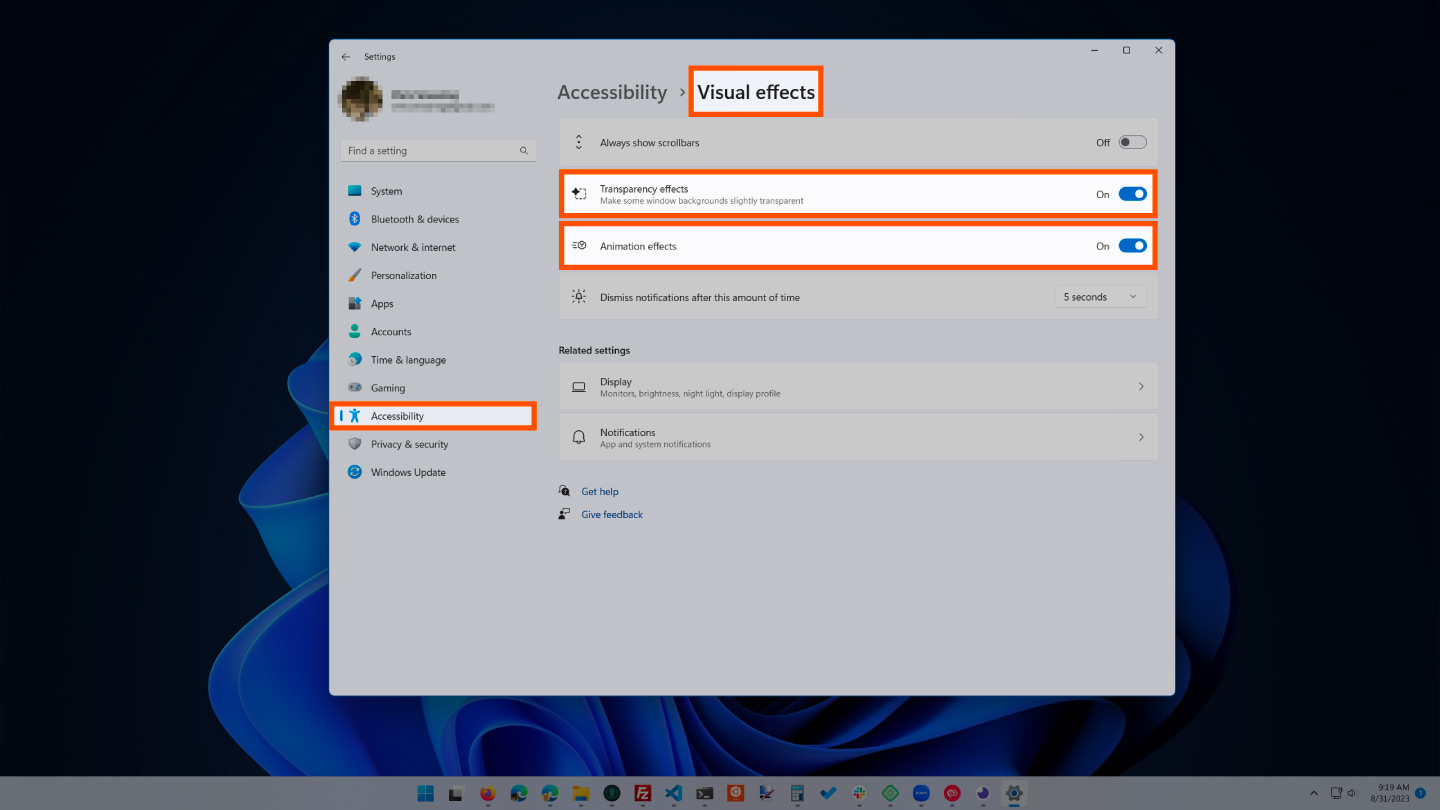
With improving technologies, there are many more possibilities for computer effects and visuals. For example, you can turn off the animations for apps and icons that use storage for unnecessary effects. If you seem to be running low on RAM storage, there are some effects you can shelve until you free up more memory.
To access your computer’s visual effects:
This setting will disable all animated features on your computer, creating more storage but limiting your computer’s aesthetics significantly. However, you can also customize which visual effects your computer will perform to your preferences in the same tab.
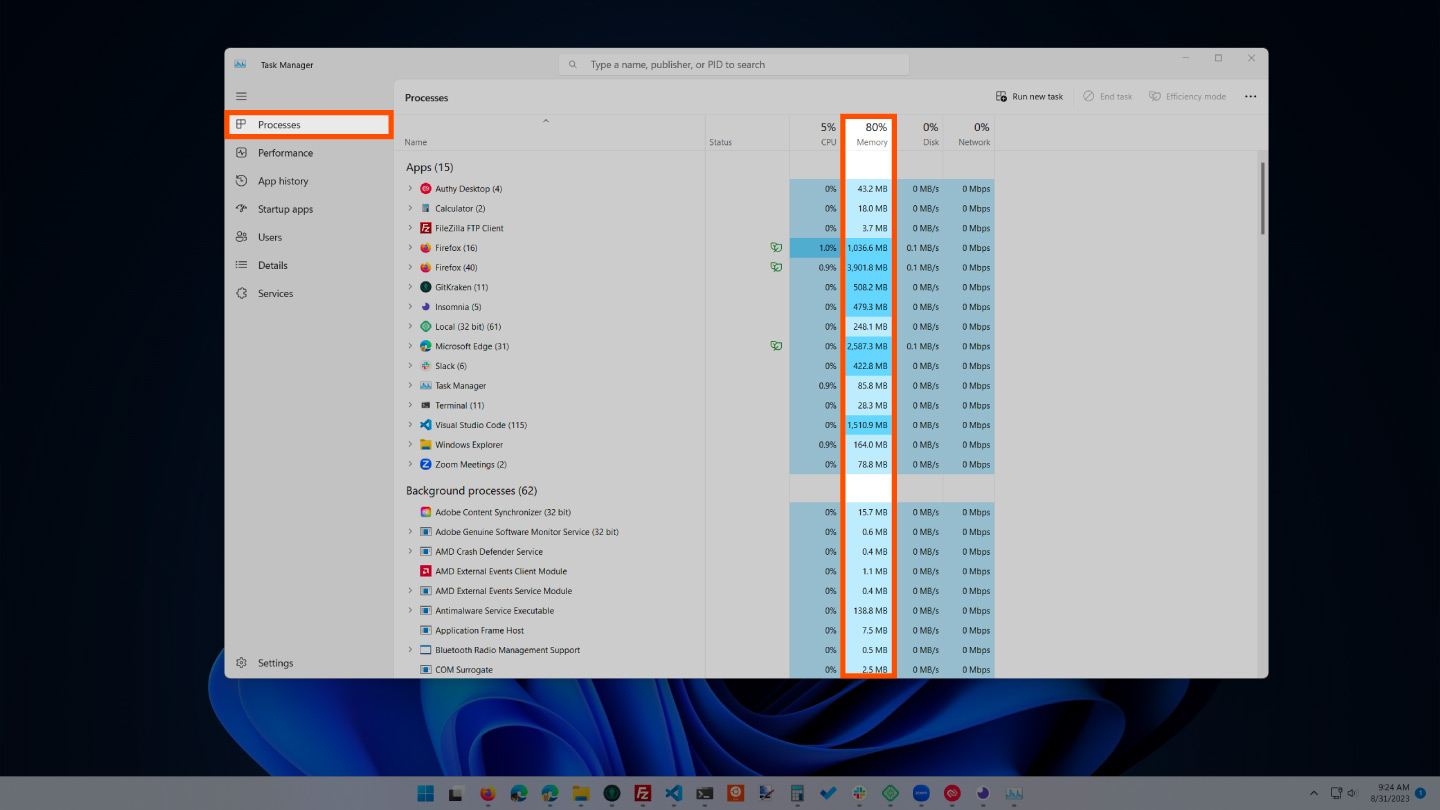
You should monitor your computer RAM usage so that you don’t deplete your supply before you really need it. To monitor your computer’s memory, you can navigate to the task manager to check the processes. This is where you’ll be able to see which programs are running and what kind of space they are taking up.
To locate your computer memory:
You can now see which of your programs are taking up the most time and space on your computer. If you find anything suspicious eating up your memory, you should delete programs you don’t need or use.
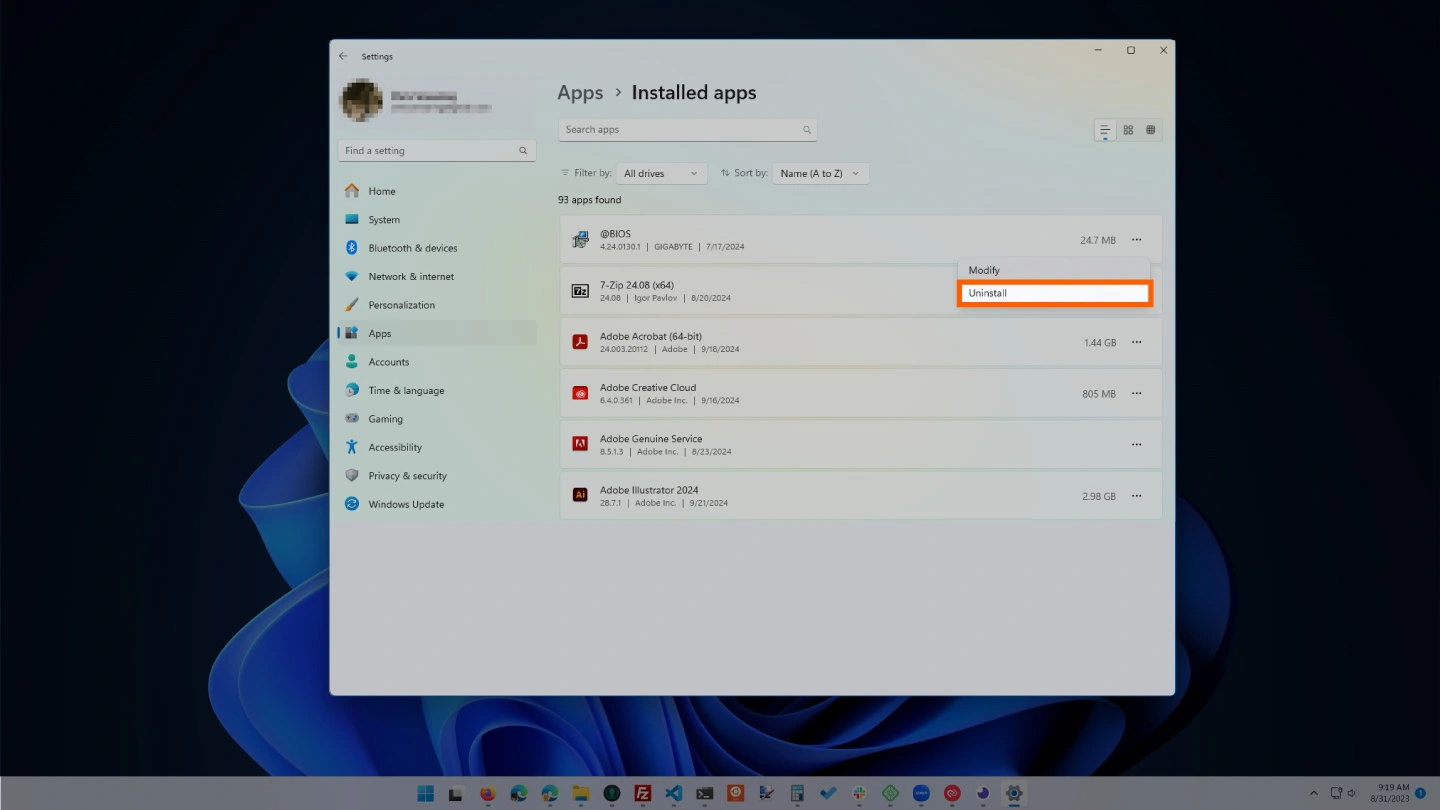
Unused programs take up valuable storage space and can indirectly affect your system’s performance, even if they aren’t actively running. Over time, these apps may install background services or receive updates that consume memory.
By uninstalling programs you no longer use, you can free up memory, reduce clutter and make your system run more efficiently. It also reduces potential security vulnerabilities from outdated software.
Steps to uninstall programs on Windows 11:
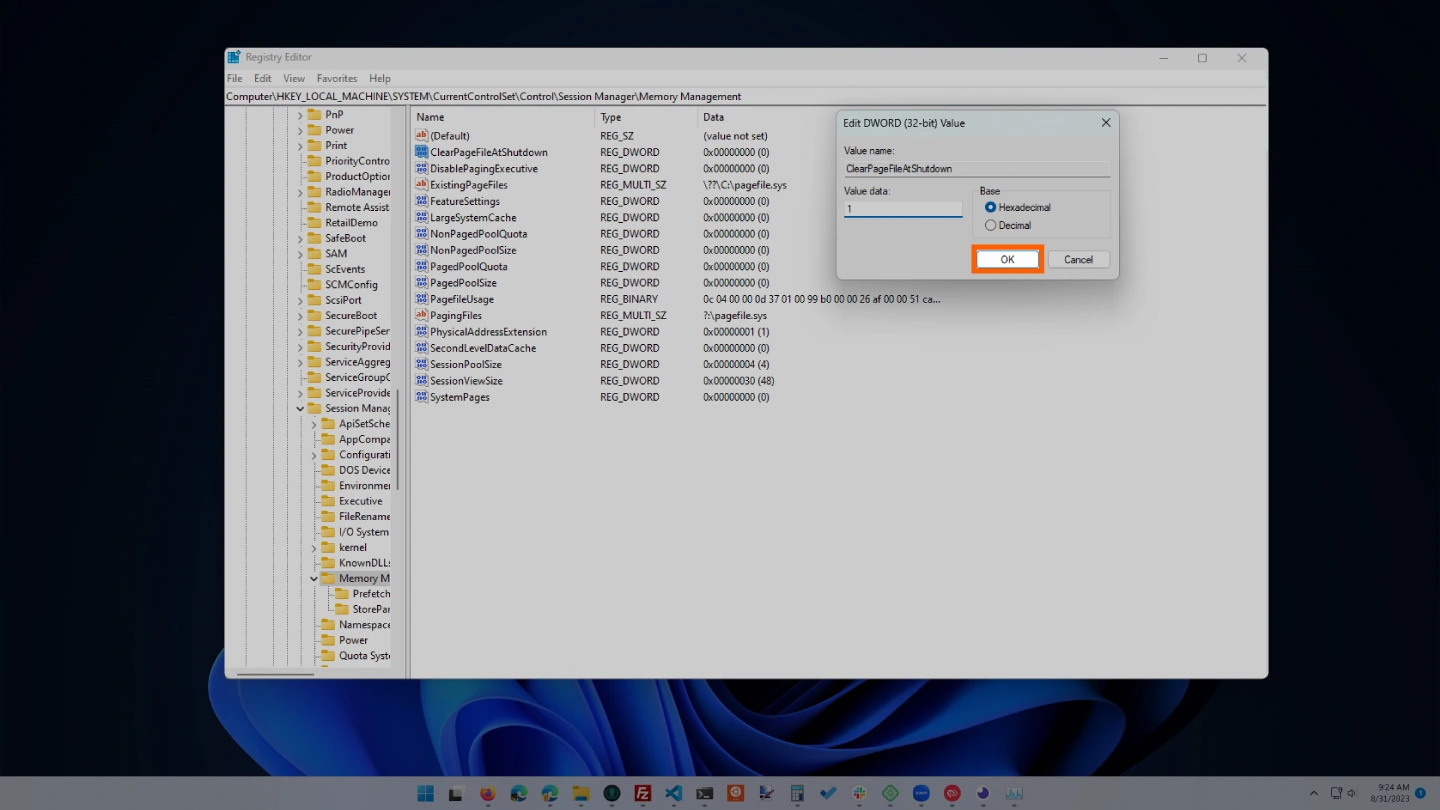
The page file acts as virtual memory when your system runs out of physical RAM, temporarily storing data that would otherwise overwhelm your memory. However, over time, the page file can become cluttered with unnecessary data, which may slow down your system. Clearing the page file before restarting can help free up memory and improve performance.
Here’s how to clear the page file using the Windows Registry Editor:
Freeing up system memory doesn’t require complicated tools or technical skills. Small, consistent actions—like closing unused apps and clearing cache—can make a noticeable difference. Keep your system lean, and it will reward you with faster, smoother performance.
 Like
0
Like
0
 Dislike
0
Dislike
0
 Love
0
Love
0
 Funny
0
Funny
0
 Angry
0
Angry
0
 Sad
0
Sad
0
 Wow
0
Wow
0