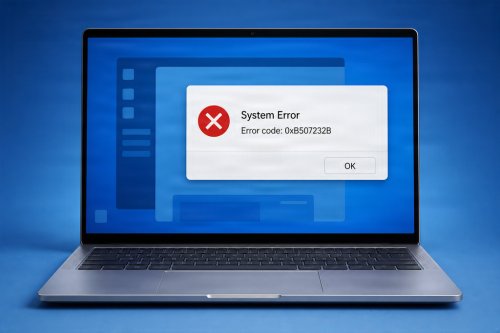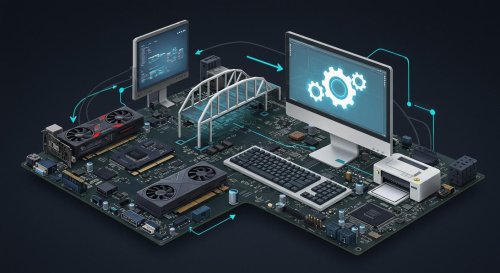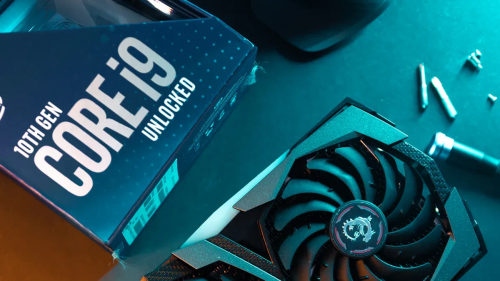

Is your computer running slower than usual? You don’t always need expensive upgrades or technical skills to fix it. With a few simple adjustments, you can boost your PC speed in just minutes and enjoy a smoother, faster experience. Computers, as most anyone can tell you, tend to run slower over time. The main reason is the installation of unnecessary applications and add-ins. Sometimes, malware also ends up on the computer (without the user’s knowledge). Before too long, the user is waiting an additional four or five seconds for each application to launch, each file to open, each webpage to load, and each page to print. That might not seem like much, but saving just 10 minutes a day translates to a time savings of more than 40 hours per year, so even a minor computer tuneup could yield significant productivity dividends.
Over time, computers accumulate unnecessary files, run too many background programs, and become cluttered. These issues reduce performance and cause delays when opening apps or browsing the web.
A simple restart clears temporary memory (RAM) and stops background processes that may be slowing down your system.
Running too many applications at once consumes system resources. Close apps you’re not using.
Too many startup apps can slow down boot time. Use Task Manager to disable unnecessary programs.
Delete temporary files, cache, and unnecessary data using built-in tools like Disk Cleanup or Storage Sense.
Install the latest updates for your operating system and applications to improve speed and security.
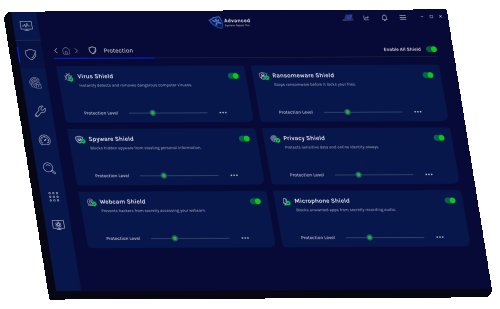
Viruses and malware can significantly slow down your PC. Run a full system scan using trusted antivirus software.
Ensure your hard drive has enough free space for smooth performance.
Switching from an HDD to an SSD can dramatically improve speed and responsiveness.
More memory allows your computer to handle multiple tasks more efficiently.
Reducing animations and visual effects can improve performance on older systems.

Boosting your PC speed doesn’t have to be complicated. With just a few quick steps, you can significantly improve performance and enjoy a faster, more efficient system. Make these habits part of your routine to keep your computer running smoothly.
 Like
0
Like
0
 Dislike
0
Dislike
0
 Love
0
Love
0
 Funny
0
Funny
0
 Angry
0
Angry
0
 Sad
0
Sad
0
 Wow
0
Wow
0