Your computer is an important part of your everyday life. Whether you use it for work, online browsing, communication, entertainment, or managing important files, you need it to perform reliably.
Over time, however, your PC can become slower and less responsive. Temporary files can accumulate, unnecessary programs may run in the background, and system issues can affect overall performance. Fortunately, regular PC maintenance can help keep your computer running smoothly.
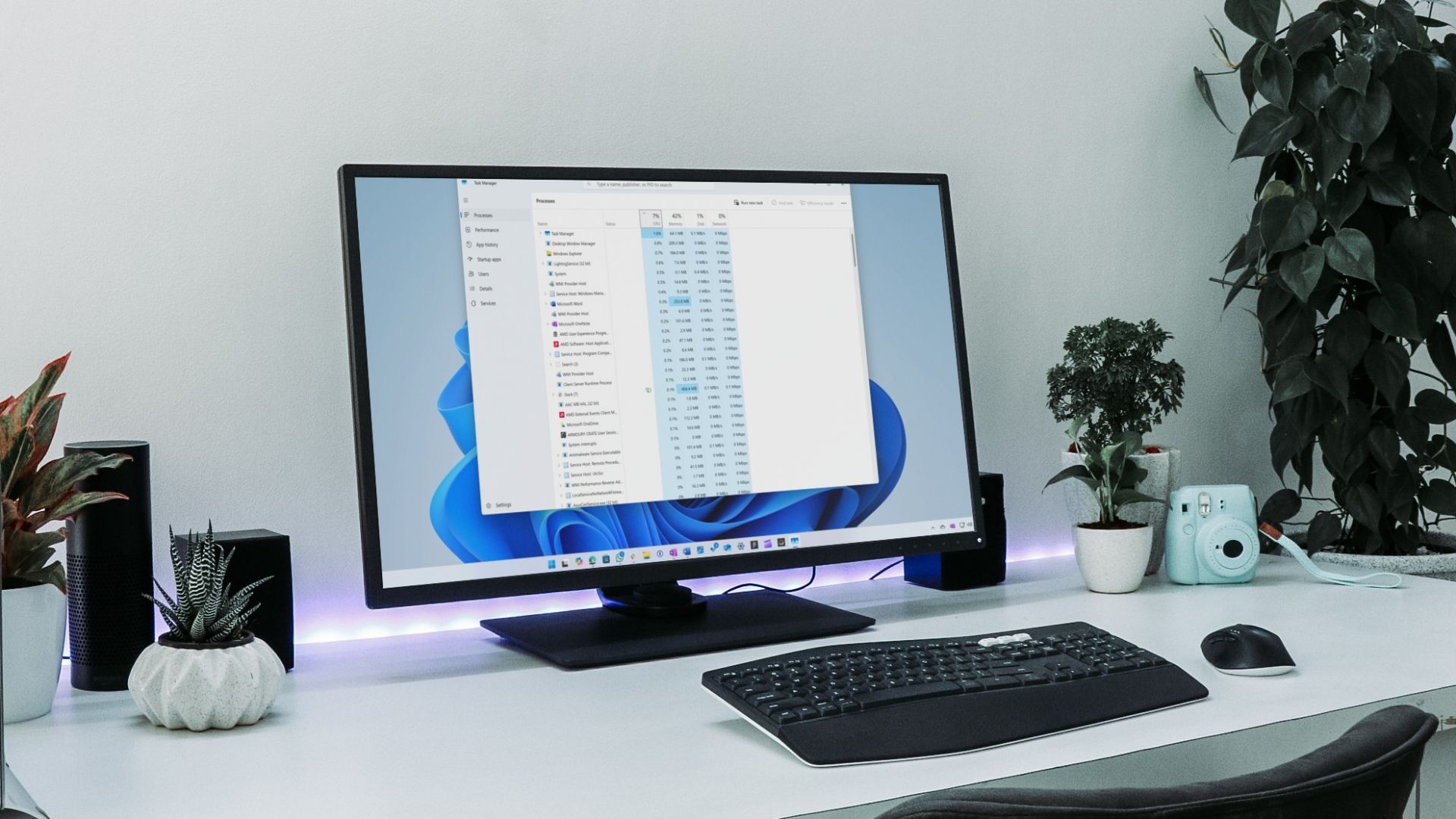
With the right habits and a reliable PC maintenance solution like MY Advanced PC Repair Pro, you can take proactive steps to help maintain your computer's performance and keep your system running at its best.
Just like any frequently used device, your computer benefits from regular maintenance. Over time, unused files, unnecessary applications, background processes, and other system clutter can affect available storage and overall system responsiveness.
Regular PC maintenance can help you:
Taking care of your computer regularly can help prevent small issues from becoming frustrating problems.
One of the simplest ways to maintain your PC is by regularly checking for unnecessary files and applications.
Temporary files, old downloads, cached data, and other unwanted files can gradually take up storage space. Removing unnecessary data can help free up space and make your computer easier to manage.
MY Advanced PC Repair Pro is designed to help users simplify routine PC maintenance by providing tools that can assist with identifying and addressing common areas that may affect system performance.
Instead of manually searching through different parts of your computer, a PC maintenance solution can help make regular system care more convenient.

Does your computer take a long time to start?
One possible reason is that too many applications are configured to launch automatically when Windows starts. These programs can consume system resources and increase startup time.
Reviewing startup applications regularly can help you identify programs that may not need to launch immediately when your computer turns on.
Managing unnecessary startup activity can contribute to a faster and more efficient startup experience.
PC performance and security often go hand in hand. Malware, unwanted software, and suspicious applications can negatively affect your computer's stability and responsiveness.
Always practice safe browsing habits and use trusted security solutions to help protect your computer.
You should also:
A combination of good security habits and regular PC maintenance can help create a safer and more reliable computing experience.
Changes in your computer's performance can sometimes indicate that your system needs attention.
Common signs include:
Monitoring your PC regularly can help you identify potential issues before they become more disruptive.
MY Advanced PC Repair Pro provides an easy way to support routine system maintenance and help users stay more aware of their computer's overall condition.
Software updates are an important part of maintaining your PC. Updates may include security patches, bug fixes, compatibility improvements, and performance enhancements.
Make it a habit to keep Windows and your important applications updated.
Updated software can help reduce compatibility issues and ensure that your computer continues to work with the latest technologies and security standards.
Software maintenance is important, but physical maintenance also plays a role in your computer's performance.
Dust can build up inside your PC and restrict airflow, which may cause components to run hotter than normal.
To help maintain proper airflow:
A clean and properly ventilated computer can help support stable performance.
Maintaining your computer does not have to be complicated.
MY Advanced PC Repair Pro is designed to help simplify routine PC maintenance by giving users convenient tools to help monitor and maintain their systems.
Whether your PC has started feeling slower or you simply want to take a proactive approach to computer care, regular maintenance can help you stay on top of common system issues.
With MY Advanced PC Repair Pro, you can make PC maintenance a regular part of your digital routine and spend less time worrying about unnecessary system clutter and more time using your computer.
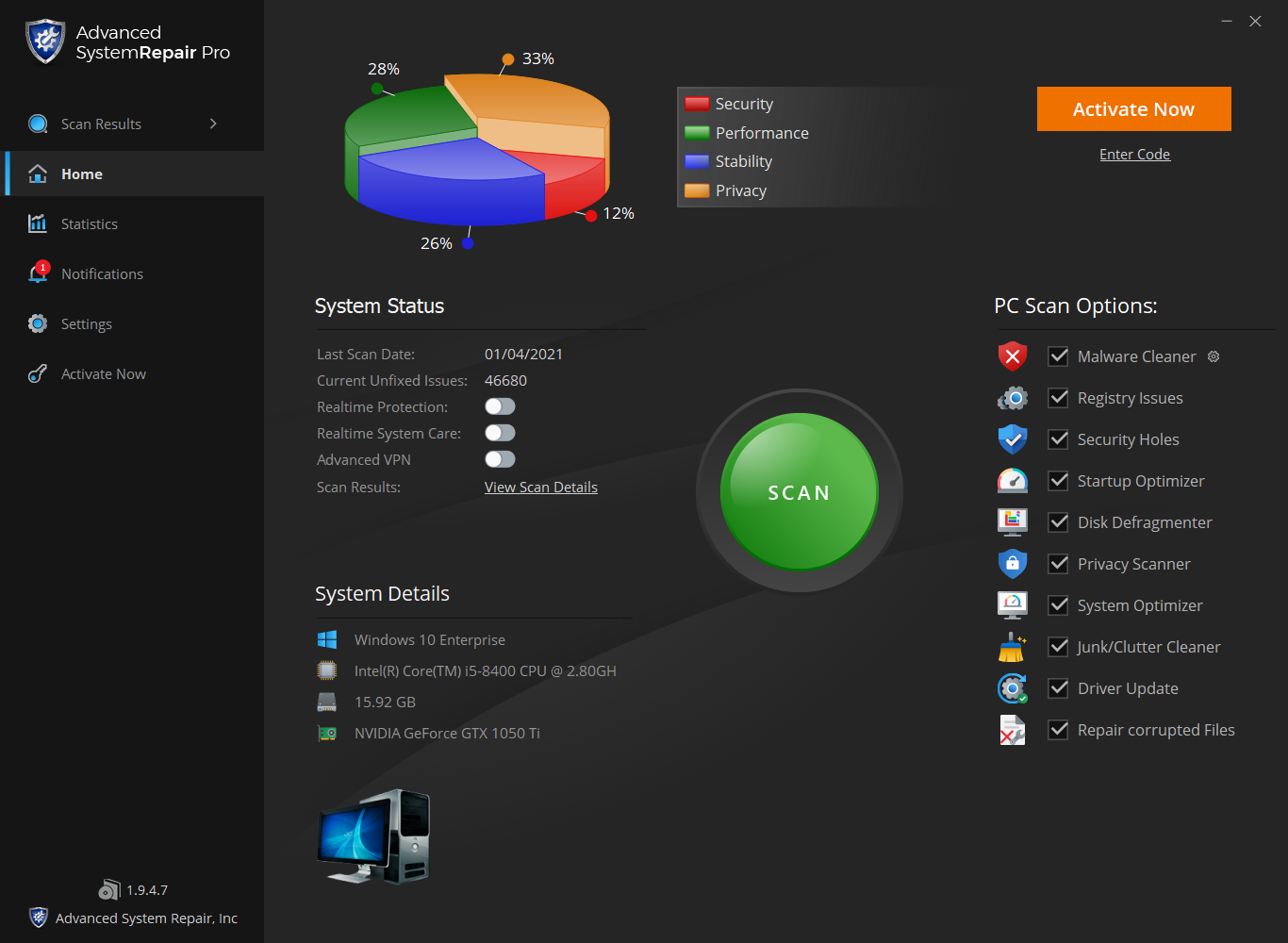
Your computer works hard for you every day. Regular maintenance can help support better performance, improve system responsiveness, and create a smoother computing experience.
Don't wait until your computer becomes frustratingly slow.
Take a proactive approach to PC maintenance with MY Advanced PC Repair Pro and help keep your computer running smoothly.
Maintain your PC. Stay productive. Enjoy a better computing experience with MY Advanced PC Repair Pro.
 Like
0
Like
0
 Dislike
0
Dislike
0
 Love
0
Love
0
 Funny
0
Funny
0
 Angry
0
Angry
0
 Sad
0
Sad
0
 Wow
0
Wow
0