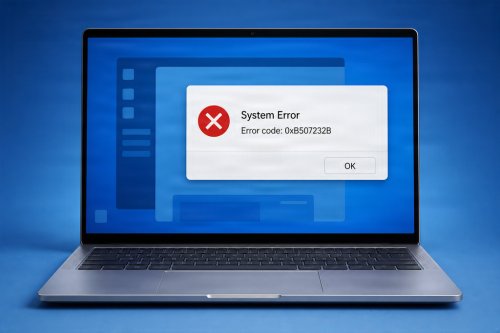
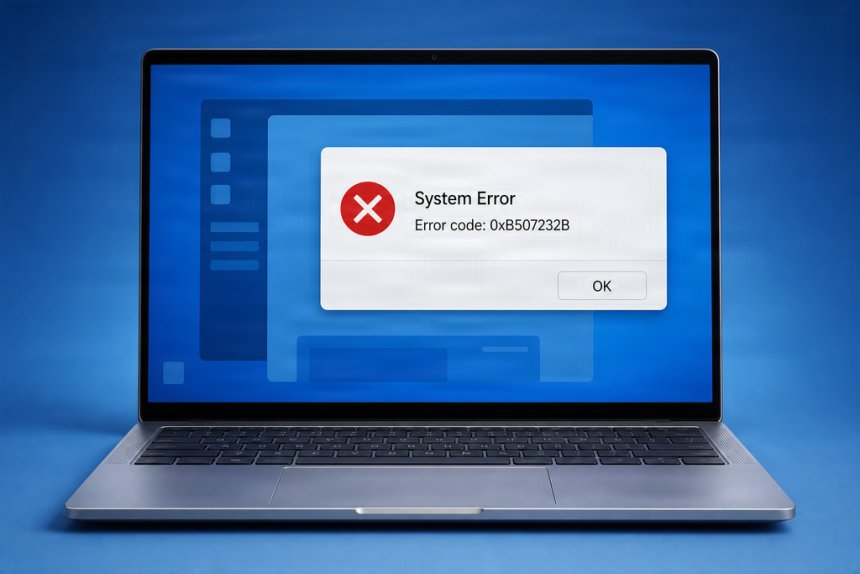
Windows error codes are messages generated by the Windows operating system when something goes wrong. They can appear when starting the computer, installing software, connecting to a network, updating Windows, accessing files, or using a particular application.
An error code may look confusing at first, but it is often an important clue that can help identify the source of a problem. Understanding what Windows error codes mean—and knowing where to look for additional information—can make troubleshooting much easier.
This guide explains common Windows error codes, what they generally indicate, and practical steps you can take to resolve them.

A Windows error code is a numerical or alphanumeric identifier associated with a specific problem or system condition.
For example, you may encounter codes such as:
The code itself does not always provide a complete explanation. It is better understood as a reference that can help users, technicians, and troubleshooting tools identify the type or source of an error.
Windows may display an error code together with a description, such as:
Error 0x80070005: Access is denied.
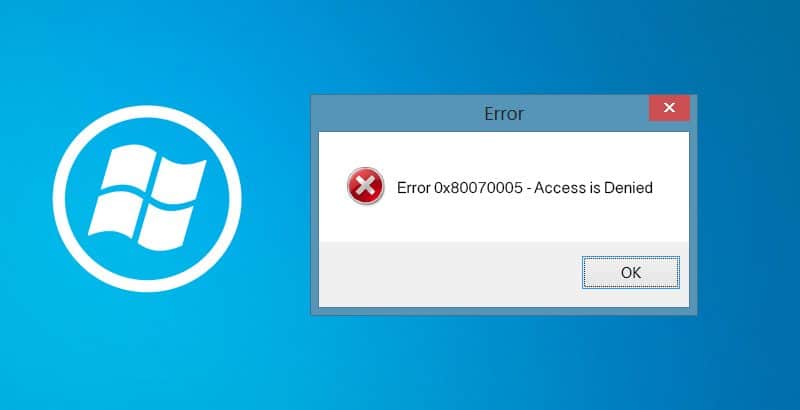
The description provides additional context about what Windows was attempting to do when the problem occurred.
Windows error codes can be caused by many different issues. Some are relatively simple, while others may indicate deeper operating system or hardware problems.
Common causes include:
Because the same computer can experience different types of errors, it is important to identify the exact error code before attempting a repair.
The 0x80070005 error is commonly associated with permission or access problems.
It may appear when:
Possible solutions include checking user permissions, restarting the computer, running Windows Update troubleshooting tools, and repairing corrupted system files.

The 0x80070057 error generally indicates that Windows received an invalid or unexpected parameter.
It can occur during Windows Update, backups, installations, or other system operations.
Potential causes include corrupted update components, incorrect configuration, damaged files, or problems with the operation being performed.
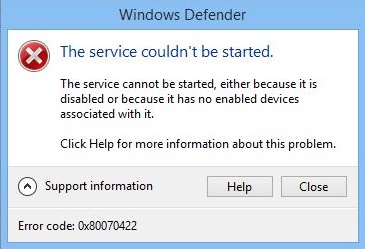
This error is commonly associated with a required Windows service being disabled or unavailable.
It may occur during Windows Update or when attempting to use certain Windows features.
Checking the relevant Windows services and ensuring that required services can start may help resolve the problem.
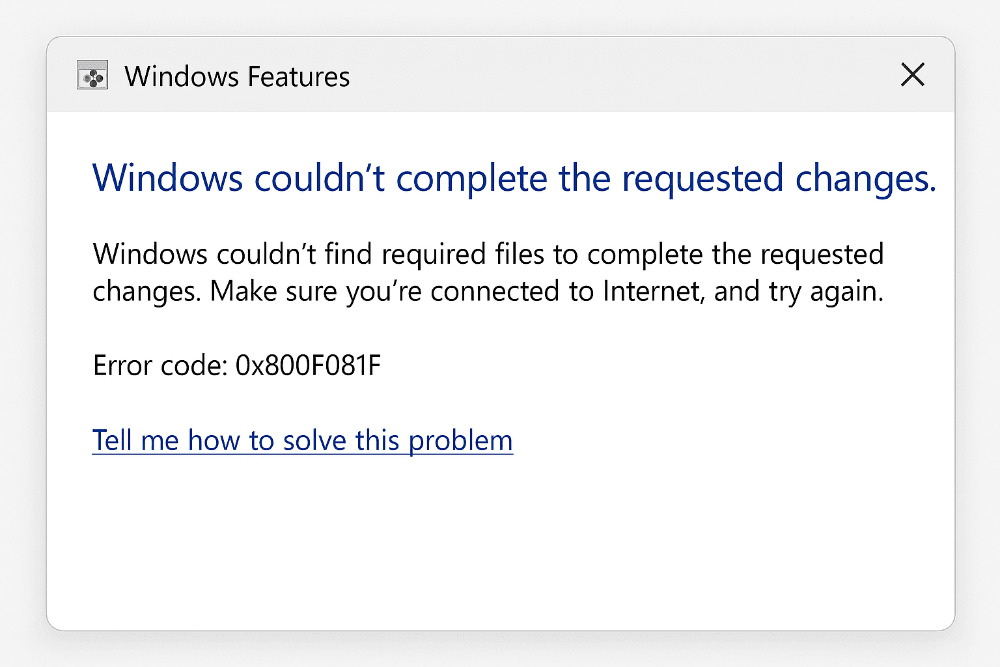
The 0x800F081F error can occur when Windows cannot locate required source files for a feature or repair operation.
It may appear while installing Windows components or using system repair tools.
The issue can sometimes be related to damaged Windows components or unavailable installation sources.
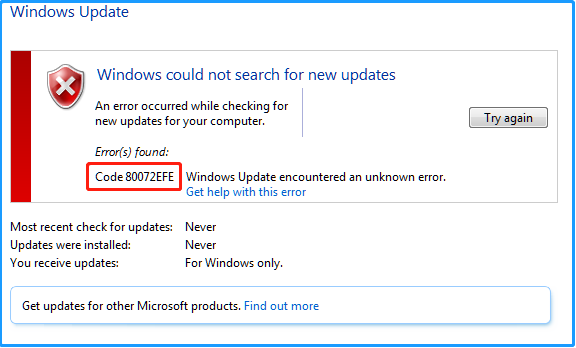
This error can be associated with connectivity problems when Windows attempts to communicate with an online service.
Possible causes include:
Checking the network connection and restarting network equipment may be useful first steps.
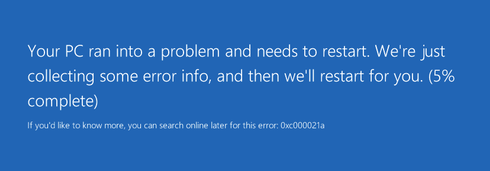
The 0xC000021A stop error is a serious Windows startup or system error. It can occur when critical Windows processes encounter a problem.
Because this type of error can prevent Windows from starting normally, recovery options such as Safe Mode, System Restore, Startup Repair, or other Windows recovery tools may be required.
Windows Update can produce many different error codes when an update cannot download, install, or complete successfully.
Common causes include:
If Windows Update repeatedly fails, restarting the computer, checking available storage, verifying the internet connection, and running Windows' built-in troubleshooting tools are reasonable first steps.
System repair tools such as SFC and DISM can also be useful when corrupted Windows components are suspected.
Windows may display an activation error when it cannot properly validate the operating system license.
Activation problems can occur after:
The exact solution depends on the activation error and the type of Windows license being used.
Users should avoid unofficial activation tools because they may introduce malware, compromise system security, or create additional Windows problems.
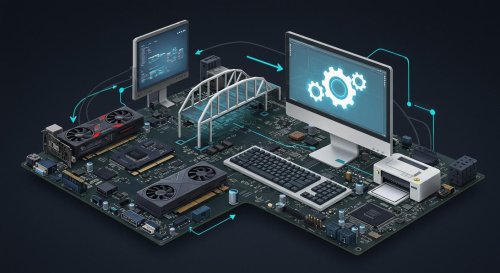
Windows Device Manager can also display error codes for hardware devices.
For example, a device may show a message indicating that Windows cannot start the device or that the required drivers are missing.
Common causes include:
Opening Device Manager and checking the affected hardware can help identify which device is causing the problem.
Updating, reinstalling, or rolling back the appropriate driver may resolve some device-related errors.
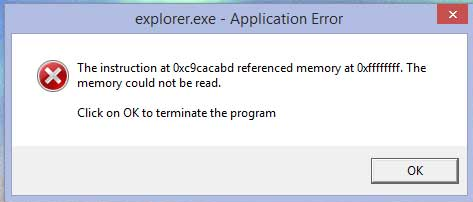
Not all Windows error codes originate directly from Windows itself. Individual applications can generate their own error messages and codes.
An application error may be caused by:
If only one application is affected, reinstalling or repairing that application may be more appropriate than changing Windows system files.
The first and most important step is to record the complete error message.
Do not rely on memory. Write down the code exactly as displayed, including letters, numbers, and the 0x prefix when present.
The exact code can significantly narrow down the troubleshooting process.
A restart can resolve temporary problems involving Windows services, memory, background processes, and hardware detection.
If the error returns after every restart, further investigation is needed.
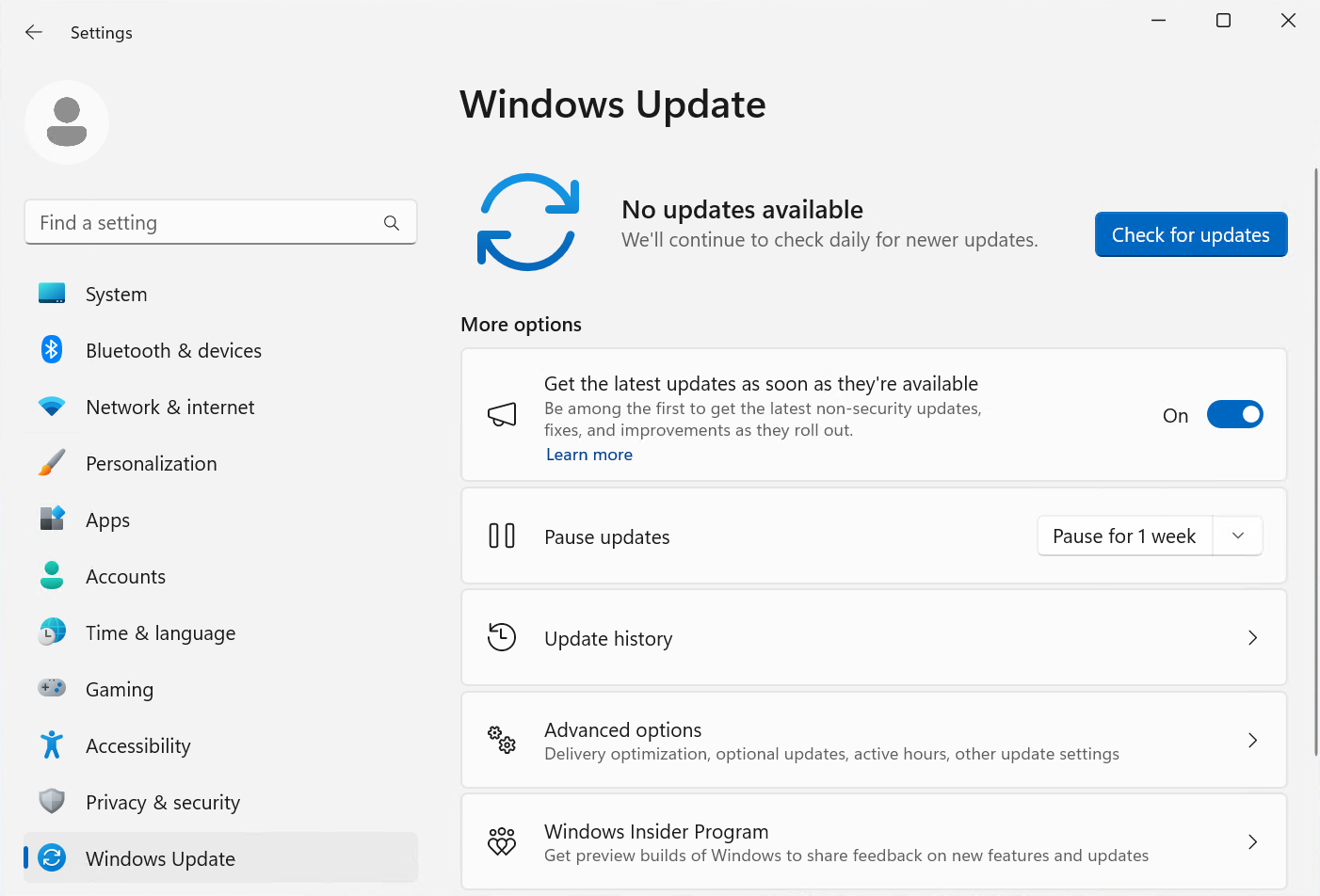
Go to:
Settings → Windows Update
Check whether updates are available.
Keeping Windows updated can resolve known bugs and compatibility problems, although a failed update can sometimes require additional troubleshooting.
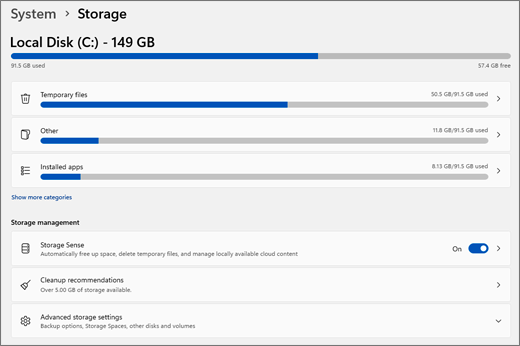
A lack of free disk space can cause Windows updates, installations, and applications to fail.
Open:
Settings → System → Storage
and check how much free space is available.
Removing unnecessary files can help if the system drive is nearly full.
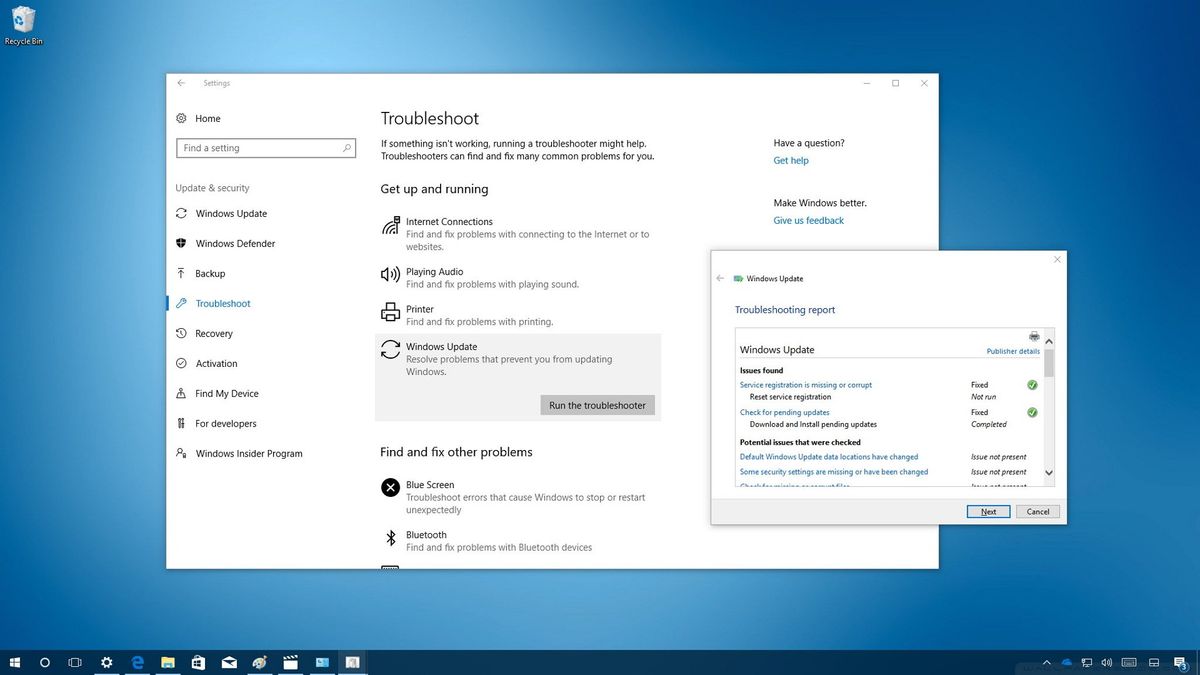
Windows includes troubleshooting features for various categories of problems, including Windows Update, networking, audio, printers, and other components.
The available troubleshooters depend on your Windows version.
If Windows files are suspected of being corrupted, use System File Checker.
Open Command Prompt as Administrator and run:
sfc /scannow
Allow the scan to finish before closing the window.
SFC can identify and attempt to repair protected Windows system files.

If SFC cannot resolve the issue, the Deployment Image Servicing and Management (DISM) tool can be used to check and repair the Windows component store.
A commonly used command is:
DISM /Online /Cleanup-Image /RestoreHealth
After DISM completes, running sfc /scannow again may be useful.
If an error appears after installing hardware or updating a driver, investigate the relevant device.
Open:
Device Manager
and look for devices displaying warning indicators.
Use drivers obtained from Windows Update or the hardware manufacturer's official website whenever possible.
If an error began immediately after installing a new application, update, driver, or system utility, the recent change may be related.
Uninstalling or rolling back the affected software can help determine whether it is responsible.
Malware can modify Windows files, services, and system settings. If errors are accompanied by unusual pop-ups, unexpected programs, browser changes, or abnormal system behavior, run a security scan using a trusted security solution.
A single error does not necessarily indicate serious computer damage. Temporary software problems can happen on any computer.
However, repeated errors should not simply be ignored.
Frequent error messages may indicate:
If multiple unrelated Windows error codes begin appearing, the underlying problem may be broader than any individual error message.
Good PC maintenance can reduce the likelihood of many Windows problems.
Keep Windows and applications updated, maintain sufficient free storage space, use trusted software, and avoid modifying system files unless you understand their purpose.
Regular backups are also essential. A backup cannot prevent an error, but it can protect important documents and personal files if a serious system failure occurs.
Users should also avoid downloading unofficial system files, drivers, or "fixes" from unknown websites. Some websites advertise one-click solutions for Windows errors but may distribute unwanted or malicious software.
Some Windows errors can be resolved with basic troubleshooting. Others may require more advanced diagnostics.
Consider professional assistance if:
A technician can examine the broader condition of the computer instead of treating each error code as an isolated problem.
Manually troubleshooting Windows errors can take time, particularly when a computer has multiple system issues.
Advanced System Repair provides tools designed to help identify and address common Windows problems, unwanted files, system issues, and performance-related concerns. It can be useful for users who want a more convenient way to assess and maintain their Windows PC.
Rather than focusing only on one error message, regular system maintenance can help identify other issues that may be affecting overall computer performance and reliability.
As with any system repair process, important files should be backed up, and trusted software should be used.
Windows error codes can seem complicated, but they are valuable troubleshooting clues. They help identify what Windows, a driver, an application, or another system component was doing when a problem occurred.
The most important step is to record the exact error code and message before attempting random fixes. From there, basic troubleshooting such as restarting the PC, checking Windows Update, freeing storage space, reviewing drivers, repairing system files, and checking recently installed software can often help identify the cause.
If Windows continues to generate errors, the problem may involve a deeper issue such as corrupted system components, malware, driver conflicts, or failing hardware. In these situations, a broader system diagnosis is more useful than simply trying to eliminate individual error messages.
For users looking for a convenient way to identify and address common Windows problems, Advanced System Repair can help with system maintenance, troubleshooting, and performance-related issues. Keeping your computer maintained and addressing repeated errors early can help improve system stability and reduce the risk of more serious problems later.
 Like
1
Like
1
 Dislike
0
Dislike
0
 Love
1
Love
1
 Funny
0
Funny
0
 Angry
0
Angry
0
 Sad
0
Sad
0
 Wow
1
Wow
1