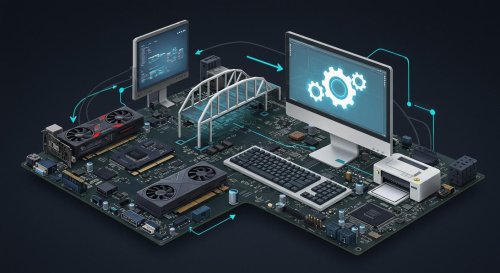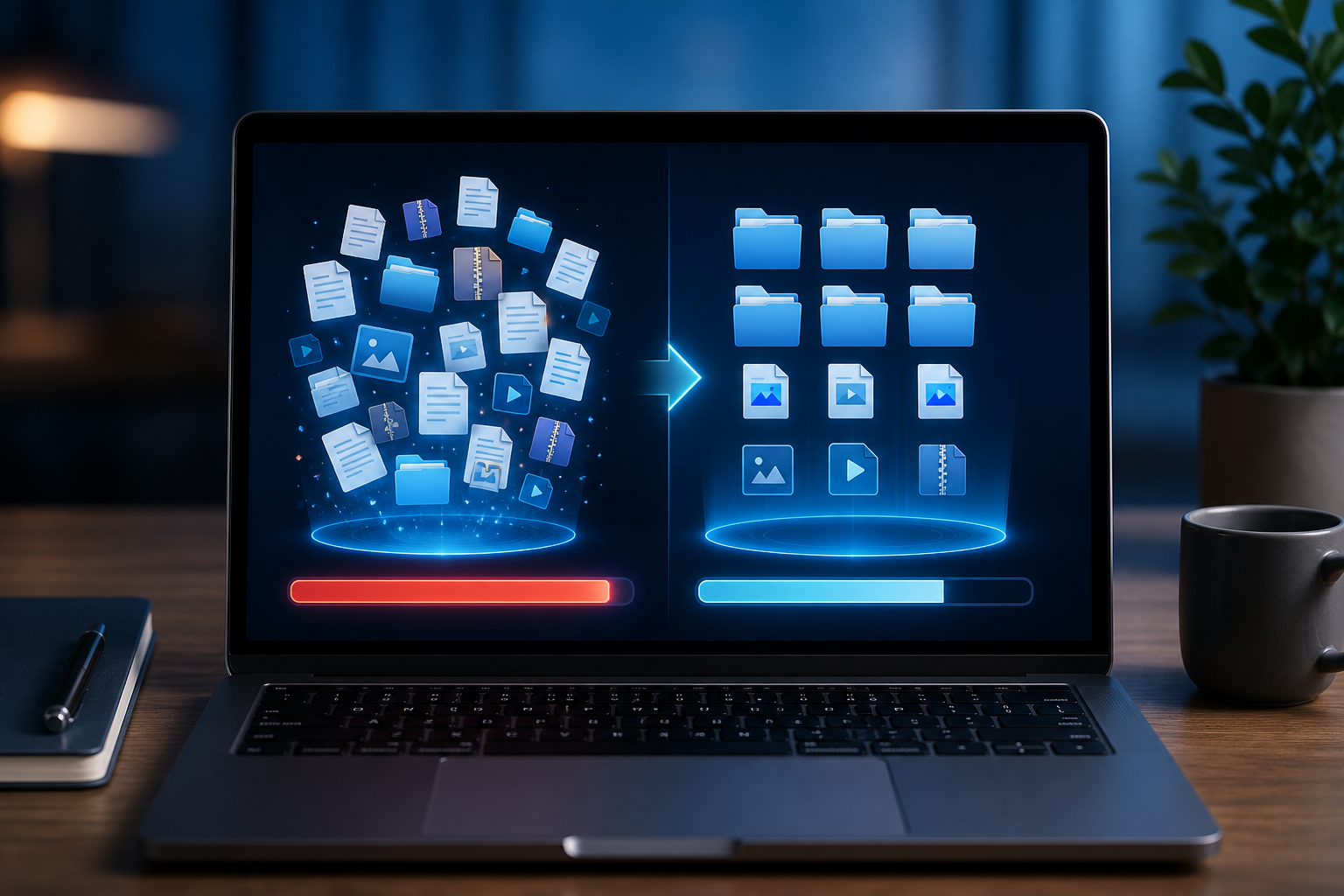
Looking to boost your tiring PC's performance and security? Good for you! For the non-techies out there, knowing where to begin can be quite challenging. But, fear not! There are several simple ways you can easily boost your computer's performance and ensure you are also staying safe online. So, before you decide to throw in the towel and replace your device, let's look at some truly great ways to improve your computing performance. Here's a beginner-friendly guide to maximizing your PC and staying safe online:
I. Optimizing PC Performance (Making it Faster and More Responsive):
Think of your PC like a well-oiled machine. These steps help remove unnecessary friction and keep things running smoothly.
1. Uninstall Unnecessary Programs:
Over time, you might install programs you no longer use. These can take up valuable storage space and run in the background, slowing down your system.
How to do it (Windows):
Press the Windows key and type "Control Panel".
Open the Control Panel.
Click on "Programs" or "Programs and Features".
Select the program you want to remove and click "Uninstall". Follow the on-screen instructions.
2. Manage Startup Programs:
Many programs automatically start when you turn on your computer. Reducing these can significantly speed up boot times.
How to do it (Windows):
Press Ctrl + Shift + Esc to open the Task Manager.
Click on the "Startup" tab.
Select any programs you don't need to start automatically and click "Disable". Be cautious about disabling essential system programs (if unsure, just leave it).
3. Keep Your Operating System and Drivers Updated:
Software updates often include performance improvements, bug fixes, and security patches.
How to do it (Windows):
Press the Windows key and type "Windows Update".
Open "Windows Update settings".
Click "Check for updates" and install any available updates.
Driver Updates: These are specific to your hardware (graphics card, network adapter, etc.). You can usually find the latest drivers on the manufacturer's website (e.g., NVIDIA, AMD, Intel for graphics cards).
4. Free Up Disk Space:
A full hard drive can slow down your PC. Regularly remove unnecessary files.
How to do it:
Delete temporary files:
Windows: Press Windows key + R, type %temp%, and press Enter. Delete all files in the folder. Do the same for temp (without the percent signs) and %prefetch%.
5. Consider an SSD (Solid State Drive):
If your computer has a traditional Hard Disk Drive (HDD), upgrading to an SSD is one of the most significant performance boosts you can make. SSDs are much faster at reading and writing data, leading to quicker boot times, application loading, and overall responsiveness. This might require some technical knowledge or professional help for installation but it is well worth doing as you will notice a significant improvement immediately.
6. Run Disk Defragmentation (Windows - for HDDs only):
This process reorganizes data on your HDD, making it faster for the system to access files. Do NOT defragment an SSD, as it can reduce its lifespan.
How to do it (Windows):
Search for "Defragment and Optimize Drives" in the Start Menu.
Select your hard drive and click "Optimize".
7. Adjust Visual Effects (Windows):
Windows has various visual effects that can make it look fancy but can also consume system resources. Disabling some can improve performance.
How to do it (Windows):
Search for "Adjust the appearance and performance of Windows" in the Start Menu.
On the "Visual Effects" tab, you can choose "Adjust for best performance" or customize the settings by unchecking individual effects.
In Summary:
Maximizing your PC's performance involves keeping it clean, updated, and free of unnecessary burdens. Protecting it from online threats requires a proactive approach, combining good software with cautious online habits. By following these beginner-friendly steps, you can significantly improve your PC experience and stay safer online. Remember that consistency is key – regularly performing these maintenance and security tasks will keep your computer running smoothly and securely for far longer.
 Like
0
Like
0
 Dislike
0
Dislike
0
 Love
0
Love
0
 Funny
0
Funny
0
 Angry
0
Angry
0
 Sad
0
Sad
0
 Wow
0
Wow
0