
Knowing your computer's specifications is important when troubleshooting problems, upgrading hardware, installing software, checking game requirements, or determining whether your PC is capable of handling a particular task.
Your computer's specifications, commonly called PC specs, provide information about the hardware and software installed on your system. This includes the processor (CPU), memory (RAM), graphics card (GPU), storage drives, Windows version, motherboard, and system architecture.
Fortunately, Windows provides several built-in tools that allow you to check most of your computer's specifications without opening the case or installing additional software.

Computer specifications describe the hardware and operating system configuration of a PC.
Some of the most important specifications include:
Knowing these specifications can make it easier to determine whether your computer meets the requirements for a particular program or hardware upgrade.
There are many situations where knowing your computer specifications is useful.
Software and games often have minimum and recommended system requirements. Checking your CPU, RAM, GPU, and available storage allows you to compare your PC against those requirements.
If you are planning to upgrade your RAM, SSD, graphics card, or processor, you need to know what hardware is currently installed and what your motherboard supports.
Technical support teams may ask for your CPU model, RAM capacity, Windows version, graphics card, or storage information when diagnosing a computer problem.
PC specifications can help determine the approximate capabilities and value of a computer.
If your PC is running slowly, checking the available RAM, processor, storage, and GPU can help identify potential hardware limitations.
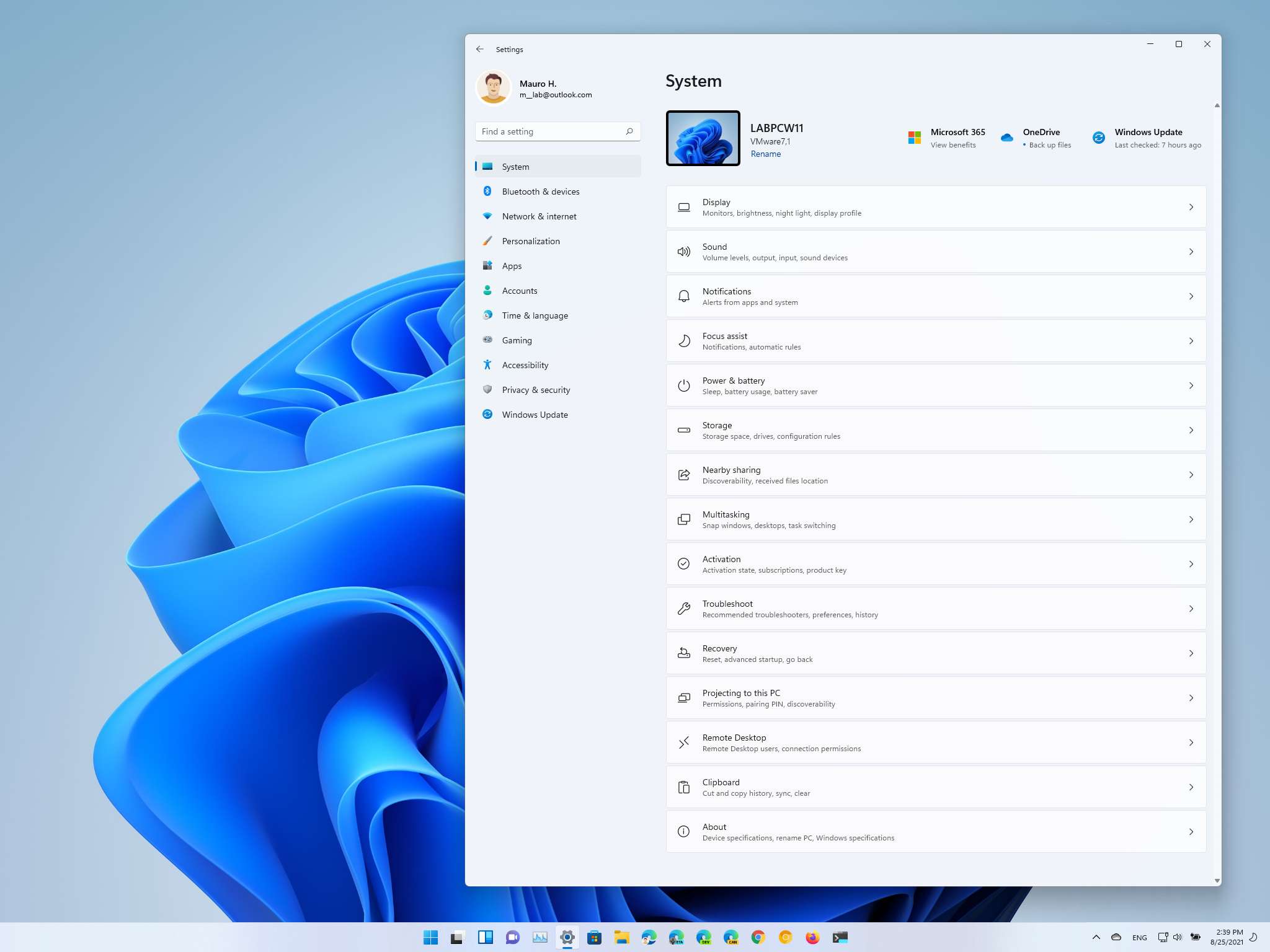
One of the easiest ways to view basic computer specifications is through Windows Settings.
Press Windows + I on your keyboard to open Settings.
Select System from the Settings menu.
Scroll down and select About.
You will see basic information about your computer, including:
This is one of the fastest methods for checking basic PC specifications.
The Task Manager provides more detailed information about your processor and memory.
Press:
Ctrl + Shift + Esc
to open Task Manager.
Select the Performance tab.
Choose CPU to view information such as:
Select Memory to see:
Task Manager is especially useful when troubleshooting slow performance because it shows both hardware information and current resource usage.
Your graphics processing unit (GPU) is responsible for rendering graphics and video.
There are several ways to identify your graphics card.
Open Task Manager with:
Ctrl + Shift + Esc
Go to Performance and select GPU.
Windows may display the GPU model along with information such as:
Press Windows + X and select Device Manager.
Expand:
Display adapters
You should see the installed graphics adapter listed there.
For example, it may show a dedicated NVIDIA or AMD graphics card or integrated graphics built into the processor.
:max_bytes(150000):strip_icc()/device-manager-0e1fac940fa246c4a6ca08f85d4ddf58.png)
To see how much storage your computer has, open:
Settings → System → Storage
Windows will show the available storage and how much space is being used.
You can also open File Explorer and select This PC to see your available drives and their remaining capacity.
However, the amount of free space does not necessarily tell you whether the drive is an HDD or an SSD.
For more detailed information, you can use Task Manager → Performance → Disk. Windows may identify whether the drive is an SSD or HDD and display additional activity information.

Windows does not always display complete motherboard information in the standard Settings menu. However, you can use System Information.
Press:
Windows + R
Type:
msinfo32
and press Enter.
Look for:
This information can be useful when determining motherboard compatibility before purchasing RAM, storage, or other components.
Windows includes a built-in utility called System Information.
Press:
Windows + R
Type:
msinfo32
and press Enter.
System Information provides a much more detailed overview of your computer.
You can find information about:
This is particularly useful when providing information to a technician or technical support representative.
Windows also includes the DirectX Diagnostic Tool, commonly called DxDiag.
Press:
Windows + R
Type:
dxdiag
and press Enter.
DxDiag provides information about your system and graphics configuration.
The System tab can display information such as:
The Display tab provides graphics-related information, including:
DxDiag can be particularly useful when troubleshooting graphics problems or checking whether a computer meets the requirements for certain games.

To check which version of Windows you are running, press:
Windows + R
Type:
winver
and press Enter.
A window will display the Windows version and build information.
You can also find this information under:
Settings → System → About
Knowing your Windows version is important when troubleshooting compatibility issues, checking software requirements, or following technical support instructions.
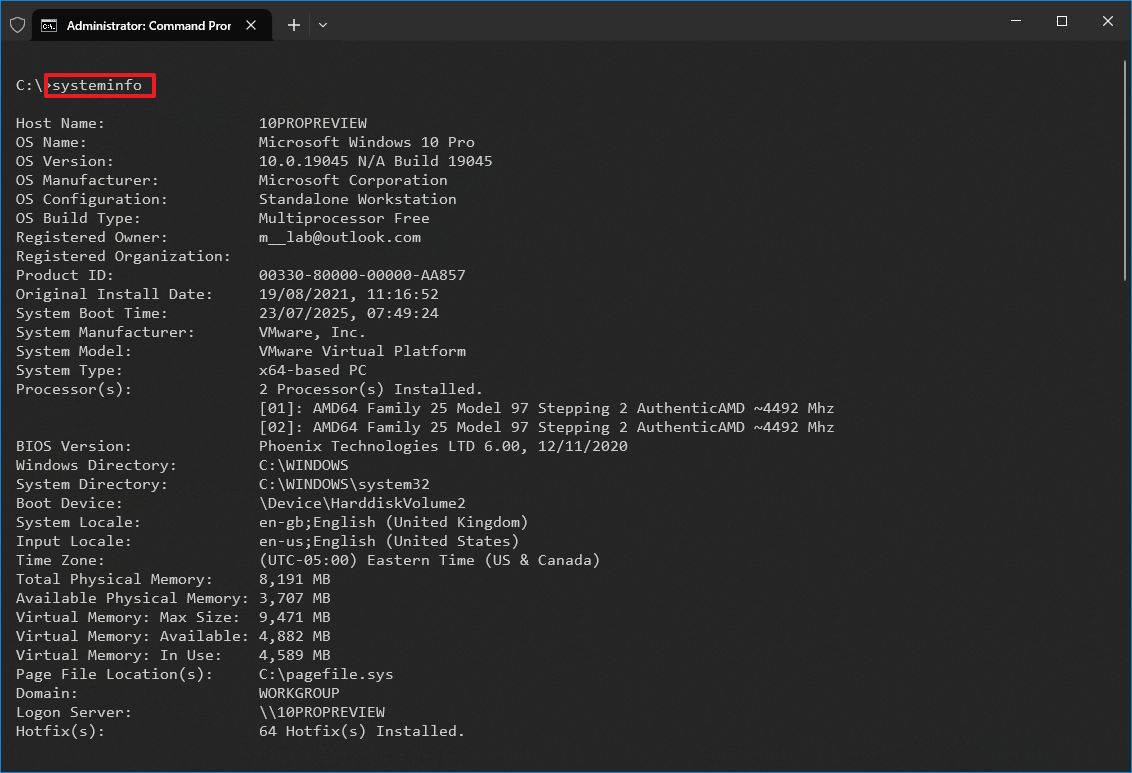
Advanced users can use Command Prompt to retrieve system information.
Open Command Prompt and enter:
systeminfo
Windows will display information about the operating system, computer, processor, memory, network configuration, and other system details.
You can also use:
wmic cpu get name
To display the processor model on systems where the WMIC utility is available.
For graphics information, Windows PowerShell or other built-in Windows tools may provide additional information depending on the Windows version.
PowerShell provides another way to retrieve hardware information.
For example, PowerShell commands can be used to identify hardware components, operating system information, storage devices, and other system details.
This method is generally more useful for advanced users, IT professionals, and technicians who need to collect system information efficiently across multiple computers.
You do not always need to know every specification of your computer. The most important specifications depend on what you are trying to accomplish.
Focus on:
Focus on:
Important specifications include:
You should check:
Checking only the current component is not enough. Compatibility must also be confirmed before purchasing an upgrade.
:max_bytes(150000):strip_icc()/task-manager-memory-f3c40158f25b4a39afc2e85f463f4991.png)
Before installing a demanding game, compare your computer's specifications with the game's published requirements.
Pay particular attention to:
Processor: Does your CPU meet the minimum requirement?
RAM: Does your computer have enough memory?
Graphics card: Is your GPU powerful enough?
VRAM: Does the graphics card have enough dedicated video memory?
Storage: Is there enough free space for the game and future updates?
Operating system: Does your version of Windows meet the requirements?
Meeting the minimum requirements does not necessarily guarantee high-quality graphics or smooth performance. Recommended requirements are generally a better target for a comfortable gaming experience.
Checking your specifications is only the first step when diagnosing poor performance.
A computer with a powerful processor and plenty of RAM can still run slowly because of:
Task Manager can help identify whether the CPU, memory, disk, or GPU is being heavily utilized.
If disk usage remains unusually high or the computer experiences freezing, crashes, or file corruption, the health of the storage device should also be investigated.
It can be useful to keep a record of your computer's specifications.
Save information such as:
Having this information available can make future troubleshooting, repairs, upgrades, and technical support much easier.
Knowing how to check your computer specifications is an important first step in understanding your PC's performance, troubleshooting problems, and planning future upgrades. By checking your CPU, RAM, graphics card, storage, motherboard, and Windows version, you can quickly determine what hardware and software your computer is running.
However, knowing your PC specifications is only part of the process. If your computer is running slowly, experiencing crashes, showing hardware errors, having driver problems, or simply not performing as expected, identifying the underlying issue may require a more detailed system check.
Advanced System Repair can help make PC troubleshooting easier by providing tools designed to identify common Windows problems, system issues, unwanted files, and performance-related problems. Instead of spending hours manually searching through Windows settings and troubleshooting individual issues, you can use Advanced System Repair to help assess your system and identify areas that may need attention.
Whether you're preparing your PC for an upgrade, troubleshooting unexpected problems, or simply want to keep your Windows computer running smoothly, regularly checking and maintaining your system can help improve reliability and performance.
Know your PC. Maintain your PC. Keep it running at its best with Advanced System Repair.
 Like
1
Like
1
 Dislike
0
Dislike
0
 Love
1
Love
1
 Funny
0
Funny
0
 Angry
0
Angry
0
 Sad
0
Sad
0
 Wow
1
Wow
1