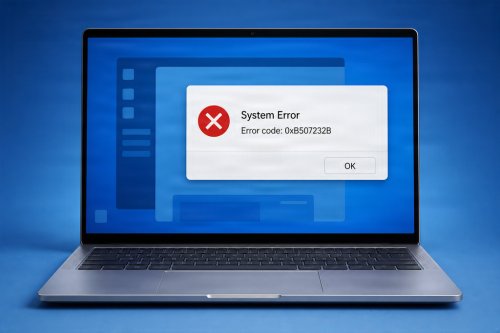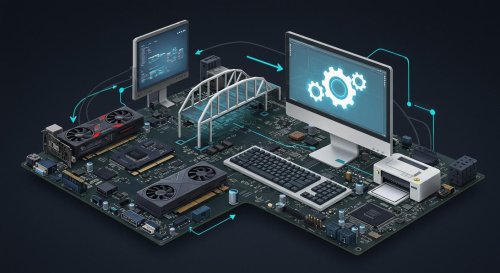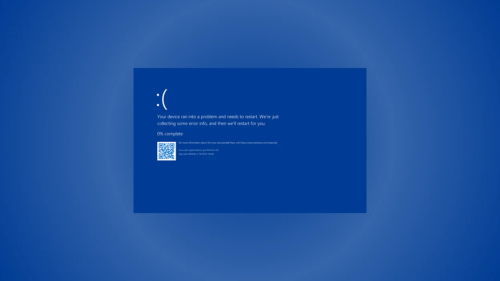
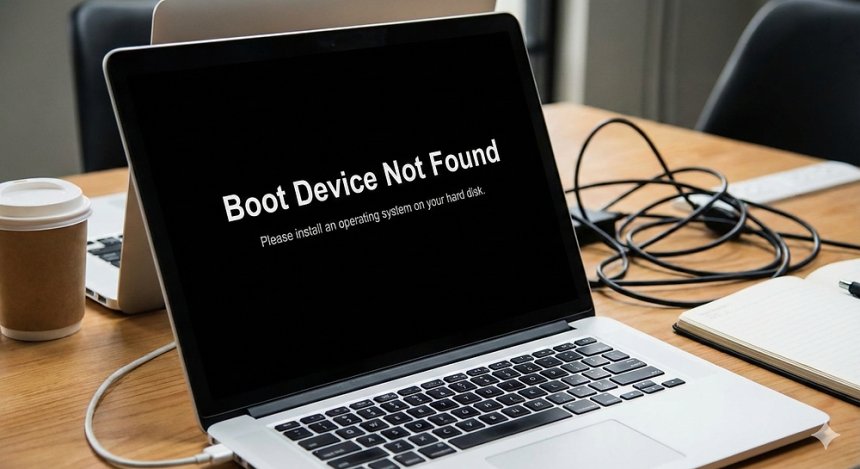
The “Boot Device Not Found” error is a common computer startup problem that appears when a PC cannot locate or access the drive containing the operating system. In most cases, this means the computer cannot find or read the main hard drive or SSD where Windows is installed.
When a computer starts, the BIOS or UEFI firmware searches for a bootable device containing the operating system. If the system cannot detect the drive, access the required boot files, or find a valid operating system, it may display an error such as “Boot Device Not Found,” “No Bootable Device,” “Boot Device Not Found,” or “Operating System Not Found.”
This problem can prevent the computer from starting normally and may indicate anything from an incorrect boot setting to a loose connection, corrupted boot files, or a failing storage drive.
A boot device is the storage device that contains the files needed to start the operating system. This is usually the computer's primary hard disk drive (HDD) or solid-state drive (SSD).
When you turn on your PC, the BIOS or UEFI checks the configured boot order and searches for a device containing a valid operating system. If it cannot find or read the appropriate drive, the startup process stops, and the error message appears.
The error does not always mean that the hard drive has permanently failed. In some cases, the issue may be caused by incorrect BIOS settings, corrupted boot information, or an improperly connected drive.
Several problems can cause a computer to display a boot device error.
The computer may be unable to detect the storage device because of a loose connection, hardware failure, or a problem with the drive itself. This is more common with internal drives that have become disconnected or damaged.
The BIOS or UEFI may be configured to look for the operating system on the wrong device. For example, the computer may attempt to boot from a USB drive, network connection, or secondary storage device instead of the main Windows drive.
A damaged or failing HDD or SSD may no longer be readable by the system. Warning signs may include slow performance, unusual noises from mechanical hard drives, frequent crashes, corrupted files, or repeated startup failures.
Windows requires specific boot files and configuration data to start correctly. If these files become damaged due to an improper shutdown, a failed update, malware, or a disk error, the PC may be unable to locate a bootable operating system.
Changes to BIOS or UEFI settings can sometimes prevent the computer from booting. Incorrect boot modes, disabled storage controllers, or changes between UEFI and Legacy/CSM boot modes may cause the system to display a boot device error.
If the Windows installation is severely corrupted or deleted, the computer may no longer have a valid operating system to load.
The correct solution depends on the cause of the problem. The following troubleshooting steps may help restore normal startup.
Start by restarting the PC. Temporary hardware detection or startup errors can occasionally be resolved by a complete restart.
Remove unnecessary USB drives, external hard drives, memory cards, and other bootable devices. The computer may be attempting to boot from an external device instead of the main system drive.

Enter the BIOS or UEFI settings during startup and check whether the main HDD or SSD is detected.
If the drive does not appear in the system information or storage section, there may be a connection problem or hardware failure.
IT can use Windows System Information to check the firmware version. This method also works on Windows 10. It shows the BIOS version string, OEM or motherboard manufacturer, and the release date of the BIOS/UEFI firmware. To use this method, take the following steps:
Sometimes it's easier for an IT administrator to use command-line tools to find the BIOS version. This makes it easier to collect BIOS data through scripting or to enable bulk queries across multiple systems through management platforms.
PowerShell is ideal for scripting or collecting BIOS info across multiple devices. To find the BIOS version through PowerShell, use the following steps:
To find the BIOS version in Windows using the systeminfo command in the Command Prompt, take the following steps:
systeminfo | findstr /I "BIOS"
Make sure the drive containing Windows is listed as the primary boot device. If necessary, move the correct boot drive to the top of the boot priority list.
For desktop computers, inspect the power and data cables connected to the hard drive or SSD. Loose or damaged connections can prevent the drive from being detected.
Laptop users should avoid opening the device unless they are comfortable performing hardware maintenance or following the manufacturer's instructions.
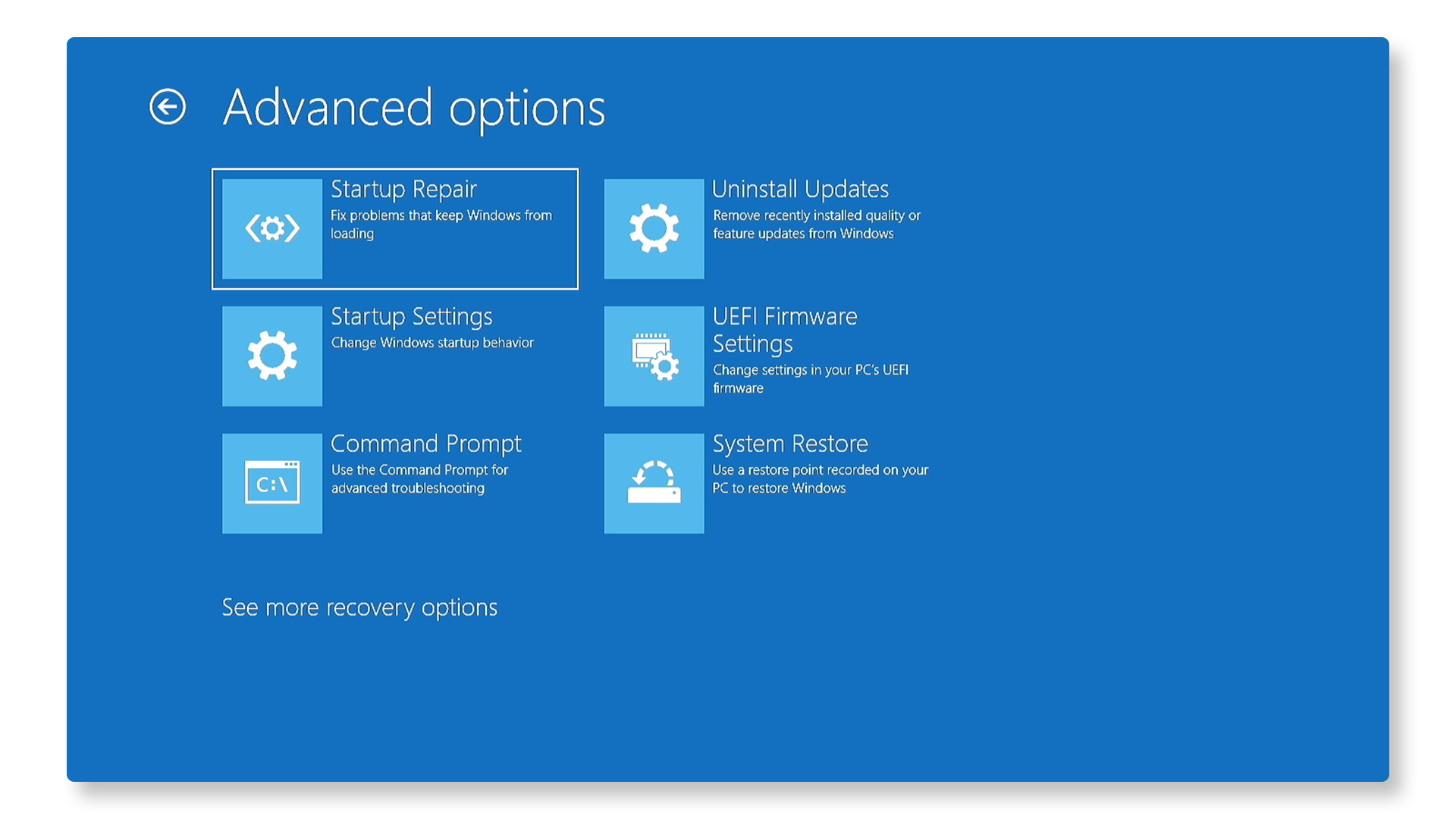
If the drive is detected but Windows will not start, use the Windows Recovery Environment or a Windows installation USB to access Startup Repair.
Startup Repair can automatically diagnose and fix certain boot-related problems.
To run Windows Startup Repair, access the Windows Recovery Environment (WinRE) by holding the Shift key while clicking Restart in the power menu, or open Windows Settings and select Restart now under Recovery. Once the blue options screen loads, navigate to Troubleshoot > Advanced options > Startup Repair
Advanced users may be able to repair boot configuration information using recovery tools and Command Prompt commands. This process should be performed carefully because incorrect changes to boot settings may create additional startup problems.
chkdsk c: /f /r /x to repair file system errors on your main drive.bootrec /fixmbr, bootrec /fixboot, and bootrec /rebuildbcd one by one.diskpart, then run bcdboot c:\windows /s [drive letter]: /f ALL to rewrite boot filesIf the hard drive or SSD is detected intermittently or continues to produce errors, its health should be checked. A failing drive should be replaced as soon as possible.
If possible, back up important files before the drive becomes completely unreadable.
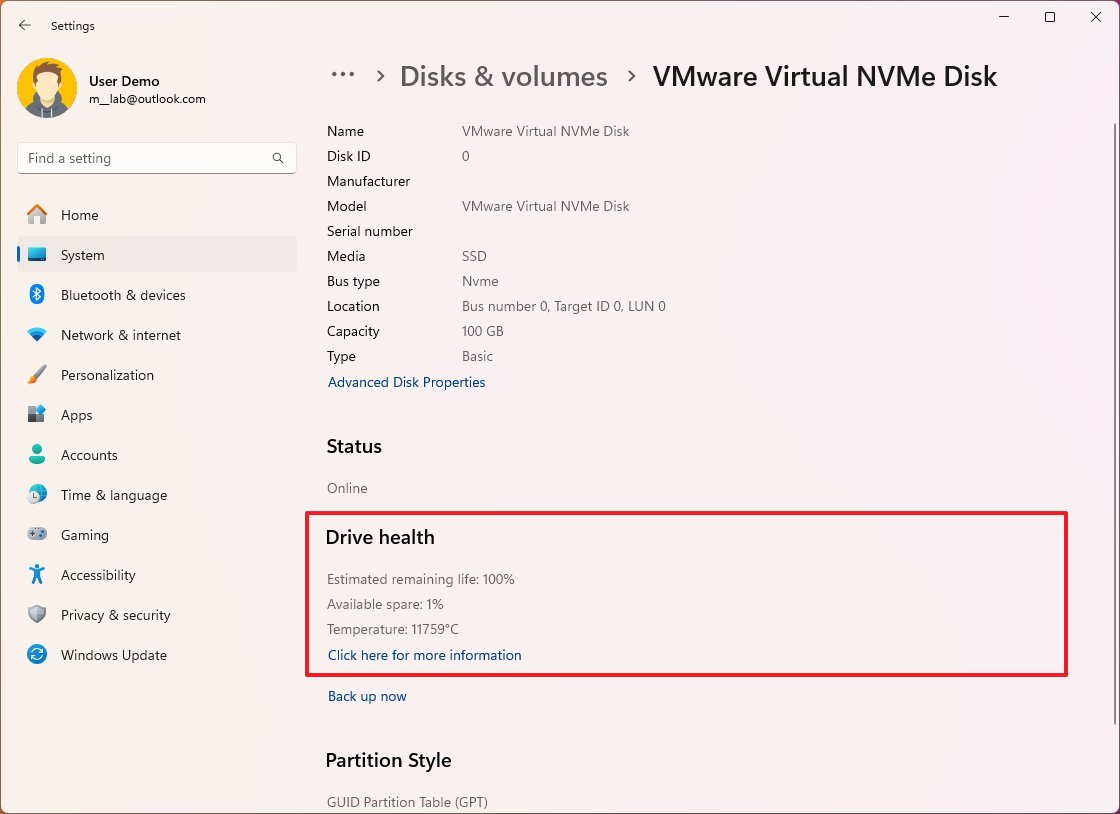
Open Settings, go to System, click Storage, then Advanced storage settings, and select Disks & volumes to view drive health and temperature.
Although hardware failures cannot always be prevented, several practices can reduce the risk of boot-related issues.
Keep Windows updated, shut down the computer properly, avoid interrupting system updates, and regularly back up important files. Monitoring the health of storage devices can also help identify problems before a complete drive failure occurs.
Avoid changing BIOS or UEFI settings unless necessary, and make sure that the correct boot drive remains selected.
For desktop computers, ensuring that internal cables and storage devices are securely connected can also help prevent hardware detection issues.
Professional assistance may be necessary if the primary drive is not detected in BIOS or UEFI, the computer repeatedly displays the boot device error, or the storage drive appears to be failing.
A technician can inspect the drive, test the storage hardware, recover data when possible, and reinstall or repair the operating system.
If the drive has completely failed, replacing it and reinstalling Windows may be required.
The “Boot Device Not Found” error means that the computer cannot locate or read the main storage device required to start the operating system. The problem may be caused by an incorrect boot order, corrupted boot files, incorrect BIOS settings, loose connections, or a failing hard drive or SSD.
In many cases, checking whether the drive is detected, correcting the boot order, removing external devices, and using Windows recovery tools can resolve the issue. However, if the drive is not recognized or shows obvious signs of failure, it is important to back up bta data and consider replacing the storage device as soon as possible.
 Like
1
Like
1
 Dislike
0
Dislike
0
 Love
0
Love
0
 Funny
0
Funny
0
 Angry
0
Angry
0
 Sad
0
Sad
0
 Wow
1
Wow
1