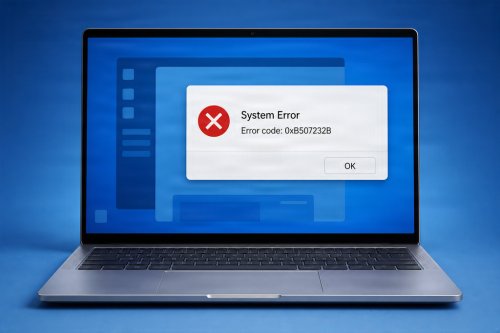
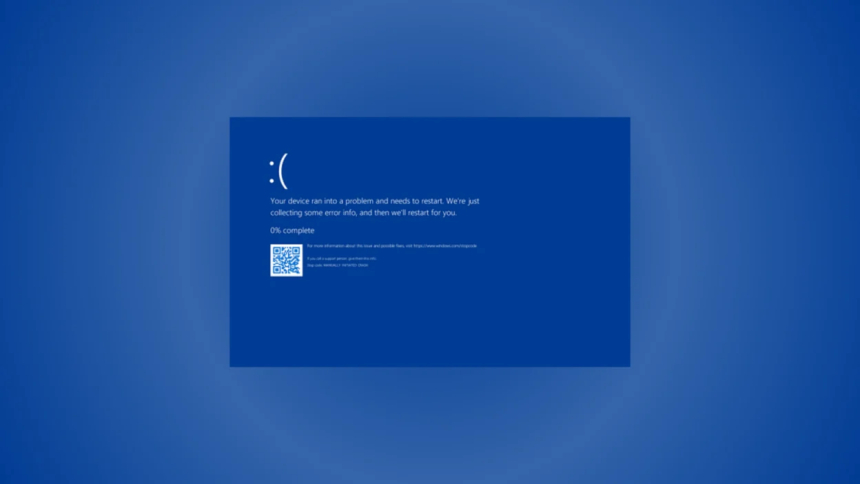
The Blue Screen of Death (BSOD) is one of the most recognizable error screens in Microsoft Windows. It appears when the operating system encounters a critical problem that it cannot safely recover from. Also known as a stop error or system crash, a BSOD forces Windows to stop operating in order to prevent further system instability, data corruption, or potential damage to important files and hardware components.
When a BSOD occurs, Windows may display an error message along with a specific stop code that provides information about the problem. Modern versions of Windows may also show a QR code that users can scan for additional troubleshooting information. After collecting diagnostic data, the computer may automatically restart.
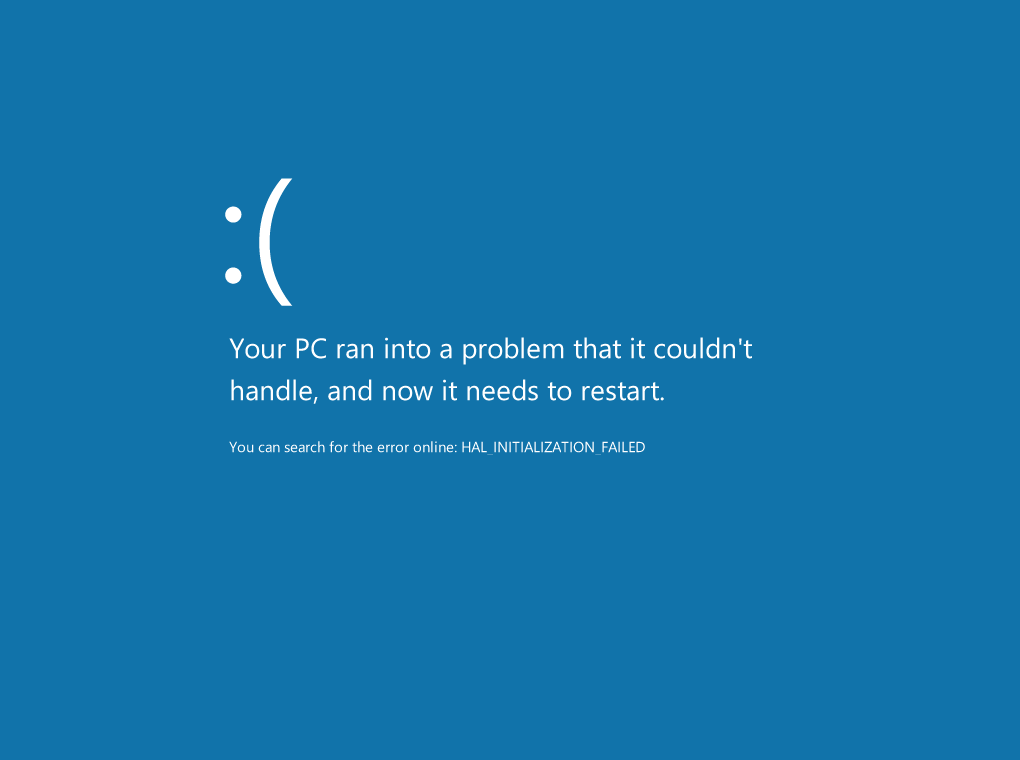
A Blue Screen of Death means that Windows has encountered a serious system-level error. The operating system determines that continuing to run could cause further problems, so it immediately stops all operations.
The blue screen itself is therefore a protective response. Instead of allowing a critical error to persist and potentially corrupt data or further destabilize the system, Windows shuts down or restarts the affected processes.
Although a BSOD does not always indicate permanent hardware damage, repeated blue screen errors should not be ignored. Frequent crashes may indicate problems with drivers, hardware, memory, storage devices, system files, or software.
When Windows experiences a Blue Screen error, you might see error messages like:
Several issues can cause Windows to display a Blue Screen of Death.
Device drivers allow Windows to communicate with hardware such as graphics cards, network adapters, printers, and storage devices. A corrupted, outdated, incompatible, or improperly installed driver can cause a critical system failure.
Driver-related BSODs are particularly common after installing new hardware, updating drivers, or upgrading Windows.
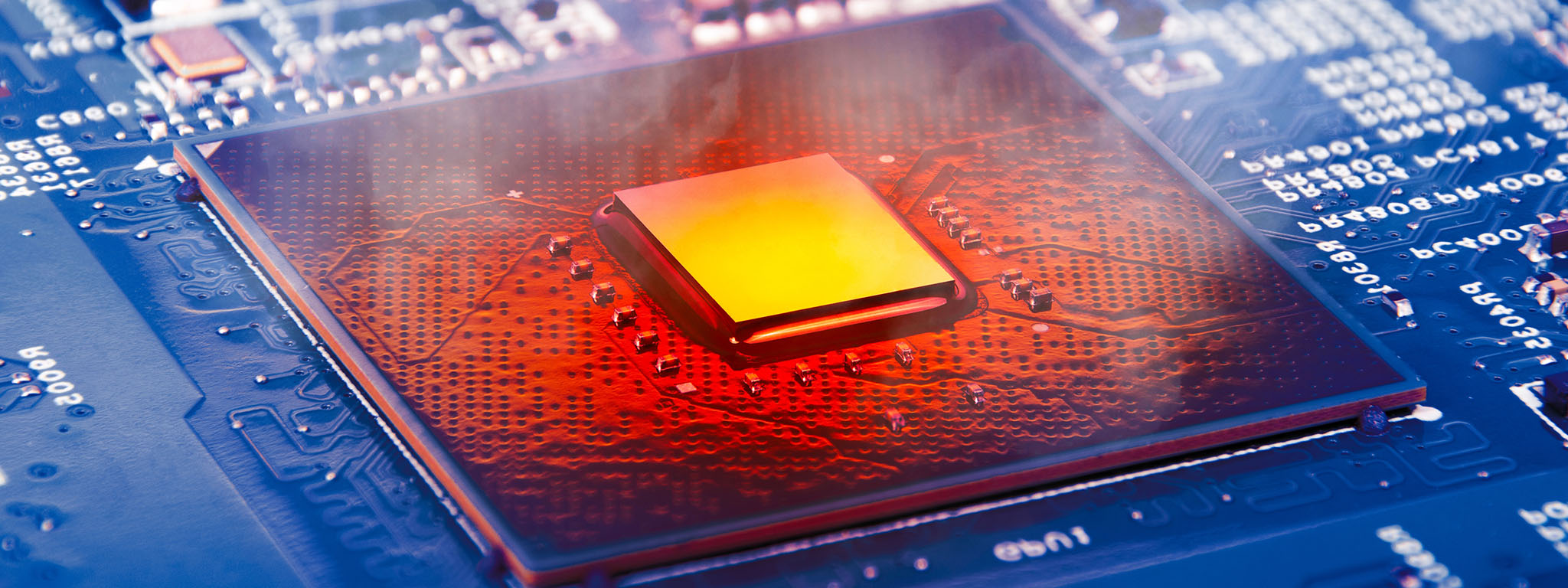
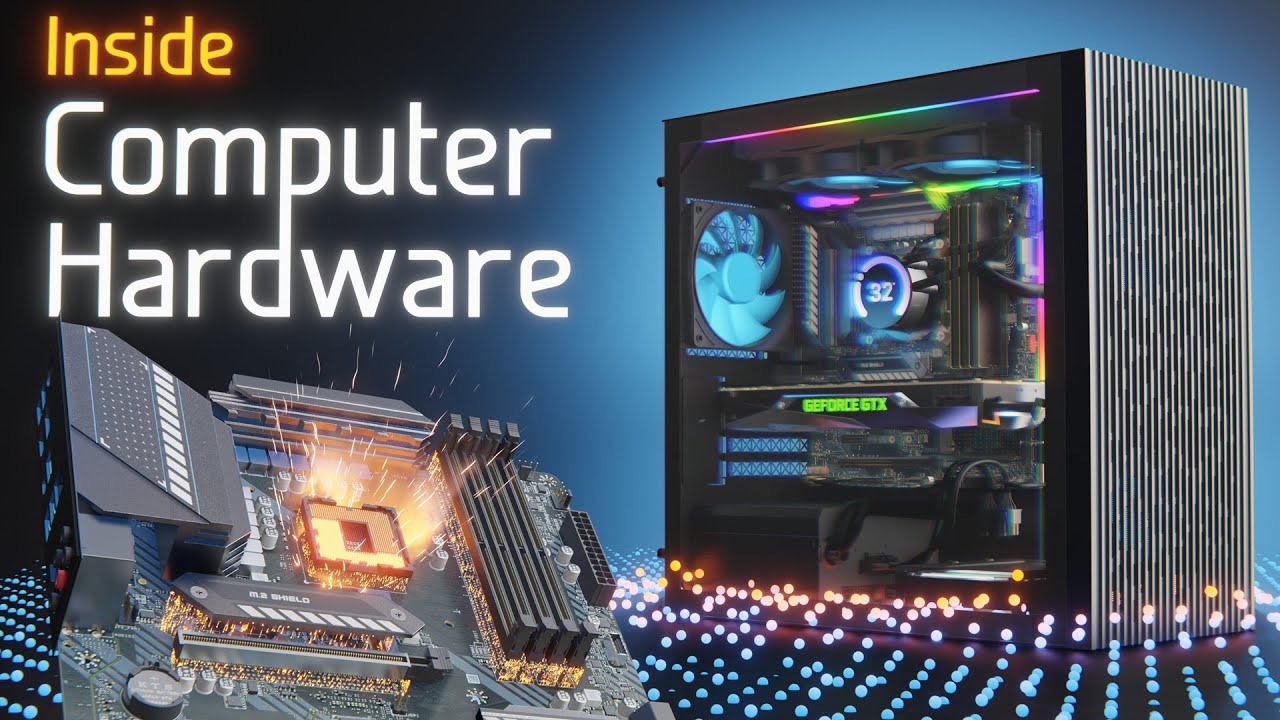
Faulty hardware can also cause a BSOD. Common hardware-related causes include:
Hardware problems may cause repeated or unpredictable system crashes.
Windows relies on thousands of system files and services to operate correctly. If essential files become corrupted or are accidentally deleted, the operating system may become unstable and eventually crash.
Corruption can occur because of improper shutdowns, malware, failed updates, or disk errors.
Some programs, especially software that interacts deeply with the operating system, can conflict with other applications or drivers. Antivirus programs, system optimization tools, hardware utilities, and recently installed software may sometimes contribute to BSOD errors.
Certain types of malware can damage system files, modify critical settings, or interfere with essential Windows processes. This can result in instability and, in severe cases, system crashes.
While updates are important for security and performance, an incomplete or unsuccessful update can occasionally cause system problems. Compatibility issues between an update, driver, or existing software may also lead to a BSOD.
Windows displays a stop code to help identify the type of critical error that occurred. Some common examples include:
This error indicates that an essential Windows process unexpectedly stopped or became corrupted. It may be related to damaged system files, driver problems, or hardware issues.
This stop code indicates a problem with how Windows is managing memory. Faulty RAM, driver issues, or corrupted system files may contribute to this error.
This error often occurs when a driver or system process attempts to access memory incorrectly. Incompatible or faulty drivers are common causes.
This stop code usually indicates that a system service or driver caused an unexpected exception. Updating or removing problematic drivers may help resolve the issue.
This error occurs when Windows attempts to access invalid memory. Possible causes include defective RAM, corrupted system files, or driver problems.
This stop code means that Windows cannot access the storage device required to start the operating system. Storage failures, driver problems, or incorrect boot settings may be responsible.
The first step after encountering a BSOD is to take note of the stop code displayed on the screen. This information can provide an important clue about what caused the crash.
A temporary system error may not happen again after restarting. However, if the BSOD persists, further troubleshooting is necessary.
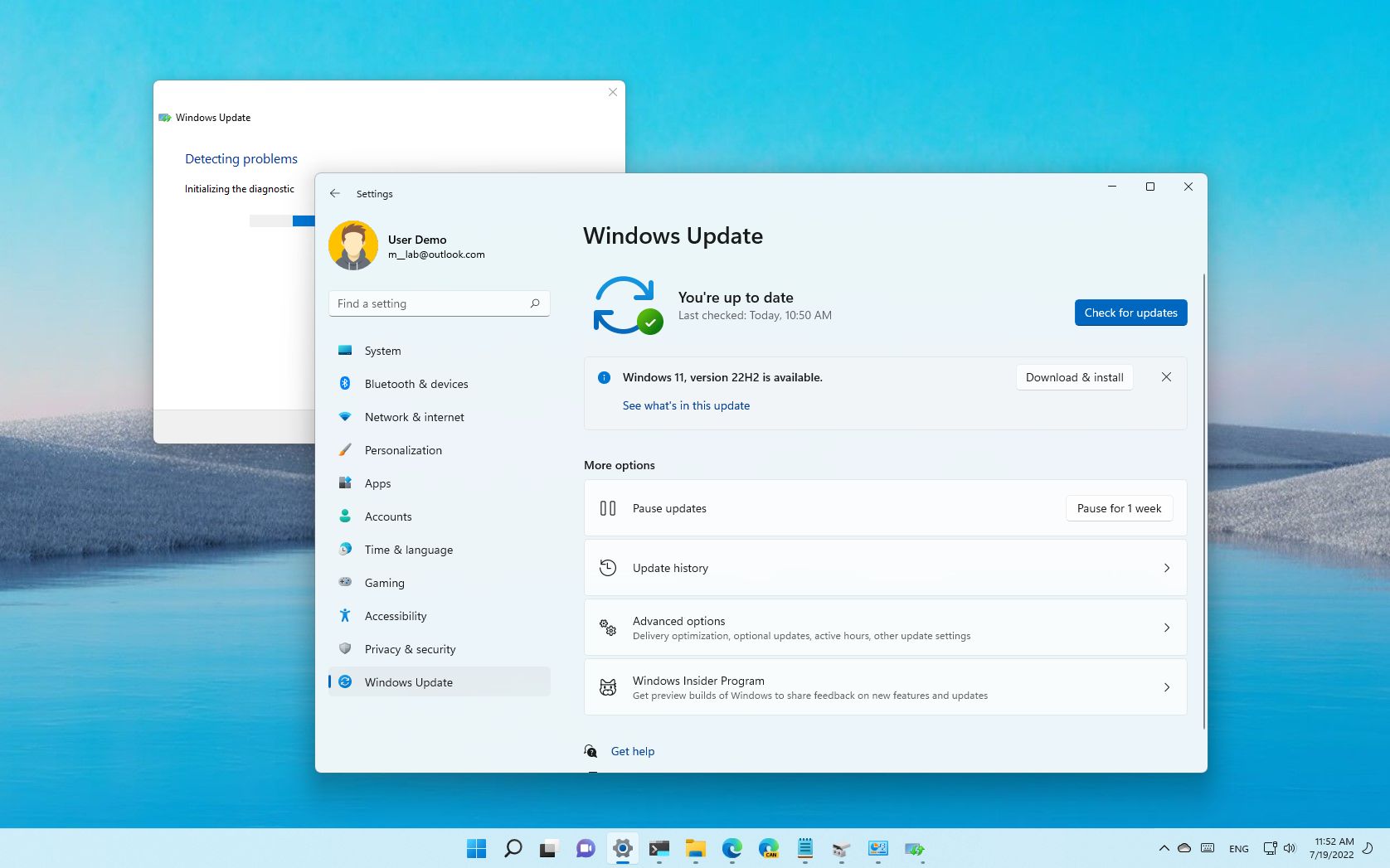
Installing the latest Windows updates can resolve known bugs, security issues, and compatibility problems.
Check important drivers, especially those for:
Drivers should ideally be obtained from the hardware manufacturer's official source.
If the BSOD began after installing a new program, driver, or hardware device, removing or disconnecting the recent addition may help determine whether it is responsible for the crashes.
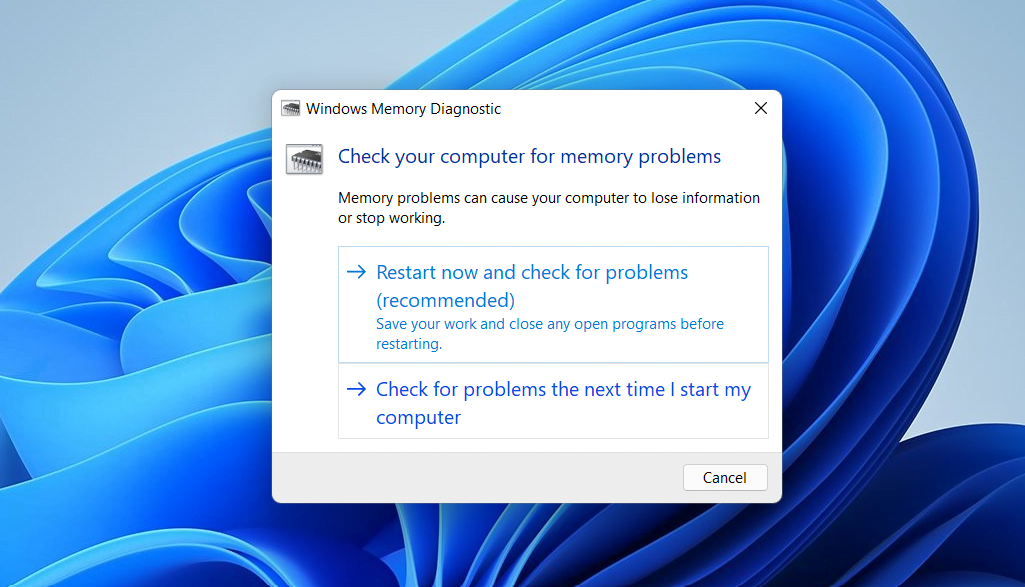
The Windows Memory Diagnostic tool can help identify potential RAM problems. Faulty memory can cause random crashes, application failures, and repeated BSOD errors.
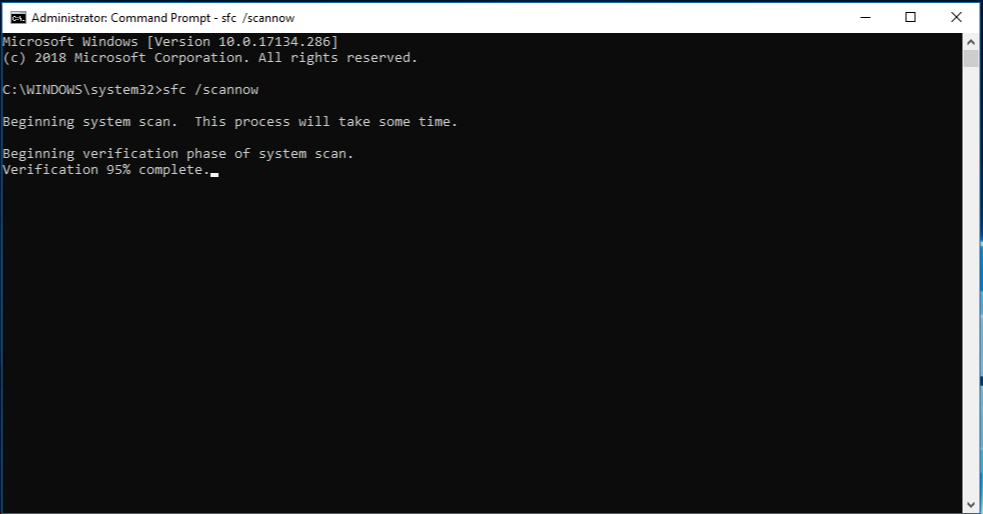
Windows includes the System File Checker (SFC) tool, which can scan and repair corrupted system files. Running the following command in an elevated Command Prompt may help:
sfc /scannow
Hard drives and SSDs should also be checked for errors. A failing storage device can cause file corruption, boot problems, and critical system crashes.
A complete security scan can help identify malware that may be affecting system files or Windows processes.
Although not every BSOD can be prevented, several practices can reduce the risk of system crashes.
Users should keep Windows and important drivers up to date, avoid installing untrusted software, regularly check hardware health, and ensure the computer has adequate cooling. Important files should also be backed up regularly because unexpected system crashes can sometimes result in data loss.
Users who overclock their CPU, GPU, or memory should ensure that their system settings are stable. Unstable overclocking can increase the risk of crashes and stop errors.
It is also important to use reliable security software and maintain enough available storage space for Windows to function properly.
The Blue Screen of Death (BSOD) is a critical Windows system stop error indicating that the operating system has encountered a problem so serious it cannot safely continue running. By stopping the system, Windows attempts to prevent further instability, data corruption, or damage to critical processes.
BSOD errors can result from faulty drivers, failing hardware, corrupted system files, software conflicts, malware, or unsuccessful updates. The stop code displayed on the blue screen can provide valuable information for troubleshooting.
While a single BSOD may be caused by a temporary problem, repeated blue screen errors should be investigated. Updating drivers, checking hardware, repairing system files, scanning for malware, and reviewing recent software or hardware changes can help identify and resolve the underlying cause.
 Like
0
Like
0
 Dislike
0
Dislike
0
 Love
0
Love
0
 Funny
0
Funny
0
 Angry
0
Angry
0
 Sad
0
Sad
0
 Wow
0
Wow
0