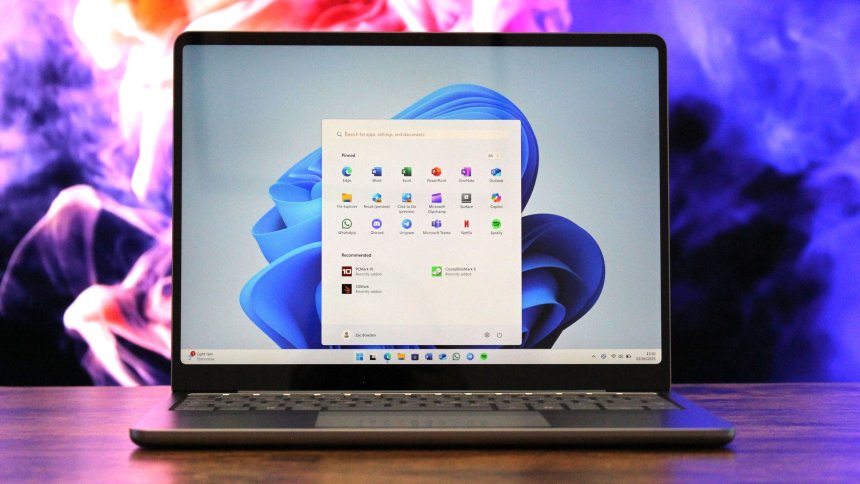
A slow computer startup can be frustrating, especially when you're in a hurry. Fortunately, you don't always need expensive hardware upgrades to speed up your PC's boot process. By making a few simple adjustments, you can significantly reduce startup time and enjoy a faster, more responsive computer.
Many applications automatically launch when your computer starts. While some are essential, others only consume system resources and delay boot time.
To manage startup programs:
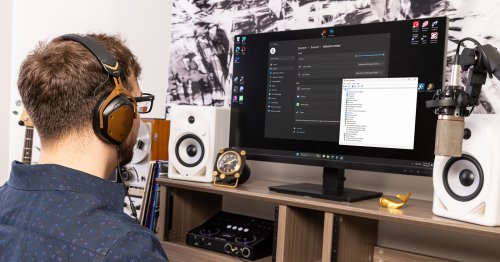
Windows: Open Task Manager (Ctrl + Shift + Esc), go to the Startup Apps tab, and disable programs you don't need immediately after login.
macOS: Open System Settings > General > Login Items and remove unnecessary apps.
Only disable applications you recognize. Security software and essential system utilities should remain enabled.
Operating system updates often include performance improvements, bug fixes, and security patches. Running the latest version helps ensure your system starts efficiently.
Check regularly for updates and install them when available.
Over time, computers accumulate software that is rarely used. Some applications install background services that run automatically, increasing startup time.
Uninstall programs you no longer need through your operating system's application management settings.
A nearly full storage drive can affect overall system performance.
Good practices include:
Delete temporary files.
Empty the Recycle Bin or Trash.
Remove duplicate files.
Transfer large media files to external storage or cloud storage.
Aim to keep at least 15–20% of your drive free for optimal performance.
If your computer still uses a traditional hard disk drive (HDD), upgrading to an SSD is one of the most effective ways to improve boot time.
Benefits include:
Much faster startup
Quicker application launches
Faster file transfers
Better overall responsiveness
Many systems can boot in under 20 seconds after switching to an SSD.
Some background services aren't required every time your computer starts.
Advanced users can review startup services using built-in system tools and disable non-essential services. Be cautious, as disabling important system services may cause instability.
Malware can slow down startup by consuming system resources or launching unwanted background processes.
Use trusted antivirus software to perform regular scans and remove any detected threats.
While Sleep mode is convenient, restarting your computer periodically clears temporary memory, completes pending updates, and refreshes system processes, helping maintain consistent performance.
Dust buildup can restrict airflow and cause components to overheat, leading to reduced performance.
Clean air vents and cooling fans periodically using compressed air while the computer is powered off.
If your computer frequently struggles with multiple applications, adding more RAM can improve responsiveness after startup and reduce delays during login.
While RAM upgrades don't always dramatically shorten the boot sequence, they help your system become usable more quickly once it has started.
Improving boot time doesn't have to be complicated. Start by disabling unnecessary startup apps, keeping your operating system updated, cleaning your storage, and removing unused software. If your computer still starts slowly, upgrading to an SSD offers one of the biggest performance improvements available.
Regular maintenance not only speeds up startup but also extends your computer's lifespan and improves your overall computing experience.
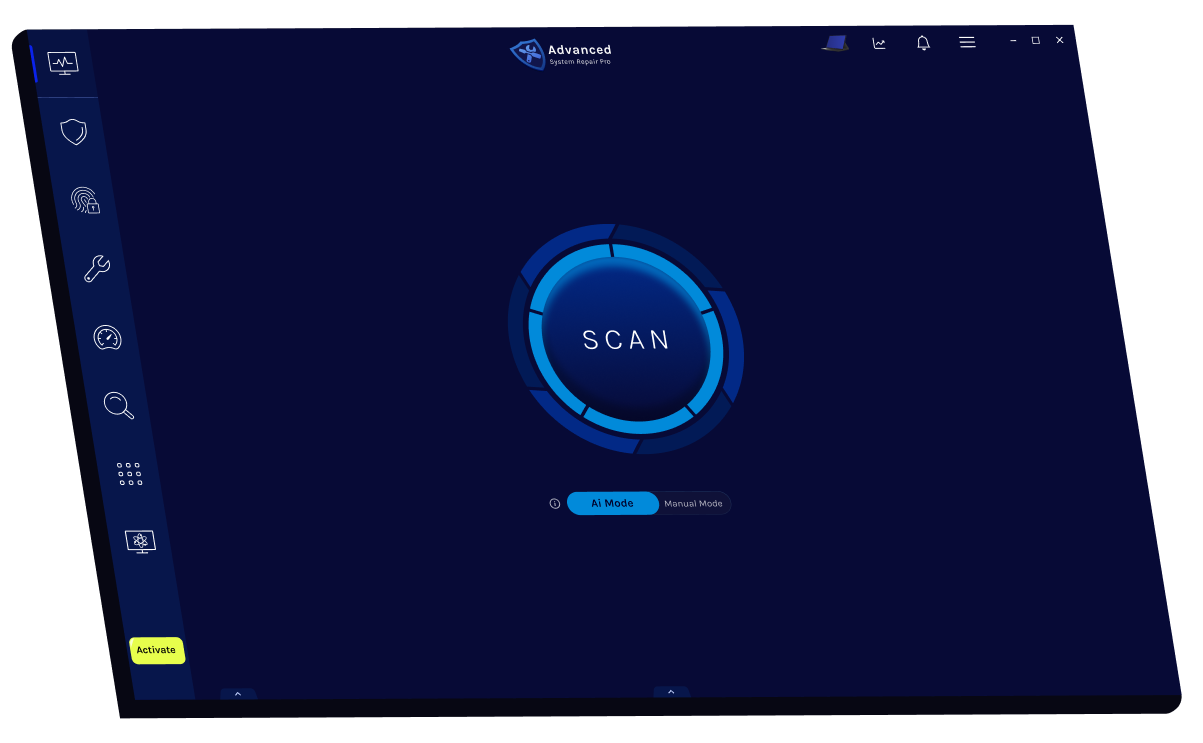
If you prefer an all-in-one solution instead of manually performing system maintenance, Advanced System Repair Pro is a comprehensive utility that combines multiple optimization features in a single application. It can help clean junk files, remove invalid registry entries, optimize startup programs, improve system performance, and identify common Windows issues through an easy-to-use interface.
 Like
0
Like
0
 Dislike
0
Dislike
0
 Love
0
Love
0
 Funny
0
Funny
0
 Angry
0
Angry
0
 Sad
0
Sad
0
 Wow
0
Wow
0