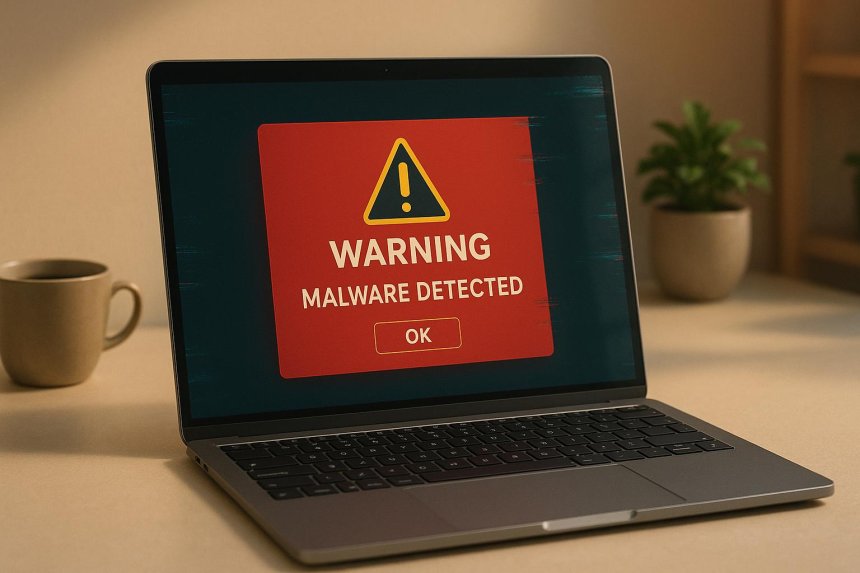
Your computer suddenly feels slow. Pop-ups appear when you are not browsing. Your browser redirects you to unfamiliar websites, or applications start behaving strangely.
These symptoms can be frustrating, but they can also be warning signs of malware.

Malware is malicious software designed to disrupt systems, steal information, monitor activity, damage files, or provide unauthorized access to a device. While some infections are obvious, others can remain hidden and operate quietly in the background.
Not every computer problem means malware is present. Hardware issues, outdated software, excessive startup applications, browser extensions, and other legitimate problems can produce similar symptoms. However, if several unusual behaviors appear at the same time, it is worth investigating.
Here are 10 warning signs that your computer may have malware.

One of the most common warning signs is an unexplained decline in system performance.
Your computer may take longer to start, applications may become sluggish, or simple tasks may suddenly require much more time than usual.
Malware can consume CPU, memory, disk, and network resources while running in the background. Some malicious programs may also perform activities such as downloading additional files or communicating with remote servers.
However, slow performance does not automatically mean malware. Too many startup applications, insufficient storage, aging hardware, and software problems can also cause slowdowns.

Unexpected pop-ups can be another warning sign, especially when they appear outside normal websites or continue appearing after you close your browser.
Some adware is designed to display unwanted advertisements, while malicious websites may use deceptive pop-ups to convince users that their computers are infected.
Be especially cautious when a pop-up tells you to immediately call a phone number, download a "security tool," or provide payment information.
A legitimate security warning should not normally pressure you into making an immediate payment or calling an unknown number.

You click a familiar search result, but instead of reaching the expected website, your browser takes you somewhere completely different.
Repeated redirects can be associated with malicious browser extensions, unwanted software, altered browser settings, or compromised websites.
You may also notice that your homepage or default search engine has changed without your permission.
If these changes continue after you restore your preferred settings, investigate the installed extensions and applications on your computer.
Have you noticed an application that you don't remember installing?
Unexpected software can sometimes be a sign that another program installed additional components without clearly explaining what they were.
Check your installed applications and look for unfamiliar programs. Before removing something, research it carefully because legitimate system components can sometimes have unfamiliar names.
Be particularly cautious about programs that appeared shortly before your computer started experiencing unusual behavior.
Some forms of malware attempt to interfere with security software so they can operate with less resistance.
If your antivirus or other security protections suddenly become disabled without you making the change, investigate immediately.
Do not assume that the problem is simply a software glitch. Check your security settings, update your security software, and perform a scan using a reputable security solution.
Malware can modify, delete, encrypt, or otherwise interfere with files.
One particularly serious example is ransomware. Ransomware can encrypt files and prevent users from accessing documents, photographs, databases, and other data.
Unexpected file extensions, ransom notes, or large numbers of inaccessible files should be treated as serious warning signs.
If you suspect ransomware, disconnect the affected computer from networks where practical and avoid randomly deleting or modifying files before determining what happened.
Occasional crashes can happen for many reasons, including defective hardware, driver problems, overheating, or incompatible software.
But if crashes and freezes suddenly become frequent, especially after installing an unfamiliar application or opening a suspicious file, malware should be considered as one possible cause.
Keep track of when the crashes occur. Patterns can help determine whether the issue is related to a particular application, system process, or recent change.

Malware may communicate with external servers, download additional components, upload stolen information, or participate in other malicious activities.
You might notice unusually high network usage even when you are not actively downloading or streaming anything.
Unexplained network activity by itself does not prove an infection. Cloud synchronization, operating-system updates, application updates, and legitimate background services can also consume bandwidth.
Still, unexpected activity deserves investigation if it occurs alongside other warning signs.
Sometimes the first sign of a malware problem isn't the computer itself—it's an online account.
You might receive unexpected password-reset notifications, login alerts from unfamiliar locations, or discover messages, purchases, or account changes that you did not make.
Credential-stealing malware can potentially capture usernames and passwords.
If you suspect that your credentials have been exposed, change affected passwords from a known-clean device and enable multi-factor authentication where available.
Never reuse the same password across multiple important accounts.
Some malware symptoms are difficult to categorize but are still worth investigating.
Examples include:
One strange event does not necessarily mean malware is present. But several unexplained changes occurring together should not be ignored.
If you notice several of these warning signs, take a methodical approach instead of immediately downloading random "PC cleaner" programs from the internet.
If you suspect an active infection—particularly ransomware or unauthorized remote access—disconnect the computer from the internet or network when practical.
Use reputable, up-to-date security software to perform a malware scan. If your security software is disabled, investigate why before assuming the system is safe.
Install current security updates for your operating system, browser, and applications. Updates can address known vulnerabilities that attackers may exploit.
Look for programs, browser extensions, and other components that you do not recognize. Research unfamiliar items before removing them.
If you believe credentials may have been stolen, change passwords from a known-clean device. Prioritize email, financial, cloud-storage, and other important accounts.
Enable multi-factor authentication whenever possible.
Maintain regular backups of important files. For important data, consider keeping a backup that is separated from the computer or network so that malware cannot easily affect it.
If malware continues to return, important information may have been exposed, or the computer is part of a business network, professional technical or incident-response assistance may be appropriate.
The best time to think about malware protection is before an infection occurs.

Keep your operating system and applications updated. Use reputable security software. Download programs from trusted sources. Be cautious with unexpected email attachments and links. Avoid pirated software and suspicious downloads.
Use strong, unique passwords and enable multi-factor authentication for important accounts.
Most importantly, don't let urgency override caution. Cybercriminals frequently use alarming messages, fake warnings, and time-sensitive offers to persuade people to click before they think.
:max_bytes(150000):strip_icc()/antivirus-software-laptop-gettyimages-2161243544-6455408931c746c2bf0b52549c35de79.jpg)
A slow computer, pop-ups, browser redirects, crashes, or unfamiliar programs do not automatically mean your computer is infected. Many legitimate technical problems can produce similar symptoms.
However, unusual behavior—especially when several warning signs occur together—should be investigated.
Recognizing the early signs of malware gives you an opportunity to respond before a potential problem becomes a serious security incident.
Stay updated. Stay cautious. Keep reliable backups. And when something on your computer doesn't look right, don't simply ignore it.
 Like
0
Like
0
 Dislike
0
Dislike
0
 Love
0
Love
0
 Funny
0
Funny
0
 Angry
0
Angry
0
 Sad
0
Sad
0
 Wow
0
Wow
0