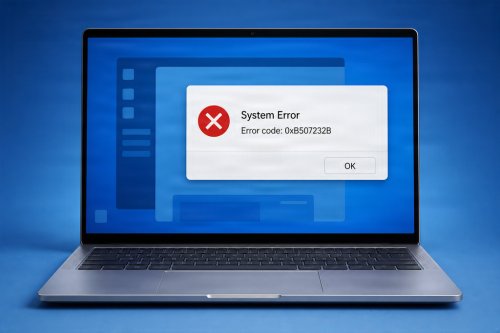

Seeing an error message on your computer can be frustrating, especially when the message contains technical terms that are difficult to understand. Whether you see a simple notification such as "Access Denied" or a more serious message involving a system error, these warnings are often designed to tell you that something needs attention.
The good news is that many computer error messages do not necessarily mean your PC is seriously damaged. Understanding what an error message means, what may have caused it, and what steps you can safely take can make troubleshooting much easier.
This guide explains common types of computer error messages and how to approach them.
A computer error message is a notification generated by your operating system, an application, or a hardware component when something does not work as expected.
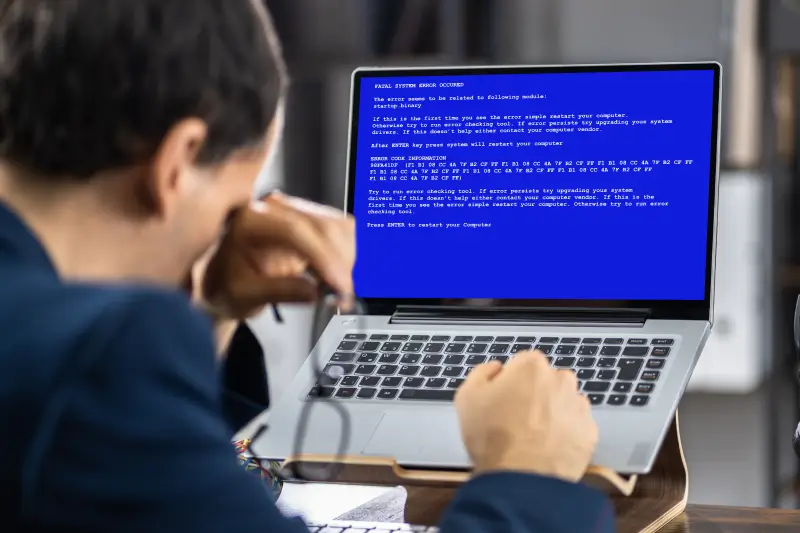
Error messages can appear for many reasons, including:
The message is often the computer's way of providing information about what went wrong.
It can be tempting to immediately close an error message and continue working. However, repeatedly ignoring errors can sometimes allow a small issue to develop into a larger problem.
An error message may help you identify:
Paying attention to the exact wording of an error can provide useful clues for troubleshooting.
Not all errors mean the same thing. Understanding the general category of an error can help you determine what to do next.

Application errors occur when a specific program encounters a problem.
You may see messages indicating that an application:
A simple first step is to close and reopen the application. If the problem continues, check for software updates, restart the computer, or reinstall the application if appropriate.
If only one program is experiencing problems while everything else works normally, the issue may be specific to that application rather than your entire computer.
File-related errors can occur when Windows or an application cannot access a particular file or folder.
Examples include:
Possible causes include deleted files, incorrect permissions, damaged storage, software conflicts, or files being moved or renamed.
Before deleting or modifying important files, make sure you understand what they are and consider creating a backup.
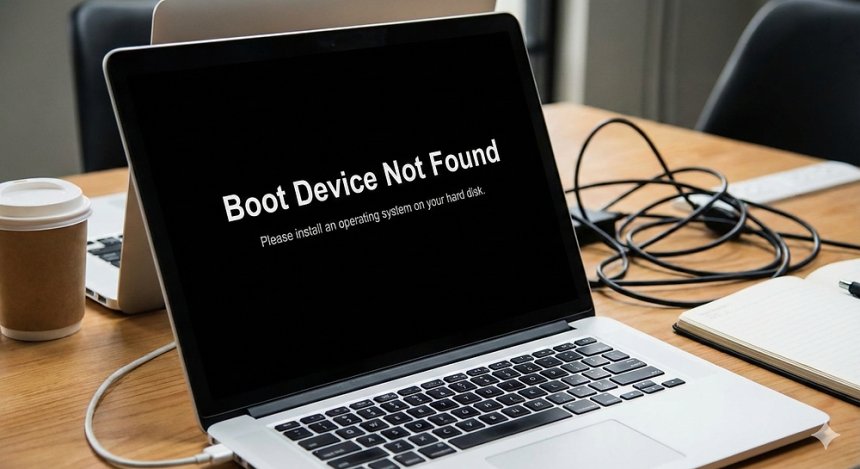
Storage-related errors can be more concerning because your hard drive or SSD contains important system and personal files.
You might see messages involving:
If your computer is repeatedly reporting storage problems, back up important files as soon as possible.
A sudden increase in disk errors, unexplained file corruption, or a drive that frequently disappears may indicate a hardware problem that requires further investigation.
Drivers allow Windows to communicate with hardware components such as graphics cards, sound devices, network adapters, printers, and USB devices.
A driver-related error may occur after:
Symptoms may include hardware not being recognized, crashes, missing audio, display problems, or connectivity issues.
If a problem began immediately after a driver update, checking whether the previous driver can be safely restored may be useful.
Network errors are among the most common computer problems.
You may encounter messages such as:

Before changing advanced settings, check simple possibilities first.
Make sure:
If other devices also cannot connect, the problem may be with your network or internet service rather than your computer.
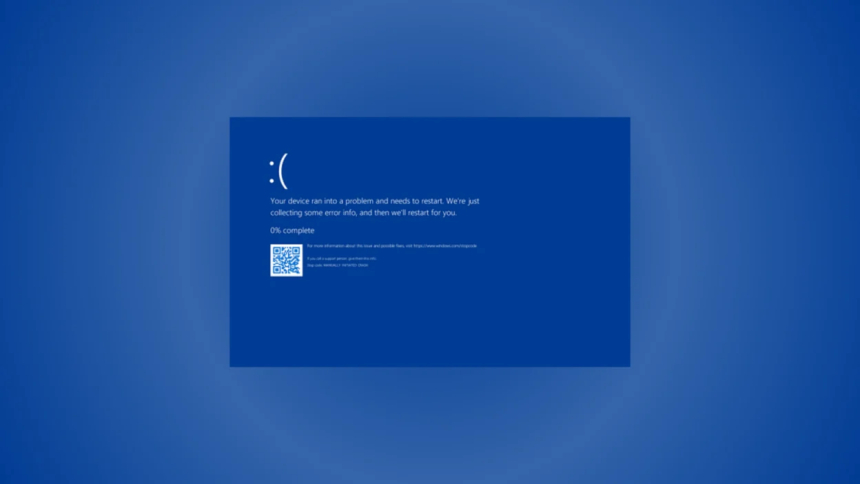
Windows may display system-level errors when an important operating system component encounters a problem.
These errors can sometimes be related to:
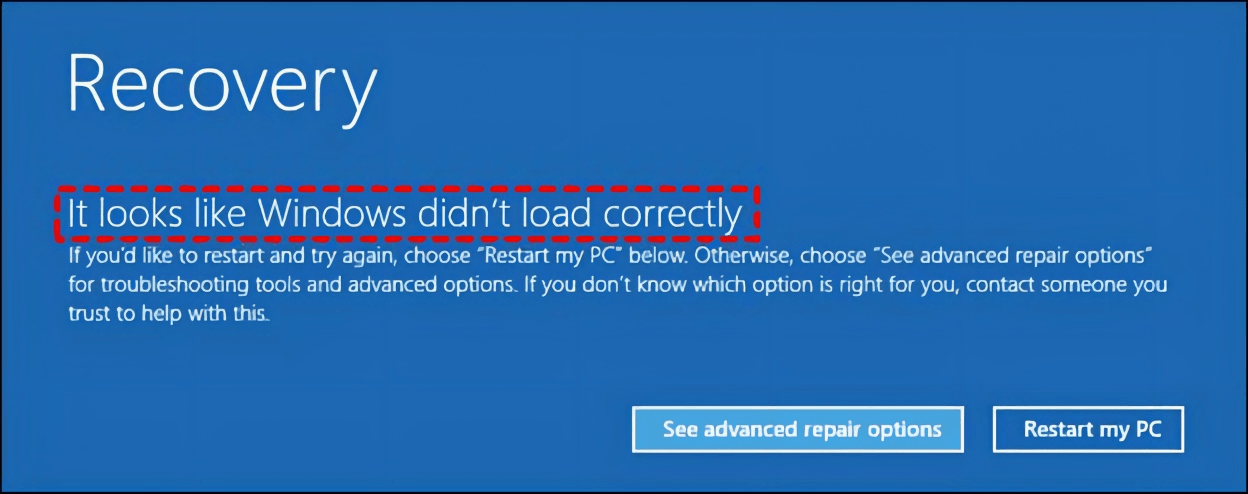
If a system error repeatedly appears, record the exact error message or code. Searching for the specific code can be much more useful than searching for a general description such as "my computer is broken."
Messages such as "Access Denied" usually indicate that Windows or an application does not have permission to perform a particular action.
This can happen when attempting to:
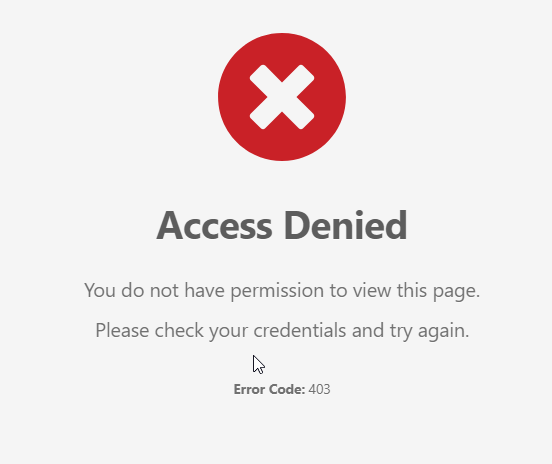
Administrator privileges may be required for some actions. However, you should not automatically grant administrator access to unfamiliar software.
Only provide elevated permissions to applications and processes that you trust.
Your computer has limited resources, including RAM, processor capacity, and storage space.
When available resources become low, applications may become slow, freeze, or display error messages.
Common warning signs include:
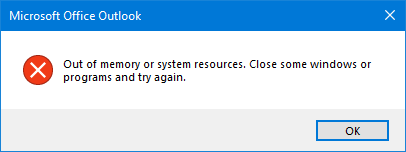
Closing applications you are not using can sometimes free up resources. If the problem occurs regularly, check Task Manager to identify applications consuming unusually high amounts of CPU, memory, or disk resources.

When you see an unfamiliar error, avoid immediately making major changes to your system.
Instead, follow a systematic troubleshooting process.
Don't just look at the first sentence.
Read the complete message and look for:
Take a screenshot or write down the information if necessary.
If the error occurs inside a particular program, close the program and reopen it.
Temporary software problems can sometimes disappear after restarting the application.
A system restart can clear temporary processes and refresh system resources.
While restarting will not fix every problem, it is a simple and safe troubleshooting step for many temporary issues.
Think about what changed before the error appeared.
Did you recently:
The timing of the problem can provide an important clue.
When searching online for help, use the exact wording or error code.
For example, searching for:
"Error 0x80070005 Access Denied Windows"
is generally more useful than searching for:
"Windows not working."
Specific information produces more relevant troubleshooting results.
When possible, use documentation from Microsoft, your computer manufacturer, or the software developer.
Official resources are generally more reliable than random websites offering unknown fixes or downloads.
Searching for a solution online can be helpful, but it also comes with risks.
Be cautious when a website tells you to:
Some websites may use scary error messages to convince users to install unnecessary or potentially unwanted software.
Before following a technical fix, make sure you understand what the suggested action does and whether the source is trustworthy.
Some errors are relatively simple to resolve, while others may require professional troubleshooting.
Consider getting technical assistance if:
Getting help early can sometimes prevent further problems and reduce the risk of losing important data.
If an error keeps appearing, keep a record of it.
Write down:
This information can make troubleshooting significantly easier, particularly when working with technical support.
Computer error messages may look complicated, but they often provide valuable clues about what is happening inside your system.
Instead of immediately becoming frustrated, take a moment to read the message carefully. Identify the error code, determine which component or application is involved, and consider what changed before the problem occurred.
A structured approach to troubleshooting can help you solve many common computer problems safely and efficiently.
Most importantly, don't assume that every error means your computer is failing. Some errors are temporary, some are caused by simple configuration problems, and others may point to an issue that requires further attention.
By learning how to interpret error messages and knowing when to seek help, you can become more confident when dealing with unexpected computer problems.
 Like
0
Like
0
 Dislike
0
Dislike
0
 Love
0
Love
0
 Funny
0
Funny
0
 Angry
0
Angry
0
 Sad
0
Sad
0
 Wow
0
Wow
0