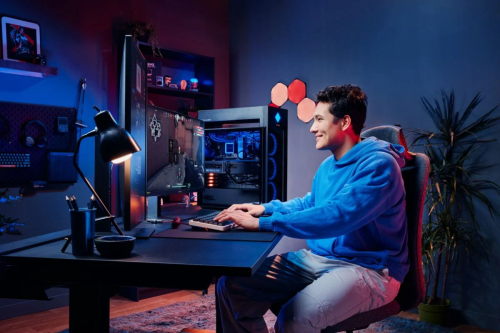
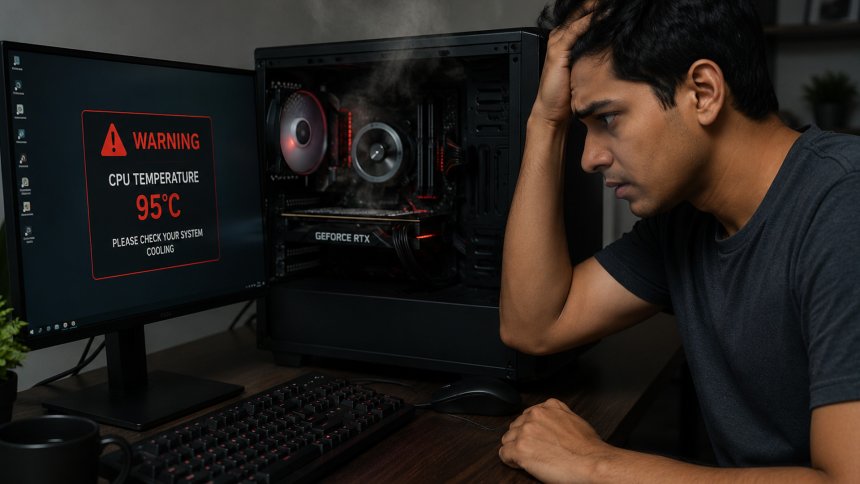
A high-end gaming PC can deliver incredible performance, but that performance comes with a major challenge: heat. Powerful CPUs and GPUs generate significant amounts of heat while gaming, streaming, rendering, or running demanding applications. If that heat cannot escape efficiently, temperatures can rise quickly and affect both performance and hardware longevity.
This is what can be called the “thermal trap”—a situation where a powerful gaming rig generates more heat than its cooling system can effectively move away from critical components. Understanding how heat builds up and how to control it is essential for keeping a high-performance PC stable and reliable.

Modern gaming hardware is designed to use available power to deliver higher performance. When a game places heavy demands on the CPU and GPU, those components consume more power and naturally produce more heat.
The graphics card is often one of the biggest sources of heat inside a gaming PC. A powerful GPU can produce substantial heat during long gaming sessions, while the CPU can also become extremely warm during CPU-intensive games, streaming, video editing, or other demanding workloads.
High temperatures are not automatically a sign of a problem. Modern hardware is designed to operate within specific temperature ranges and can reduce its performance when temperatures become excessive. The problem occurs when high temperatures remain constant or repeatedly reach thermal limits.
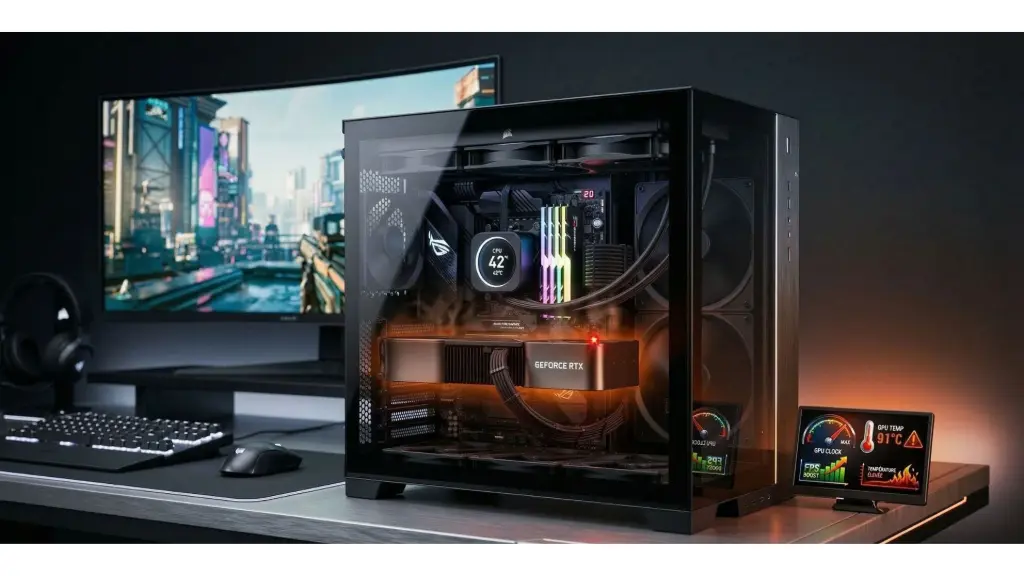
When temperatures become too high, the system may begin thermal throttling. This means the CPU or GPU reduces its speed to generate less heat and protect itself.

The definition of thermal throttling is simple: it’s a built-in mechanism that slows down your computer's processor to prevent overheating. When the CPU or GPU reaches a certain temperature threshold, it automatically reduces its clock speed to cool down.
This process is designed to protect your hardware, but the trade-off is reduced performance.
So, what is thermal throttling doing during gameplay or rendering? It’s reducing heat by lowering how hard your hardware works, which directly affects your PC's output. You’ll notice dips in FPS, lag in applications, or even full system stutters.
For gamers and power users alike, this can be the difference between smooth performance and unplayable sessions.
You may notice sudden drops in gaming performance, lower frame rates, stuttering, application crashes, or unexpected system shutdowns. In difficult situations, excessive heat can contribute to long-term wear on components.
Overheating can also affect the overall stability of a PC. A system that works perfectly for a few minutes but begins crashing after an extended gaming session may have a cooling or thermal-management problem.
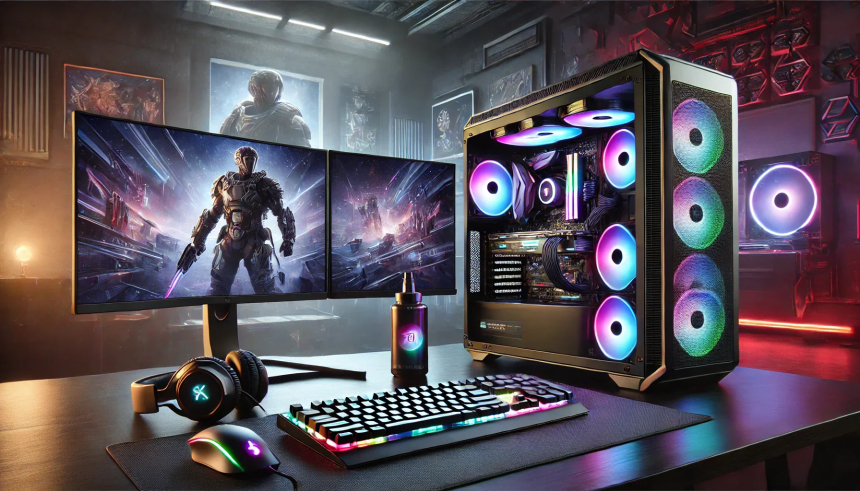
Good airflow is one of the simplest and most important ways to control PC temperatures. Cool air needs to enter the case while warm air needs a clear path to escape.
A gaming case should generally have a balanced airflow setup, with intake fans bringing cooler air into the system and exhaust fans removing warm air. Cable management can also help by keeping airflow paths around major components clear.
Simply adding more fans does not always solve an overheating problem. Fan placement, airflow direction, case design, and dust buildup all affect how efficiently heat moves through the system.
Dust is another common enemy of gaming PC cooling. Over time, dust can collect on fan blades, filters, heatsinks, and radiators. This restricts airflow and makes cooling components work harder.
Cleaning your PC periodically can help maintain proper airflow. Pay particular attention to intake filters, GPU fans, CPU coolers, and case exhaust areas. Always power down the system and follow appropriate precautions before cleaning internal components.
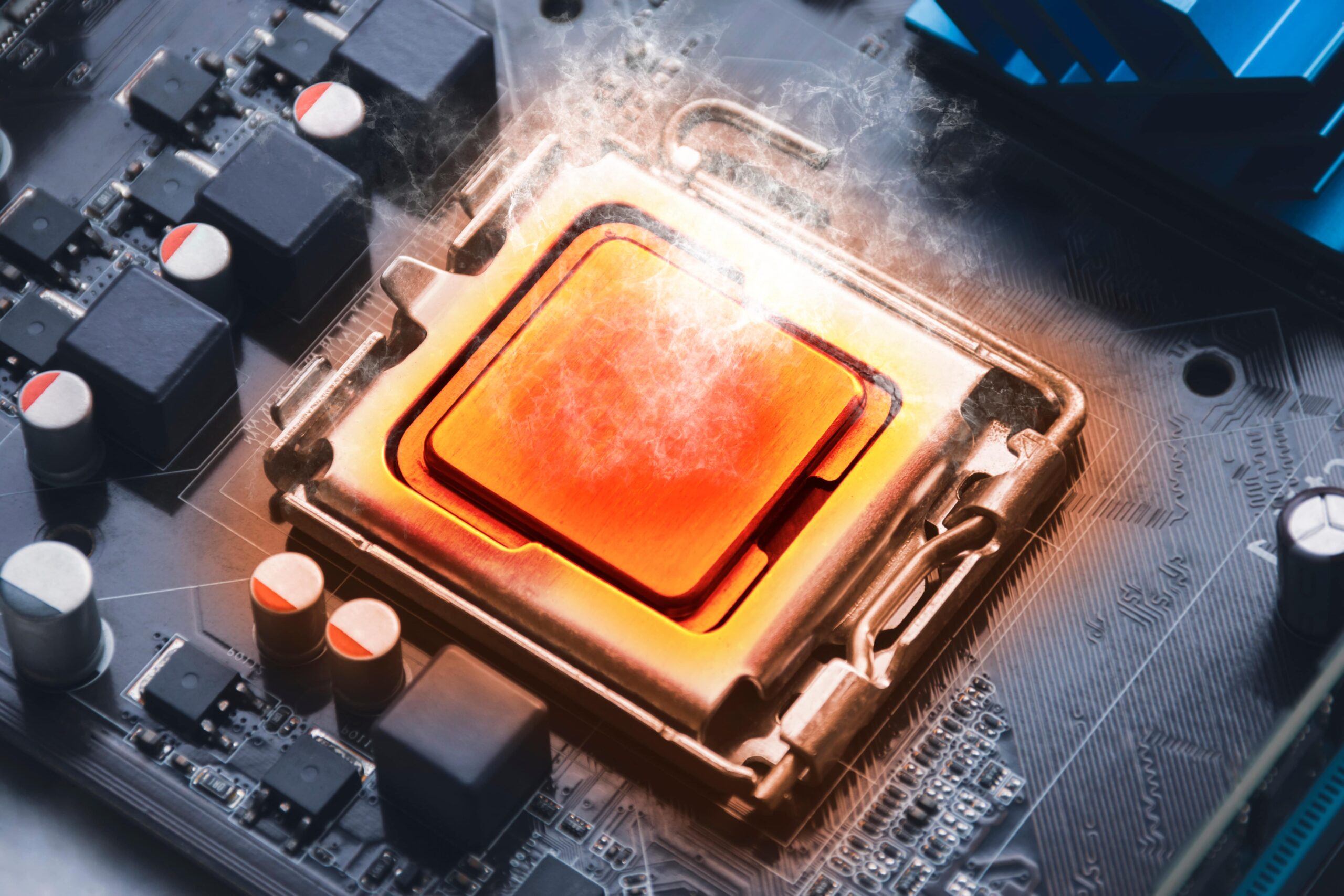
The cooling hardware itself should also be inspected. A CPU cooler that is not properly mounted may struggle to transfer heat away from the processor. Thermal paste can also degrade over time or become ineffective if it was incorrectly applied.
Graphics cards have their own cooling systems, including heatsinks and fans. If the GPU fans are not spinning correctly, are clogged with dust, or are struggling under load, temperatures can increase significantly.
For liquid-cooled systems, users should also monitor pump operation and radiator airflow. Unusual pump noise, rising temperatures, or poor cooling performance may indicate that the cooling system needs attention.
You cannot manage overheating effectively if you do not know how hot your components are getting. Monitoring CPU and GPU temperatures while gaming can help identify problems before they become serious.
Pay attention not only to the temperature itself but also to what happens over time. If temperatures steadily climb during a gaming session and performance begins to fall, the system may be struggling to remove accumulated heat.
Temperature limits vary depending on the specific processor and graphics card, so always compare your readings with the manufacturer's specifications rather than relying on a single universal temperature number.
The environment around your PC can make a noticeable difference. A gaming computer operating in a hot room has less opportunity to dissipate heat than one operating in a cooler environment.
This can be particularly important in warm climates. Good room ventilation and air conditioning can help maintain a more favorable environment for high-performance hardware.
Avoid placing the PC in a cramped cabinet or directly against a wall where hot air cannot escape easily.
Overheating does not always begin with an obvious shutdown. Sometimes the first warning is a gradual decline in performance.
If your games suddenly begin stuttering, frame rates drop after extended play, or the computer becomes unusually loud, check temperatures and fan behavior. Increased fan noise can indicate that the cooling system is working harder than normal.
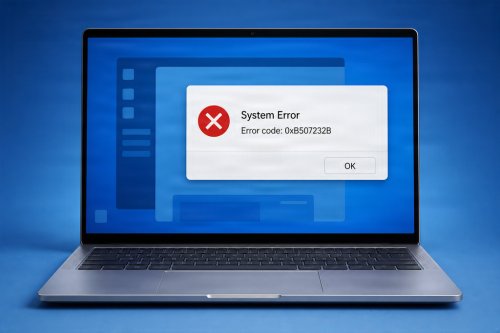
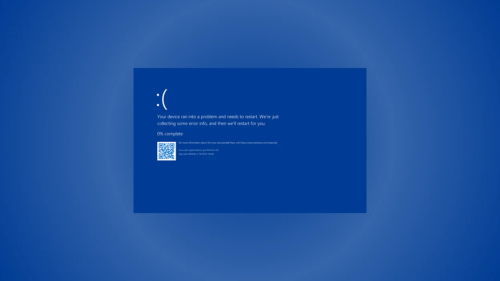
Unexpected crashes and blue screens can have many causes, but excessive temperatures should be considered when they consistently occur during demanding workloads.
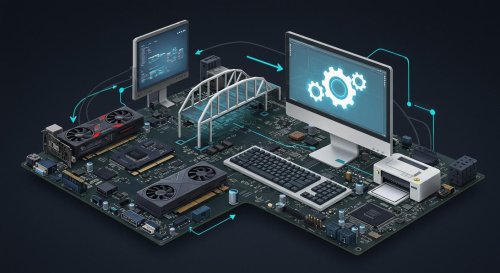
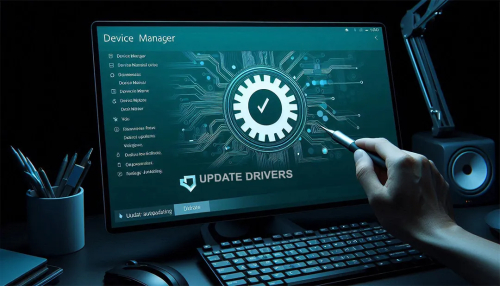
Thermal problems are primarily hardware and airflow issues, but software can influence how efficiently your system operates. Keeping Windows, chipset drivers, graphics drivers, and other important components updated can help maintain proper power management and hardware compatibility.
Graphics driver updates can also improve performance and stability in newer games, potentially reducing unnecessary system load in certain situations.

Overclocking can increase performance, but it can also increase power consumption and heat production. If your cooling system is already struggling, additional overclocking can make the problem worse.
If stability and hardware longevity are your priorities, maintaining reasonable power and temperature levels is often more valuable than chasing a small performance increase.
A high-end gaming PC does not need to run at maximum temperature all the time. Good airflow, regular cleaning, appropriate cooling, updated software, and temperature monitoring can make a major difference.
It is also useful to keep Windows maintained and remove unnecessary software that may consume system resources in the background. A PC maintenance tool such as Advanced System Repair can complement regular maintenance by helping identify and address common Windows system issues that may affect overall performance.

The thermal trap is a real challenge for high-performance gaming PCs. Powerful hardware produces more heat, and without proper cooling and airflow, that heat can eventually affect performance and system stability.
Keeping your gaming rig cool does not necessarily require expensive upgrades. Start with good airflow, clean the system regularly, monitor CPU and GPU temperatures, check your cooling hardware, and keep Windows and drivers updated. If temperatures remain unusually high despite proper maintenance, then it may be time to investigate the CPU cooler, case airflow, thermal paste, or other hardware components.
A powerful gaming PC should deliver performance without constantly fighting against its own heat. With proper thermal management and regular maintenance, you can enjoy longer gaming sessions while keeping your hardware running reliably.
 Like
1
Like
1
 Dislike
0
Dislike
0
 Love
1
Love
1
 Funny
0
Funny
0
 Angry
0
Angry
0
 Sad
0
Sad
0
 Wow
1
Wow
1