Building or upgrading a computer is an exciting investment, but choosing the right components requires more than comparing prices or selecting products with impressive specifications. Every component plays a role in your PC’s performance, stability, and long-term reliability. A part that looks powerful on paper may not be the best choice for your needs if it is incompatible with your other hardware or exceeds your budget.
Whether you are building a gaming PC, assembling a workstation, or upgrading an existing computer, evaluating each component before purchasing can help you avoid costly mistakes. This checklist covers the essential factors to consider when selecting PC parts, from processors and graphics cards to storage, cooling, and power supplies.

Before comparing individual components, determine what you want your computer to accomplish. Your intended use will influence which specifications matter most and how you should allocate your budget.
Common PC use cases include:
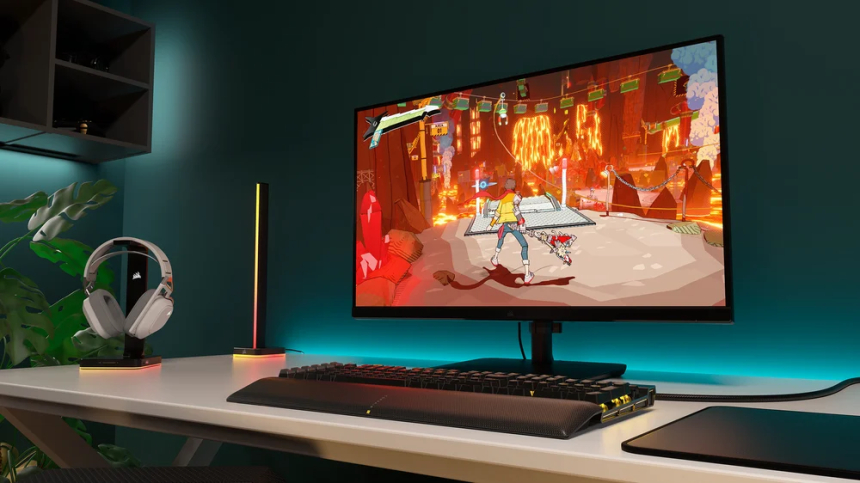
Gaming: Prioritize the graphics card, processor performance, sufficient memory, and a monitor that matches your target resolution and refresh rate.
Content creation: Consider a powerful processor, a capable GPU, sufficient RAM, and fast storage for large projects.
Office and everyday computing: Focus on reliability, adequate memory, responsive storage, and a processor suited to your applications.
Professional workloads: Check the hardware requirements of your software, including specialized GPU features, memory capacity, and support for multiple storage devices.
Establish a realistic budget that includes not only internal components but also peripherals, operating system costs, and any additional cooling or accessories you may need.

The central processing unit (CPU) handles general computing instructions and influences how smoothly applications perform. When comparing processors, consider more than clock speed alone.
What to evaluate:
Core and thread count: More cores and threads can benefit multitasking and applications designed for parallel processing.
Clock speed: Base and boost frequencies provide useful context, but actual performance also depends on architecture, power limits, and workload.
Socket compatibility: The processor must fit the motherboard’s CPU socket.
Generation and architecture: Newer processors may offer better performance and efficiency, but compare actual benchmarks rather than relying on generation alone.
Integrated graphics: Determine whether the CPU includes graphics if you plan to use the PC without a dedicated graphics card.
Power and cooling requirements: Check the processor’s power characteristics and recommended cooling solution.
For gaming, balance the CPU with your graphics card. For productivity, prioritize the processor features that benefit your particular applications.
The graphics processing unit is one of the most important components for gaming, 3D rendering, video editing, and other graphics-intensive tasks.
Before buying a GPU, review these factors:
Performance: Compare benchmarks for the games and applications you actually use.
VRAM capacity: Video memory affects how well a graphics card handles high-resolution textures, complex scenes, and demanding workloads.
Resolution and refresh rate: Match the GPU to your intended gaming resolution and frame-rate targets.
Physical dimensions: Confirm that the card fits inside your case and does not interfere with other components.
Power requirements: Check the manufacturer’s recommended power supply capacity and the required power connectors.
Features and software support: Consider ray tracing, upscaling technologies, encoding capabilities, and compatibility with your applications.
Do not choose a graphics card based on its model name or memory capacity alone. A card with more VRAM is not automatically faster than a competing model. Independent benchmarks and reviews provide a clearer picture of real-world performance.
The motherboard connects your components and determines which processors, memory modules, storage devices, and expansion cards you can install.
Review the following before purchasing:
CPU socket: It must match your processor.
Chipset support: Check the features available on the board and whether the selected CPU is supported.
BIOS compatibility: Some motherboards require a BIOS update to support certain processors. Confirm the installed BIOS version when necessary.
Memory support: Check DDR generation, supported capacities, module configurations, and rated speeds.
Expansion slots: Ensure there are enough PCIe slots for your graphics card and other expansion devices.
Storage connections: Look for sufficient M.2 slots, SATA ports, and support for your preferred storage devices.
Connectivity: Consider USB ports, networking, Wi-Fi, Bluetooth, and audio connections.
Form factor: The motherboard must fit the selected case.
A motherboard with premium features is not always necessary. Choose one that supports your current components and provides the expansion options you are likely to need.
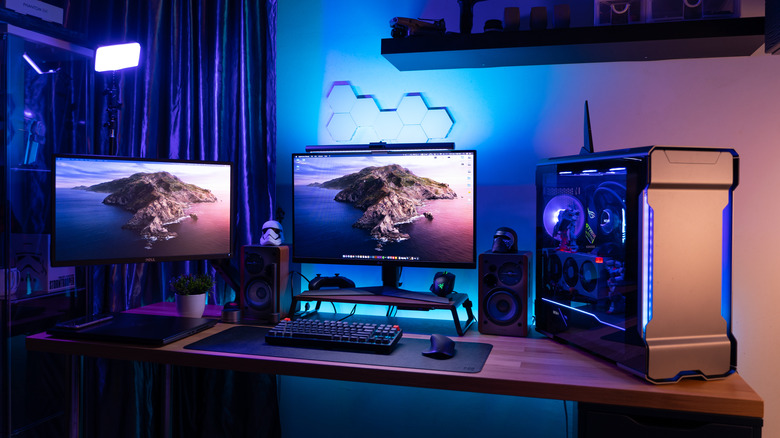
Random access memory (RAM) temporarily stores data that your system needs to access quickly. Insufficient RAM can cause slowdowns when running multiple applications or handling large projects.
Consider these points:
Capacity: Choose an amount appropriate for your workload. Everyday tasks may require less memory than modern gaming, video editing, virtual machines, or professional applications.
DDR generation: The motherboard and processor platform must support the selected memory type. DDR4 and DDR5 are not interchangeable.
Speed and timings: Faster memory can improve performance in certain workloads, but the benefits vary by platform.
Module configuration: Two compatible modules can enable dual-channel operation on supported platforms.
Compatibility: Consult the motherboard specifications and, where useful, its memory compatibility list.
Avoid buying RAM solely because it has the highest advertised speed. The system may require configuration changes to operate at its rated profile, and supported speeds depend on the processor, motherboard, and memory kit.
Storage affects boot times, application loading, file transfers, and how much data your PC can hold.
The two common categories are solid-state drives (SSDs) and hard disk drives (HDDs).
SSDs offer faster access times and generally provide a more responsive computing experience. NVMe SSDs use the PCIe interface, while SATA SSDs use the SATA interface.
HDDs typically offer a lower cost per gigabyte and can be useful for large media libraries, backups, and other files that do not require the fastest access speeds.
When evaluating storage, check:
Capacity: Estimate the space needed for your operating system, applications, games, projects, and personal files.
Interface and form factor: Confirm whether the drive is an M.2 NVMe, M.2 SATA, 2.5-inch SATA, or another supported type.
Performance: Review sequential speeds, random access performance, and independent tests.
Endurance and warranty: Consider the drive’s rated endurance where applicable and the manufacturer’s warranty.
Motherboard limitations: Some M.2 slots support only particular interfaces, and certain configurations may disable specific SATA ports or share PCIe resources.
Backup requirements: Important files should have a separate backup, regardless of the drive’s speed or reliability.
For many users, an SSD for the operating system and frequently used applications, paired with additional storage for larger files, provides a practical balance.

The power supply unit converts electricity from the wall into the power required by your PC components. Choosing an unsuitable or low-quality PSU can cause instability and potentially damage hardware.
Before buying, check the following:
Wattage: Estimate the combined power requirements of your CPU, GPU, and other components. Follow the graphics card manufacturer’s recommendations and allow suitable headroom.
Build quality: Look for reputable reviews that evaluate electrical performance, voltage regulation, ripple, protections, and operation under load.
Efficiency rating: Certifications such as 80 PLUS indicate efficiency under specified conditions, but they do not independently guarantee overall quality.
Power connectors: Ensure the PSU has the required motherboard, CPU, GPU, and storage connectors.
Physical size: Confirm that the unit fits your case.
Warranty and protection features: Consider over-current, over-voltage, over-temperature, and short-circuit protections.
Avoid choosing a PSU based only on its advertised wattage or efficiency badge. A reputable, appropriately sized power supply is a better investment than an inexpensive unit with questionable performance.
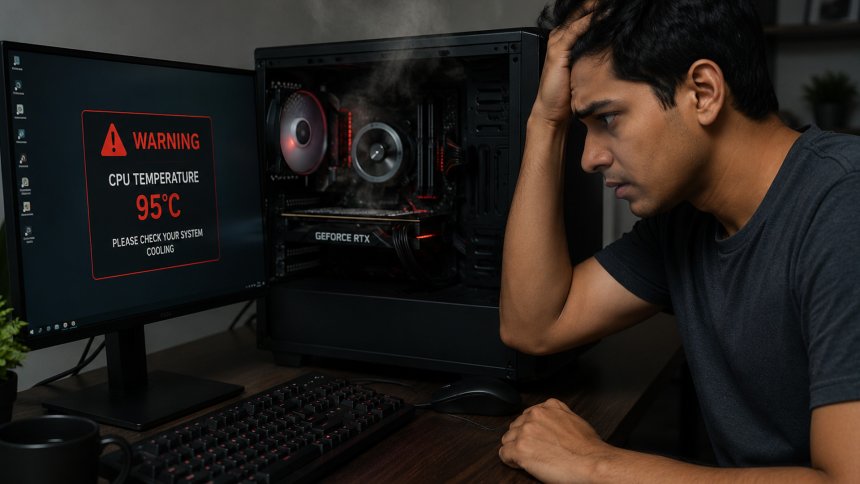
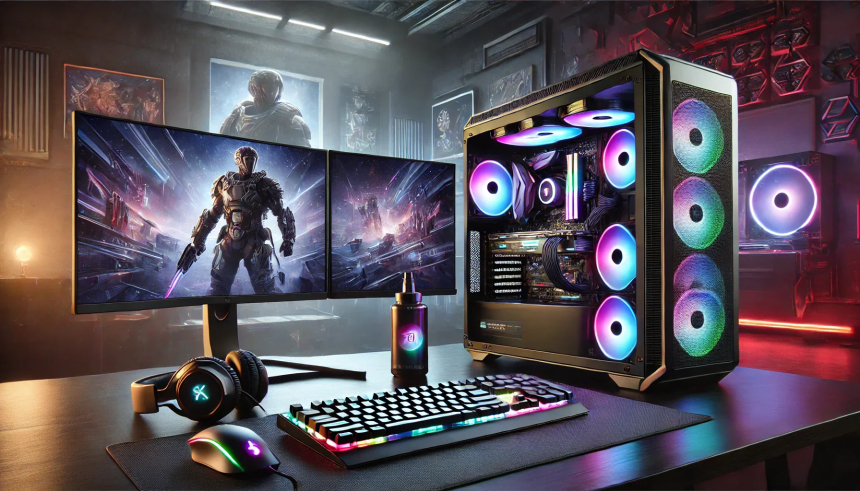
Your case affects component compatibility, airflow, noise, and ease of installation. Your cooling system helps prevent components from overheating under sustained workloads.
Before purchasing, verify:
Motherboard support: The case must accommodate your motherboard’s form factor.
GPU clearance: Check graphics card length, height, and thickness.
CPU cooler clearance: Confirm the maximum air-cooler height or radiator dimensions supported by the case.
Airflow: Look for suitable intake and exhaust paths, ventilation, and fan mounting options.
Fan support: Determine how many fans are included and whether additional fans are needed.
Radiator support: If using liquid cooling, verify radiator size and mounting compatibility.
Cable management: Adequate space behind the motherboard tray helps keep cables organized and airflow unobstructed.
More fans do not automatically mean better cooling. Fan placement, case ventilation, component heat output, and the overall airflow path all matter. Check independent thermal and noise testing when available.
![How to Choose a CPU Cooler for a Custom PC [Performance / Features / Compatibility] | ZisaLog: Beginner's Guide to Building a Custom PC](https://zisalog.com/wp-content/uploads/2024/03/b98a2b091c1f402f91325ca5fcc482b5-1024x683.jpg)
One of the most important steps in a PC build is checking that every component works with the others. A collection of powerful parts is not a successful build if the components cannot be installed together or operate correctly.
Use this compatibility checklist:
CPU socket and motherboard compatibility confirmed.
BIOS support verified for the selected processor.
RAM generation and capacity supported by the motherboard.
GPU dimensions fit the case.
CPU cooler supports the processor socket and fits the case.
PSU wattage and connectors meet system requirements.
Storage interfaces are supported by the motherboard.
Case supports the motherboard and cooling configuration.
Required front-panel, fan, and power connectors are available.
Monitor connections are compatible with the selected graphics output.
A PC parts compatibility checker can help identify common problems before you order. However, automated tools may not catch every physical clearance issue, BIOS limitation, or shared motherboard connection, so verify critical details using manufacturer specifications.
Once compatibility is established, compare the available options and determine which component offers the best value for your needs.
Look beyond the advertised price. Shipping, taxes, installation costs, and required accessories can change the total cost of a build.
Before buying, investigate:
Independent reviews: Look for real-world benchmarks, temperature testing, noise measurements, and power consumption.
Price history: Check whether the current price is competitive or inflated compared with typical pricing.
Seller reputation: Buy from a reliable retailer that provides clear purchase records and support.
Warranty terms: Confirm the coverage period, exclusions, and process for requesting service.
Return policy: Make sure you understand the conditions for returning defective or incompatible products.
Used components: Inspect the item’s condition, test it where possible, and assess the remaining warranty and risk.
Be cautious of deals that appear unusually cheap, listings with unclear specifications, counterfeit products, or sellers who cannot provide verifiable product information.
A good PC build should meet your current needs while leaving room for reasonable future upgrades.
Consider whether the system has enough memory slots, available storage connections, suitable PSU capacity, and physical room for a larger graphics card or additional cooling.
However, avoid spending too much on hypothetical upgrades. Platform changes can make some future upgrades impractical, and paying extra for unused features may not deliver meaningful value.
Focus on flexibility that is likely to benefit you during the expected lifespan of the system.
Before completing your purchase, review the following:
I have identified my main PC workload and performance goals.
My component choices fit within my total budget.
The CPU and motherboard are compatible.
The GPU matches my performance needs and physical requirements.
The RAM and storage meet my capacity requirements.
The PSU has suitable capacity, connectors, and build quality.
The case and cooling system support all selected components.
I have checked independent reviews and benchmark results.
The seller, warranty, and return policy are acceptable.
I have considered future upgrades without overspending.
I have a plan for installing the operating system, updating drivers, and backing up important files.
Choosing PC components is about finding the right balance between performance, compatibility, reliability, and cost. The most expensive parts are not always the best choices, and impressive specifications do not guarantee better results in every application.
By evaluating your needs, verifying compatibility, comparing independent reviews, and checking warranty coverage, you can make more informed purchasing decisions and reduce the risk of costly mistakes.
The best PC build is not simply the one with the most powerful hardware. It is the one that delivers the performance you need, fits your budget, and works reliably as a complete system.
 Like
0
Like
0
 Dislike
0
Dislike
0
 Love
0
Love
0
 Funny
0
Funny
0
 Angry
0
Angry
0
 Sad
0
Sad
0
 Wow
0
Wow
0