
A slow computer can interrupt your work, reduce productivity, and make even simple tasks frustrating. Whether you're using your PC for business, school, browsing, gaming, or everyday activities, performance issues can develop over time. Applications may take longer to open, Windows may take several minutes to start, and the system may freeze when multiple programs are running.
The good news is that you don't always need to purchase a new computer to improve performance. In many cases, a few practical maintenance steps can help restore speed, reduce unnecessary system activity, and make your computer more responsive.
As experienced PC maintenance professionals understand, computer performance depends on several factors, including available storage, memory, background processes, software configuration, hardware condition, and system updates. Identifying the cause of slow performance is the first step toward choosing the right solution.

Here are ten effective ways to make your computer run faster and keep it performing reliably.
One common reason computers take too long to start is the number of applications configured to launch automatically when Windows boots. Some programs need to run at startup, but many do not. Having too many startup applications can increase boot time and consume memory and processing power before you even begin working.
To review startup applications, open Task Manager by pressing Ctrl + Shift + Esc. Select the Startup apps section and review the programs listed. Disable applications you do not need to launch automatically.
Be careful not to disable essential security software, system components, or hardware-related utilities you rely on. Reducing unnecessary startup activity can help Windows start faster and leave more system resources available for the applications you actually use.
When your system drive is nearly full, Windows may have less room for temporary files, updates, virtual memory, and other system operations. A crowded drive can also make everyday file management more difficult.
Start by checking your available storage through Settings > System > Storage. Windows provides tools that help identify temporary files, large files, and applications taking up significant disk space.
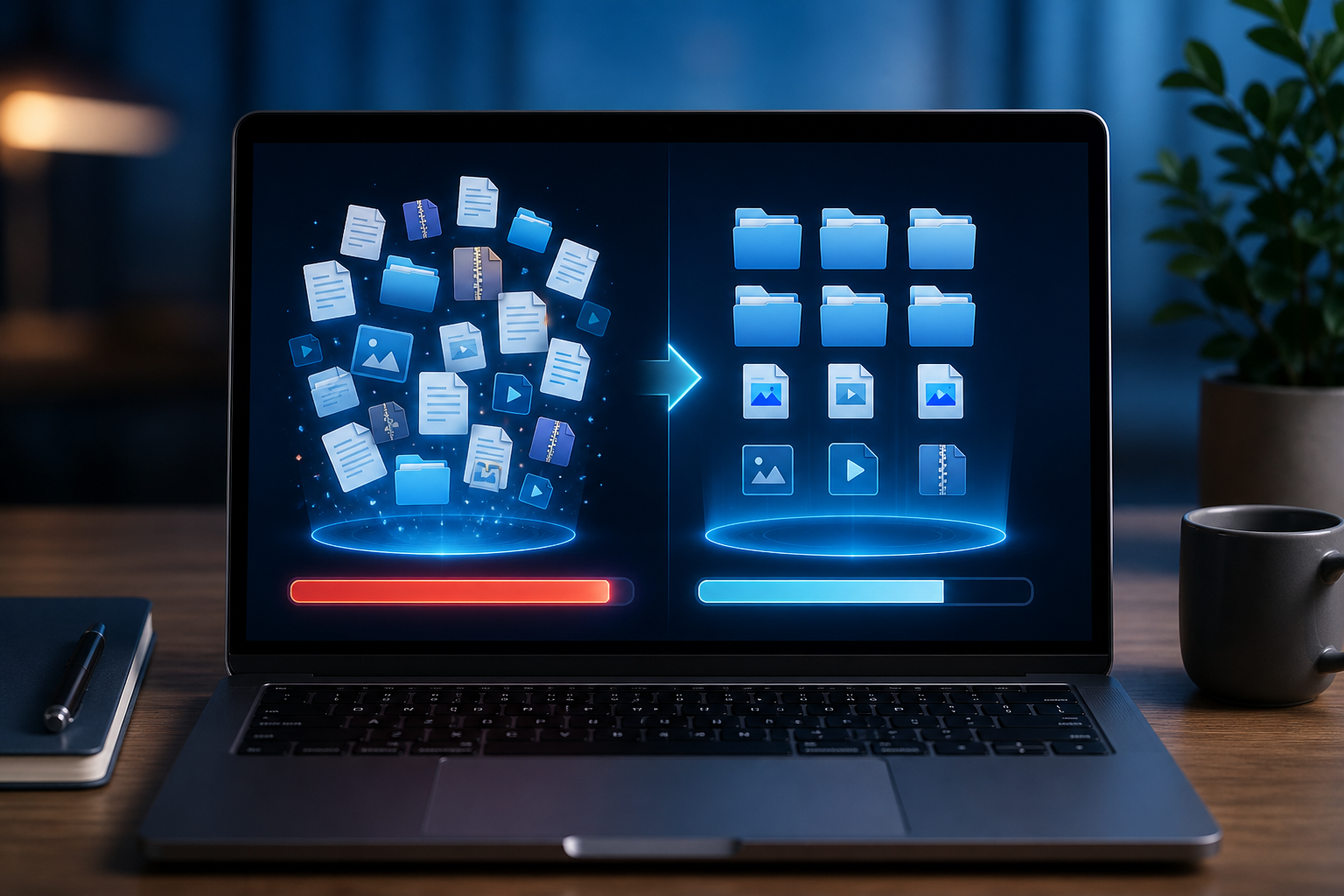
You can use Storage Sense to automatically remove certain temporary files and empty the Recycle Bin based on your settings. You should also review your Downloads folder, remove applications you no longer use, and move large personal files to another drive or a trusted cloud storage service when appropriate.
Before deleting anything, make sure you understand what it contains. Avoid manually removing unfamiliar Windows folders or system files, as doing so can cause software or operating system problems.
Over time, computers accumulate applications that are no longer needed. Some may continue running background services, checking for updates, or consuming storage even when you rarely open them.
Review your installed applications by going to Settings > Apps > Installed apps. Look for programs you recognize but no longer use, then uninstall them through Windows.
Removing unnecessary software can free up storage and reduce background activity. However, avoid uninstalling programs simply because their names are unfamiliar. Some applications support hardware, drivers, or important system functions. If you are unsure about a program, research it before removing it.
Operating system and driver updates can improve compatibility, fix bugs, address security vulnerabilities, and sometimes resolve performance problems. Running outdated software may lead to errors, unstable applications, or inefficient hardware operation.
To check for Windows updates, open Settings > Windows Update and select Check for updates. Install applicable updates and restart your computer when prompted.
You should also keep important device drivers updated, particularly those for graphics, networking, audio, and storage controllers. Use Windows Update, your computer manufacturer's official support website, or the hardware manufacturer's official tools to obtain drivers.
Avoid downloading drivers from unfamiliar websites or using unofficial driver packages. Incorrect or incompatible drivers can create additional problems rather than improve performance.

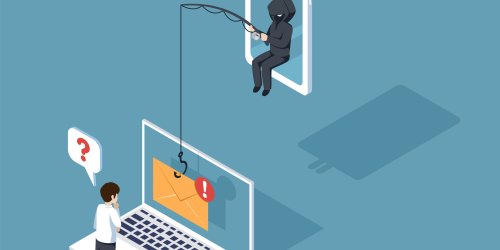
Malware can affect computer performance by consuming system resources, displaying unwanted advertisements, modifying browser settings, or running hidden processes. Some potentially unwanted applications may also install browser extensions or background components without providing much value.
If your computer has suddenly become slow, displays unexpected pop-ups, redirects browser searches, or experiences unusual network activity, consider running a security scan.
Windows Security includes Microsoft Defender Antivirus, which can scan your system for threats. Open Windows Security > Virus & threat protection and run a scan. For a more thorough check, you can choose a full scan, which examines more files and locations but may take longer.
Keep your security software updated and be cautious when opening email attachments, downloading files, or installing programs from unfamiliar sources. Removing malicious or unwanted software can help restore normal performance while protecting your personal information.
Some applications continue running even after you close their windows. They may synchronize files, check for updates, send notifications, or perform other tasks in the background. Although certain background processes are necessary, too many can consume valuable system resources.
Open Task Manager and select Processes. Review the CPU, Memory, Disk, and Network columns to identify applications using significant resources.
If a familiar application is consuming unusually high resources, check whether it is performing an update, synchronization, or another legitimate task. You can close applications you are not using, but avoid ending unfamiliar Windows processes or essential security services.
You can also review background permissions for supported applications through Windows settings. Limiting unnecessary activity can help make more memory and processing capacity available for your current tasks.
Windows includes visual features such as animations, transparency, shadows, and other graphical effects. These features improve the appearance of the desktop, but they can place additional demands on older or lower-powered computers.
If your PC has limited hardware resources, adjusting visual effects may improve responsiveness.
Search Windows for Adjust the appearance and performance of Windows. Open the Performance Options window and select Adjust for best performance to disable many visual effects. You can also choose Custom and keep the visual features you prefer.
The improvement will depend on your hardware and Windows configuration. On modern computers with capable processors and graphics hardware, the difference may be small. On older systems, reducing unnecessary visual effects can make the interface feel more responsive.
Random Access Memory (RAM) is used by Windows and applications to store information that is actively needed. When available memory becomes limited, your computer may rely more heavily on storage to manage running tasks. This can make switching between applications slower and cause noticeable delays.
To check memory usage, open Task Manager and select Performance > Memory. Review how much RAM is installed and how much is currently being used.
If memory usage frequently approaches its limit during normal activities, consider closing unused browser tabs and applications. You can also reduce the number of programs running simultaneously.
For computers that regularly handle demanding applications, video editing, large spreadsheets, or extensive multitasking, upgrading RAM may provide a more noticeable improvement. Before purchasing additional memory, check your computer's specifications to confirm the supported memory type, capacity, and upgrade options.

Storage hardware has a significant effect on how quickly a computer starts and loads applications. Older computers equipped with traditional hard disk drives (HDDs) may feel slow because mechanical drives generally have longer access times than solid-state drives.
An SSD uses flash memory rather than spinning mechanical disks. Upgrading from an HDD to an SSD can significantly improve boot times, application loading, file access, and overall system responsiveness.
However, the benefits depend on your current hardware and the type of work you perform. If your computer already has an SSD, other factors such as limited RAM, background applications, malware, or an aging processor may be responsible for slow performance.
Before upgrading, confirm that the SSD is compatible with your computer. Back up important files and plan your operating system migration or installation carefully to avoid data loss.
Keeping your computer fast is not a one-time task. Over time, temporary files accumulate, applications change, software becomes outdated, and new programs may introduce additional background activity.
Establish a simple maintenance routine. Review startup applications periodically, remove software you no longer need, install security and operating system updates, and check available storage. Monitor system performance when you notice unusual slowdowns, and run security scans regularly.
You should also maintain good physical care of your computer. Dust buildup can restrict airflow and contribute to overheating, which may cause a system to reduce processor performance to control temperatures. Keep vents clear, use the computer on a suitable surface, and have internal cleaning performed when necessary by someone qualified to service your device.
For additional convenience, a reputable PC maintenance solution can help identify certain system issues, review unnecessary files, and organize routine maintenance tasks. Choose software carefully, understand what changes it will make, and review recommended actions before applying them.
Maintenance can resolve many performance problems, but it cannot overcome every hardware limitation. If your computer remains slow after software cleanup, security checks, and system updates, its hardware may no longer meet the demands of your applications.
Frequent freezing, consistently high memory usage, slow file access, overheating, and poor performance during ordinary tasks may indicate that an upgrade is worth considering. Depending on your computer, adding RAM or replacing an older hard drive with an SSD may be more cost-effective than purchasing an entirely new system.
If you suspect a hardware problem, have the device checked by a qualified computer technician. A proper diagnosis can help determine whether the issue is related to storage, memory, cooling, the operating system, or another component.

A slow computer does not always mean you need a new one. Simple actions such as disabling unnecessary startup programs, freeing up disk space, removing unused applications, updating Windows, and checking for malware can make a meaningful difference.
For older computers, hardware upgrades such as additional RAM or an SSD may provide even greater improvements. The most effective approach is to identify what is limiting your computer's performance instead of applying random fixes.
With regular maintenance, safe computing habits, and the right upgrades when necessary, you can keep your Windows computer running more smoothly, efficiently, and reliably.
Advanced System Repair Pro brings two decades of experience in PC repair and maintenance software. With a focus on helping users maintain their computers, it offers another option to consider as part of a regular PC care routine. Always review recommended changes before applying them and use trusted tools from reputable sources.
 Like
0
 Dislike
0
 Love
0
 Funny
0
 Angry
0
 Sad
0
 Wow
0