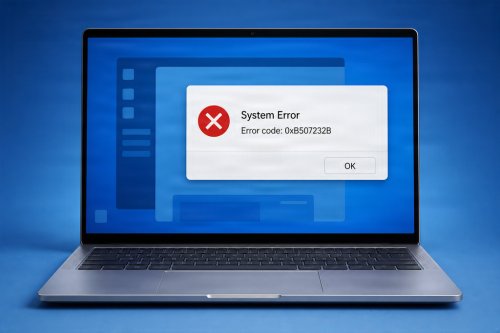

A computer error message can appear at the worst possible time. You may be opening an application, installing an update, connecting a device, or simply starting Windows when a confusing message suddenly appears on the screen.
While error messages can look technical and intimidating, they are often your computer's way of telling you that something needs attention. Understanding what these messages mean can make troubleshooting easier and help prevent a small problem from becoming a bigger one.
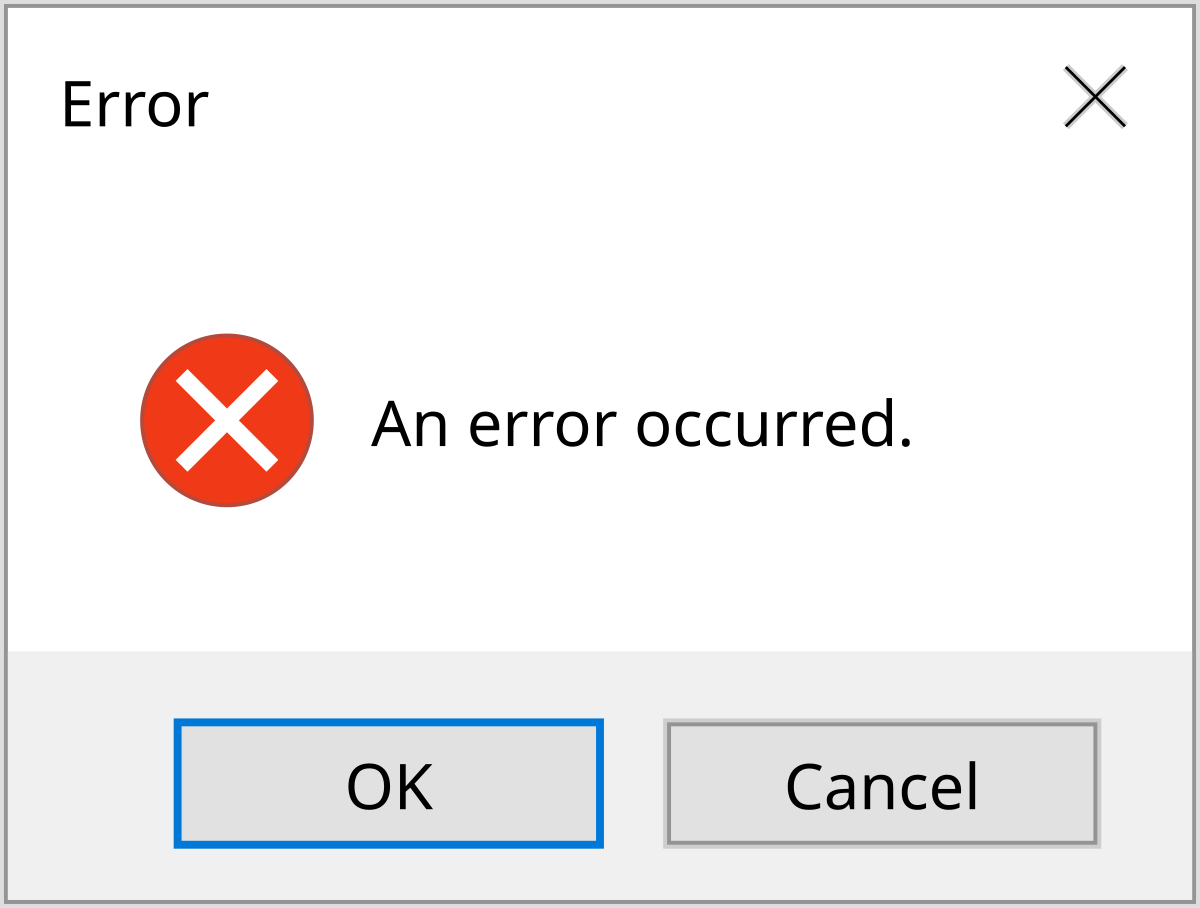
An error message is a notification generated when Windows, an application, or a hardware component encounters a problem. It may tell you that a file is missing, a program has stopped responding, a device cannot be accessed, or an operation could not be completed.
Some messages are simple, such as “Application Not Responding.” Others contain technical information, such as Windows error codes, DLL names, or system stop codes. Although these details may look complicated, they can provide useful clues about the source of the problem.
One of the biggest mistakes users make is ignoring an error message simply because the computer continues working.
An error may indicate a temporary issue, but repeated errors can point to something more serious. For example, an application that occasionally crashes may have a software conflict, while repeated system errors could indicate corrupted Windows files, driver problems, insufficient storage, or failing hardware.
The message itself may not provide the complete answer, but it can help narrow down where to look.
Windows can display many different types of errors depending on what is happening.
Application errors usually involve a specific program crashing, refusing to open, or becoming unresponsive. These problems can be caused by corrupted application files, incompatible updates, missing components, or conflicts with other software.
![Full Guide] How to Fix Missing DLL Files?](https://4ddig.tenorshare.com/images/win-data-recovery/missing-dll-files.png?w=886&h=590)
Driver errors occur when Windows has trouble communicating with hardware. Problems with graphics, audio, Wi-Fi, Bluetooth, printers, and other devices can sometimes be traced to outdated, corrupted, or incompatible drivers.

System errors affect Windows itself. These may involve corrupted system files, failed updates, configuration problems, or hardware issues.
You may also encounter Blue Screen of Death (BSOD) errors. These occur when Windows encounters a serious problem and stops the system to prevent further damage. The displayed stop code can provide an important clue when diagnosing the problem.
Many Windows errors include codes containing numbers and letters, such as 0x80070005 or 0x80070057.
These codes are identifiers that can help determine what type of problem occurred. For example, some codes are associated with Windows Update, permissions, system files, or configuration problems.
An error code is more useful when combined with the circumstances surrounding the error. Knowing what you were doing when the message appeared can often be just as important as the code itself.
If you see a message mentioning a missing DLL file, Windows or an application may be unable to locate an important software component.
DLL errors can occur because files have been deleted, corrupted, replaced, or become incompatible with an application.
Instead of downloading an individual DLL from a random website, it is safer to identify which application or Windows component requires the file and repair or reinstall the appropriate software.
Drivers act as a communication layer between Windows and hardware. If a driver becomes corrupted or incompatible, Windows may display an error or the hardware may stop functioning correctly.
For example, a graphics driver problem could result in display glitches or game crashes, while a network driver problem could cause Wi-Fi or Ethernet connectivity issues.
Updating or reinstalling the appropriate driver from the hardware manufacturer's official website can often resolve these problems.
![Can Windows Update Cause Problems? [List of Problems & Errors]](https://wp-cdn.fortect.com/uploads/2023/04/12103355/windows-update-failed-2.jpg)
Windows Update errors are another common source of confusing messages.
A failed update can result from corrupted update components, insufficient storage, network problems, incompatible software, or damaged Windows system files.
If an update repeatedly fails, simply trying the installation again may not solve the underlying issue. Checking available storage, restarting Windows, running built-in troubleshooters, and repairing system files may be necessary.
The first step is to read the message carefully. Take note of the exact wording, error code, application name, or file mentioned.
Next, consider what happened immediately before the error appeared. Did you install a new program? Update a driver? Connect new hardware? Install a Windows update? These details can help identify the likely cause.
A simple restart is also worth trying, particularly when the problem appears only once. Temporary software conflicts can sometimes disappear after Windows starts fresh.
If the error keeps returning, avoid repeatedly dismissing it. Recurring messages are usually worth investigating.
If multiple Windows functions are producing errors, corrupted system files may be involved.
Windows includes built-in tools such as System File Checker (SFC) and Deployment Image Servicing and Management (DISM) that can help repair Windows components.
Running these tools can be useful when Windows behaves unexpectedly, particularly after failed updates, crashes, or system changes.
If the error started after installing or updating a particular application or driver, that recent change may be connected to the problem.
Try updating the affected software or reinstalling it from a trusted source. For hardware-related errors, check Device Manager and look for devices displaying warning indicators.
Avoid making multiple major changes at the same time. Troubleshooting one potential cause at a time makes it easier to determine what actually resolved the issue.
Sometimes an error message is only the symptom of a hardware problem.
Repeated crashes, storage errors, unexpected shutdowns, overheating, memory errors, or devices disappearing from Windows can indicate failing hardware.
If software troubleshooting does not resolve a recurring problem, hardware diagnostics may be necessary. Continuing to reinstall software without investigating the hardware can waste time and may allow a failing component to become worse.

Many computer problems can be reduced through regular maintenance. Keeping Windows and applications updated, removing unnecessary software, maintaining adequate storage space, and monitoring system performance can help keep a PC running reliably.
It is also important to maintain backups of important files. Troubleshooting can occasionally require significant system changes, and having a current backup provides an additional layer of protection.
A PC maintenance tool such as Advanced System Repair can complement regular maintenance by helping identify and address common Windows system issues. It should be used alongside Windows updates, reputable security software, backups, and proper hardware diagnostics.
Computer error messages may seem like technical warnings designed to confuse you, but they are actually valuable clues. Whether the problem involves Windows, a driver, an application, or hardware, the message can help point you toward the source.
Instead of simply clicking OK and moving on, take a moment to understand what your computer is reporting. Record the error code, consider what changed recently, and troubleshoot the most likely cause first.
The better you understand what your computer is telling you, the easier it becomes to fix problems before they turn into major system failures.
 Like
0
Like
0
 Dislike
0
Dislike
0
 Love
0
Love
0
 Funny
0
Funny
0
 Angry
0
Angry
0
 Sad
0
Sad
0
 Wow
0
Wow
0