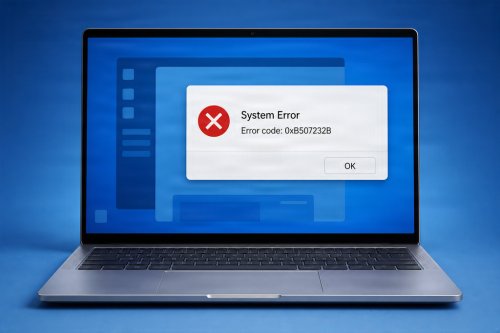
When a Windows PC starts acting strangely—devices stop working, applications crash, performance drops, or certain features no longer function correctly—a fresh installation of drivers and applications can often help restore stability.
Over time, drivers can become outdated or corrupted, applications can accumulate damaged files, and software conflicts can develop after Windows updates or hardware changes. Reinstalling the affected drivers and apps gives Windows a cleaner software environment and can resolve problems that ordinary restarts or basic troubleshooting cannot.
This guide explains how to safely reinstall drivers and applications in Windows, when you should consider doing it, and what precautions to take before making changes.
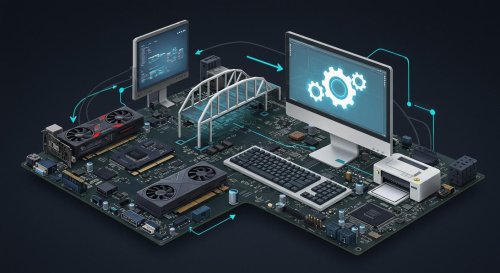
Drivers are software components that allow Windows to communicate with hardware such as graphics cards, network adapters, printers, audio devices, chipsets, and storage controllers.
Applications also depend on supporting files, system components, and configuration settings. If these become damaged or incompatible, you may experience problems such as:
Reinstalling drivers and applications can replace damaged files and restore the correct software configuration.

A driver reinstall may be useful when a particular hardware component is malfunctioning.
Common situations include:

If games crash, the screen flickers, applications display incorrectly, or Windows reports problems with your graphics adapter, reinstalling the GPU driver may help.
This is especially useful after:
:max_bytes(150000):strip_icc()/troubleshooter-bad-annotated-ca677fc416c74f0d8ae45c3caf879309.jpg)
If speakers, headphones, microphones, or other audio devices suddenly stop working, the audio driver may be damaged or incorrectly configured.

If Wi-Fi, Ethernet, or Bluetooth becomes unreliable, reinstalling the appropriate network driver can sometimes restore normal connectivity.
Printers, scanners, webcams, game controllers, and other USB devices may also require a driver reinstall when Windows stops communicating with them correctly.
Before removing any driver, take a few precautions.
A System Restore point provides a way to return Windows to an earlier configuration if something goes wrong.
To create one:
Not every driver problem requires a restore point, but creating one before major system changes is a good precaution.
If you plan to uninstall a driver, make sure you know where the replacement driver will come from.
The safest sources are generally:
Avoid downloading individual DLLs or drivers from unfamiliar third-party websites.
Windows Device Manager provides a straightforward way to manage hardware drivers.

Right-click the Start button and select Device Manager.
Expand the appropriate category, such as:
Look for the device experiencing the problem.
Right-click the device and select Uninstall device.
Depending on the hardware and Windows version, you may see an option to remove the driver package.
Be careful when uninstalling essential hardware drivers. If you are unsure which device is responsible for a problem, research the exact model before removing it.
Restart Windows after uninstalling the device.
Windows may automatically reinstall a compatible driver when the computer starts.
If Windows does not automatically install the correct driver, install the driver you downloaded from the manufacturer's official website.
Restart the computer afterward if required.
Graphics drivers deserve special attention because they can affect gaming, video playback, applications, and overall display stability.
You can obtain graphics drivers from the official support websites of manufacturers such as:
If a normal driver update does not resolve a problem, performing a clean installation may be useful.
For example, graphics driver installation programs may provide options that reset or replace existing driver components.
If you experience severe graphics problems, crashes, or persistent driver conflicts, advanced driver-cleanup procedures may be appropriate. However, these should be performed carefully because removing the wrong components can temporarily leave the PC without proper graphics functionality.
Windows Update can also provide hardware drivers.
Go to:
Settings → Windows Update → Advanced options → Optional updates
:max_bytes(150000):strip_icc()/windows-update-advanced-options-windows-11-634adcd6a8b742849613b7803946af35.png)
If driver updates are available, review them before installing.
Windows Update can be convenient, but for specialized hardware—particularly graphics cards, gaming peripherals, and certain motherboard components—the manufacturer's official driver may provide newer or more complete functionality.
If one particular program is constantly crashing or refusing to open, reinstalling the application may solve the problem.
Go to:
Settings → Apps → Installed apps
Find the application you want to remove.
Select the application's menu and choose Uninstall.
Follow the instructions provided by the application.
Restarting after uninstalling software can help clear temporary files and complete pending changes.
Download the application again from its official website or a trusted application store.
Avoid modified or pirated installers because they can contain malware or unwanted software.
Run the installer and follow the setup instructions.
Once installation is complete, launch the application and check whether the original problem has been resolved.
For applications installed through the Microsoft Store, Windows provides additional repair and reset options.
Go to:
Settings → Apps → Installed apps
Find the application and open its advanced options if available.
Depending on the application, you may see:
Try Repair first because it can fix certain application problems without removing your personal app data.
If Repair does not work, Reset may provide a more complete refresh, although it can remove application settings or locally stored data.
Some applications include their own uninstall tools.
This is common with:
If a normal Windows uninstall does not work, check the software manufacturer's official support documentation for its recommended removal process.
Avoid manually deleting program folders as a first solution. Simply deleting an application's folder may leave behind services, registry entries, drivers, and configuration files.
A Windows reset can provide a more extensive fresh start, but it does not always mean every manufacturer-specific driver and application will be restored exactly as before.
After resetting Windows, check:
Install the necessary drivers in a logical order and restart when required.
When setting up a PC from scratch, the exact order can vary depending on the manufacturer, but a common approach is:
The most important principle is to use drivers designed for your exact hardware and Windows version.
A fresh start does not necessarily mean removing every driver and application.
If your computer has only one problem—for example, no audio—reinstalling all drivers can create unnecessary work and may introduce new problems.
Instead, identify the component causing the issue and target that driver or application first.
For example:
No sound → investigate the audio driver.
Wi-Fi disconnecting → investigate the network adapter and its driver.
Game crashing → investigate the graphics driver, game files, and related software.
One application crashing → reinstall that application before making broader system changes.
Not every problem is caused by software.
A failing hard drive, SSD, RAM module, graphics card, power supply, or other hardware component can produce symptoms that look like driver problems.
If reinstalling the appropriate drivers does not resolve the issue, consider checking the hardware.
Warning signs include:
Persistent problems may require professional hardware diagnostics.
A fresh installation is a good opportunity to improve your PC maintenance habits.
Keep a record of:
This information can make future troubleshooting much easier.
One of the biggest mistakes users make when troubleshooting drivers is downloading files from unknown websites.
Search results may contain websites offering individual driver files, DLL files, or automated driver packages.
These sources can be risky because:
Whenever possible, download drivers directly from the hardware or PC manufacturer's official website.
If multiple Windows components are malfunctioning, the problem may involve corrupted system files rather than a specific driver.
Windows includes built-in tools such as System File Checker (SFC) and DISM that can help repair Windows system components.
Open Command Prompt as Administrator and run:
sfc /scannowIf Windows component corruption is suspected, you can also use:
DISM /Online /Cleanup-Image /RestoreHealthAfter these operations are complete, restart the computer and check whether the original problem remains.
Reinstalling drivers and applications can be an effective way to refresh a Windows computer without immediately performing a complete Windows installation.
The key is to approach the process systematically:
Identify the problem → back up important data → create a restore point → obtain official drivers → uninstall the affected software → reinstall clean versions → restart → test the system.
This approach minimizes unnecessary changes and makes it easier to identify what actually fixed the problem.
Manually checking drivers, system files, startup items, unnecessary software, and other areas of Windows can take considerable time.
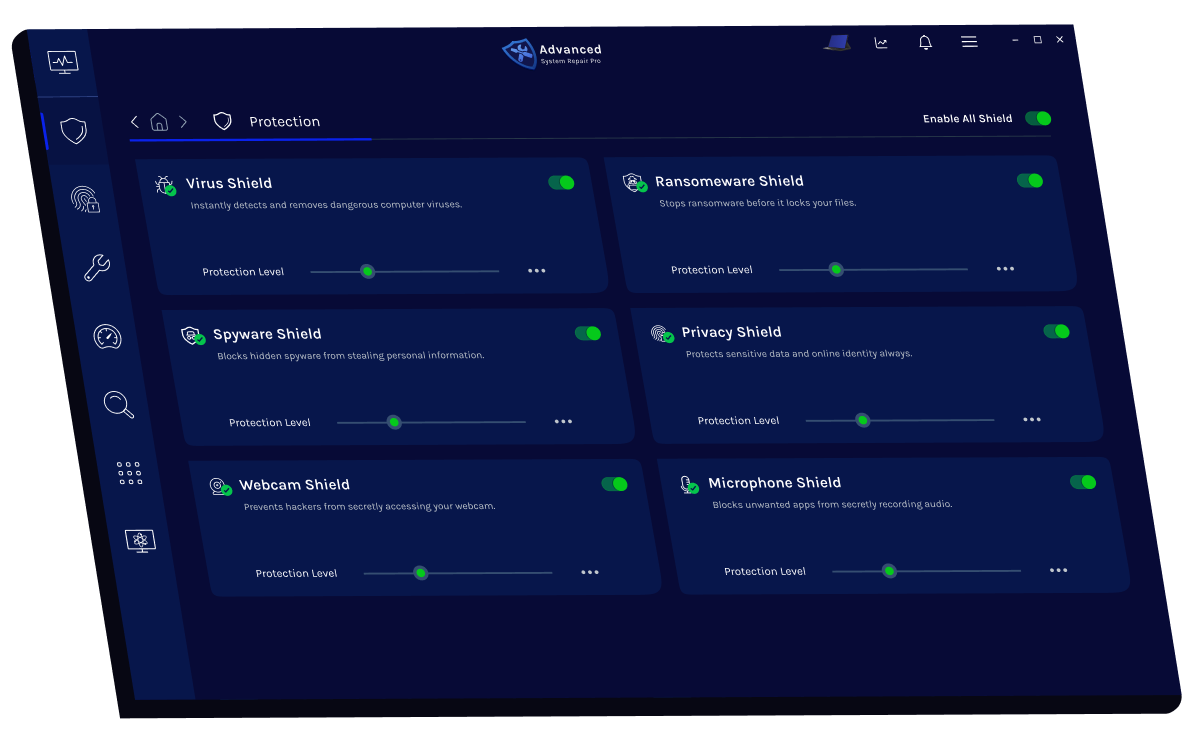
A PC maintenance and repair tool, such as Advanced System Repair, can simplify routine Windows maintenance and troubleshooting by providing tools to identify and address common system issues.
It should not replace proper hardware diagnostics or official manufacturer drivers, but it can be useful as part of a broader PC maintenance routine.
Reinstalling drivers and applications can give a Windows PC a fresh start when corrupted software, outdated drivers, or application conflicts are causing problems. The process is particularly useful when a specific device or program suddenly stops working correctly.
However, the safest approach is to avoid blindly reinstalling everything. Identify the source of the problem, back up important information, use official driver sources, and make changes one component at a time.
With regular updates, proper maintenance, and reliable troubleshooting tools such as Advanced System Repair, you can keep your Windows PC more stable, responsive, and ready for everyday use.
 Like
1
Like
1
 Dislike
0
Dislike
0
 Love
1
Love
1
 Funny
0
Funny
0
 Angry
0
Angry
0
 Sad
0
Sad
0
 Wow
1
Wow
1