
You turn on your computer in the morning, expecting everything to work as it normally does. Instead, applications take a little longer to open. Your browser feels sluggish. A game that used to run smoothly suddenly stutters. Even simple tasks, such as switching between windows or connecting a new device, seem to take longer than they should.
At first, you might blame the computer itself.
Maybe the hard drive is getting old. Maybe there isn't enough RAM. Perhaps too many programs are running in the background. You might even assume that it's simply time to buy a new PC.
But there is another possibility that is often overlooked: your device drivers may be outdated.
Drivers are some of the least visible pieces of software running on a computer, yet they play an important role in keeping the operating system and hardware communicating properly. When those drivers become outdated, corrupted, or incompatible with newer software, the effects can appear in surprising ways—from reduced performance and system instability to hardware that doesn't work as efficiently as it should.

To understand why outdated drivers can affect performance, it helps to understand what a driver actually does.
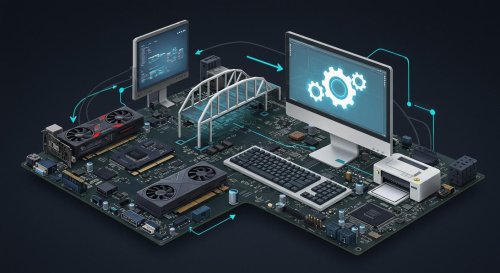
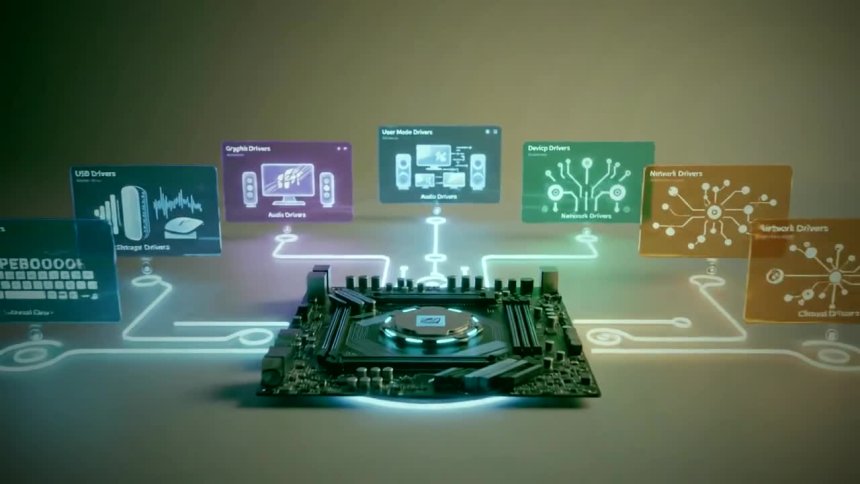
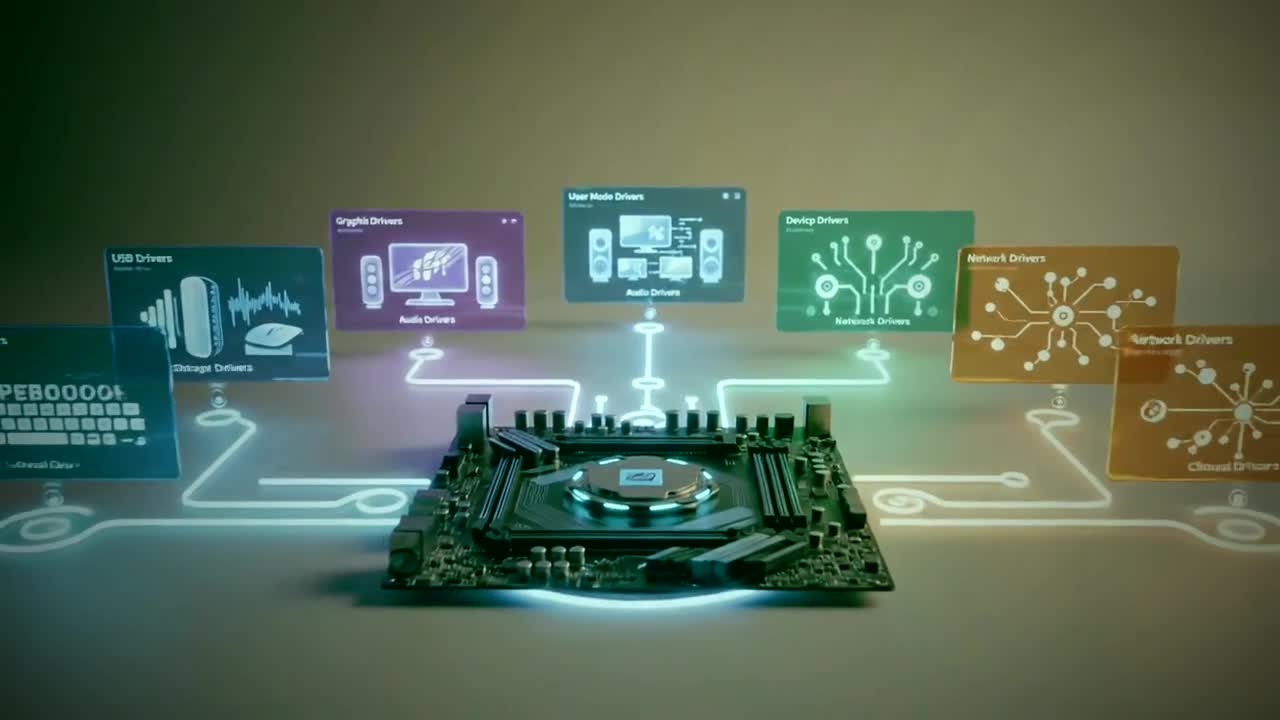
A device driver is software that allows the operating system to communicate with a specific hardware component. Your computer contains many different pieces of hardware, including the processor, graphics card, network adapter, audio device, storage controller, USB devices, and motherboard components.
Windows knows how to manage these components, but it needs a way to communicate with them correctly. Drivers provide that connection.
Think of a driver as a translator between Windows and your hardware. When Windows needs your graphics card to perform a task, the appropriate driver helps translate that request into instructions the hardware understands.
When the translator is outdated, the communication may not be as efficient or reliable as it could be.
An outdated driver doesn't automatically mean your computer will become slow. In many cases, an older driver may continue working perfectly well for years.
The problem occurs when the operating system, applications, or hardware changes while the driver remains stuck in the past.
Modern software is constantly evolving. Windows receives updates, games introduce new graphics technologies, applications change how they use system resources, and manufacturers release new hardware features. Driver updates are often designed to help hardware keep up with those changes.
For example, a graphics driver update may improve compatibility with a recently released game. A network adapter driver may address connectivity problems or improve compatibility with newer networking standards. A chipset driver update may improve communication between different components on the motherboard.
When those updates are missing, the computer may still function, but it may not function as efficiently as intended.
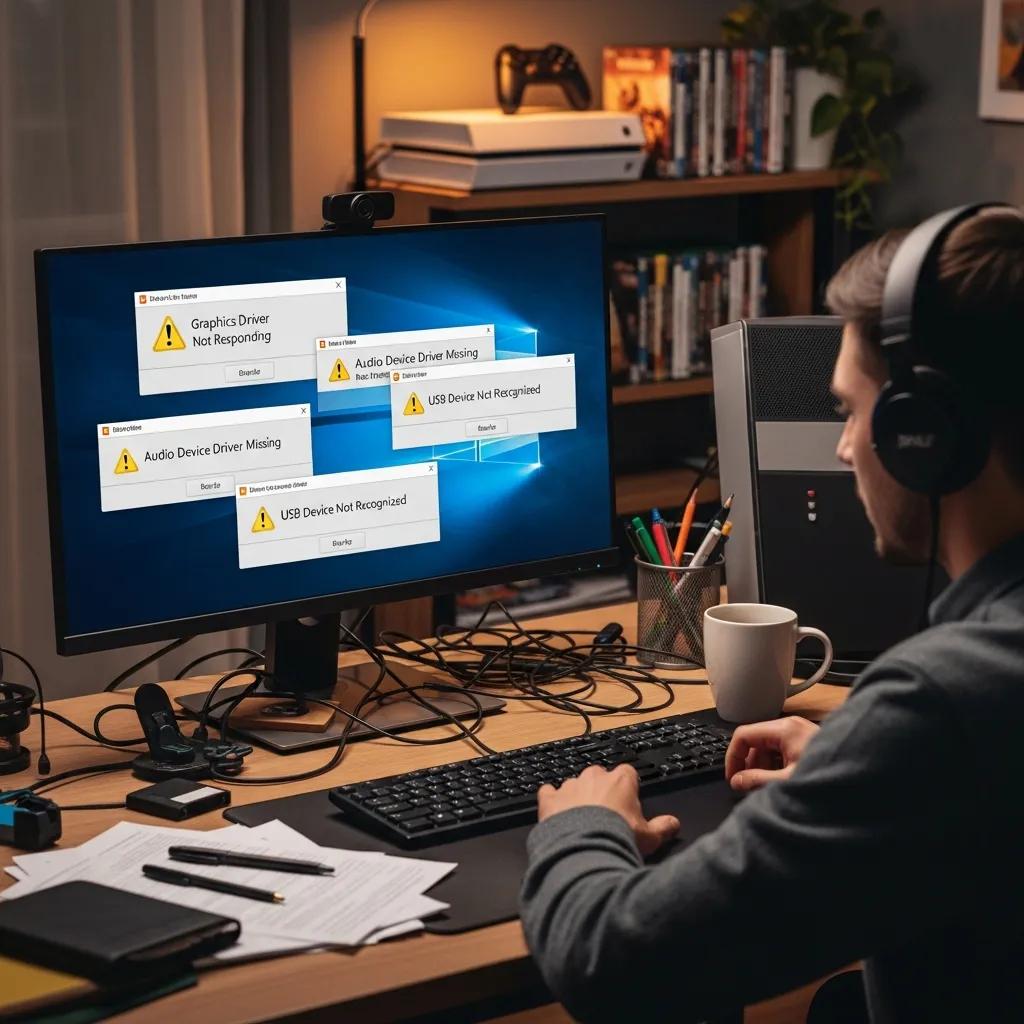
One of the reasons driver issues can be difficult to identify is that they don't always announce themselves.
You may experience occasional freezing rather than a complete system failure. Your game might have unpredictable frame-rate drops. Your Wi-Fi connection could periodically disconnect. Your speakers might suddenly stop working. A USB device may fail to connect until you unplug it and reconnect it.
These problems can easily be mistaken for hardware failure.
Imagine, for example, that your graphics card is perfectly healthy but running an old driver that doesn't properly support a newer version of a game. You could spend hours adjusting game settings, lowering resolution, or even considering a graphics card upgrade when the underlying problem is software.
Similarly, if your network driver isn't functioning properly, you might blame your internet connection when the actual issue is happening locally between Windows and the network hardware.
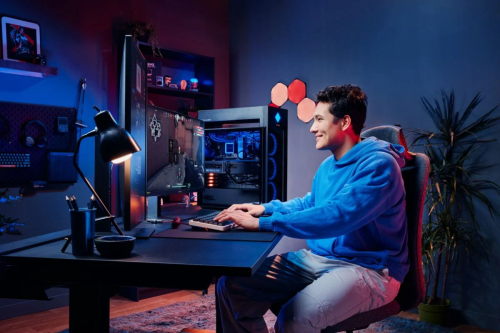
Gamers are particularly familiar with driver updates because graphics card manufacturers frequently release new versions.
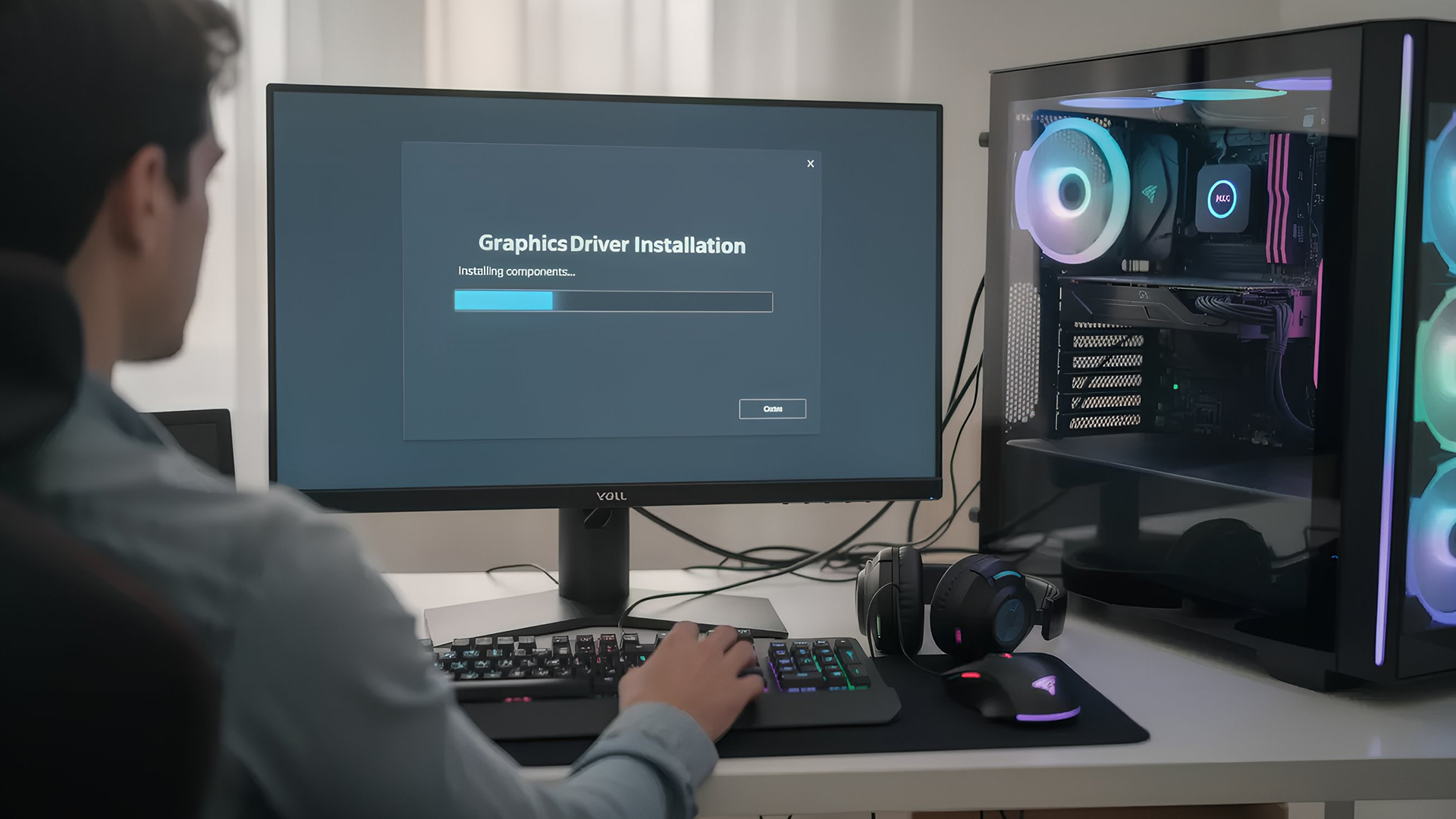
GPU drivers can contain optimizations for newly released games, compatibility improvements, bug fixes, and support for new graphics technologies. In some situations, updating a graphics driver can resolve crashes or graphical glitches without requiring any hardware changes.
This doesn't mean every new driver will magically increase performance. Performance improvements vary depending on the hardware, game, driver version, and software configuration.
However, keeping graphics drivers reasonably current can help ensure that your GPU is communicating with modern applications using supported software.
For gamers, this is especially important when installing a newly released title or encountering unexplained graphical problems.
Performance isn't the only concern.
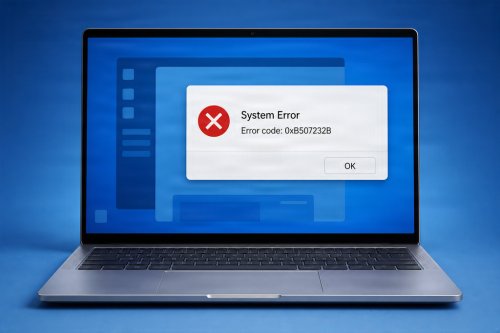
An outdated or incompatible driver can contribute to system instability. You might encounter application crashes, device errors, unexpected freezes, or even blue-screen errors when a problematic driver interacts with Windows.
This is particularly relevant when a major Windows update has been installed.
The operating system may introduce changes that require updated drivers from hardware manufacturers. If an older driver doesn't work correctly with the updated environment, problems can appear after the Windows update even though the computer's physical hardware hasn't changed.
This is one reason troubleshooting should not always begin with replacing hardware.
Sometimes the hardware is fine. The software controlling it simply needs attention.
There is an important distinction between keeping drivers maintained and blindly installing every driver update available.
Newer doesn't always mean better for every system.
A driver update can occasionally introduce new bugs or compatibility problems. That's why drivers should ideally come from trustworthy sources, such as the computer manufacturer's support website or the hardware manufacturer's official website.
For critical systems, it can also be useful to create a restore point or otherwise maintain a recovery option before making significant driver changes.
The goal isn't to chase every driver release.
The goal is to maintain a stable and compatible system.

There are many drivers on a modern PC, and not all of them deserve the same level of attention.
Graphics drivers are particularly important for gaming, video editing, 3D applications, and other GPU-intensive workloads.
Network drivers can affect Wi-Fi, Ethernet connectivity, stability, and compatibility.
Audio drivers control communication with sound hardware and can be responsible for problems involving speakers, microphones, and headphones.
Chipset and motherboard-related drivers can influence how Windows communicates with important system components.
Storage and controller drivers can also matter when dealing with storage performance, compatibility, or system stability.
Peripheral drivers may become important when devices such as printers, webcams, controllers, and specialized hardware stop functioning correctly.
:max_bytes(150000):strip_icc()/GettyImages-1722018525-38ccc8b5fbbf4f0689a6aced0392d929.jpg)
Windows provides built-in tools for checking hardware and drivers.
Device Manager allows you to view installed hardware and inspect the drivers associated with individual devices. You can also check Windows Update because Microsoft distributes many driver updates through the operating system.
For graphics cards, it is often useful to check the official support software or website from the GPU manufacturer.
Laptop and desktop manufacturers may also provide their own support applications containing recommended drivers specifically tested for that particular model.
This is important because a driver intended for one hardware configuration isn't necessarily appropriate for another.
When searching for a driver, you may encounter websites claiming to provide thousands of automatic driver updates.
Be careful.
Installing drivers from unknown sources can introduce unnecessary security and compatibility risks. Some websites also bundle unwanted software with downloads or make exaggerated claims about how many "outdated drivers" your computer supposedly has.
A safer approach is to start with Windows Update, your computer manufacturer's official support page, or the official hardware manufacturer's website.
If a driver isn't causing a problem and there is no clear reason to update it, there may be little benefit in changing it simply because a third-party utility says it is old.
Keeping drivers updated should be viewed as one part of a larger PC maintenance routine.
A healthy computer also benefits from having adequate free storage, current operating-system updates, reliable security software, reasonable startup programs, and proper hardware maintenance.
If your computer is slowing down, don't immediately assume that outdated drivers are the only cause.
Check the bigger picture.
A nearly full SSD, excessive startup applications, overheating, malware, failing hardware, insufficient memory, or background processes can all contribute to poor performance.
Driver maintenance is simply another important piece of the puzzle.

Your computer doesn't always tell you when something is wrong.
Sometimes there is no dramatic error message. There is simply a gradual feeling that things aren't as responsive as they used to be. Applications take longer to launch. Games behave strangely. Devices occasionally disconnect. Windows becomes less predictable.
In those moments, drivers are worth checking.
They may not be the reason every slow computer feels slow, but they are an important link between your operating system and the physical hardware inside your machine. Keeping the right drivers installed and maintaining compatibility with your operating system and applications can help prevent unnecessary performance and stability problems.
Before deciding that your PC needs a new graphics card, more RAM, or an entirely new system, take a moment to investigate the software connecting everything together.
Sometimes the hardware isn't the problem.
Sometimes your PC simply needs its digital translators brought up to date.
 Like
0
Like
0
 Dislike
0
Dislike
0
 Love
0
Love
0
 Funny
0
Funny
0
 Angry
0
Angry
0
 Sad
0
Sad
0
 Wow
0
Wow
0