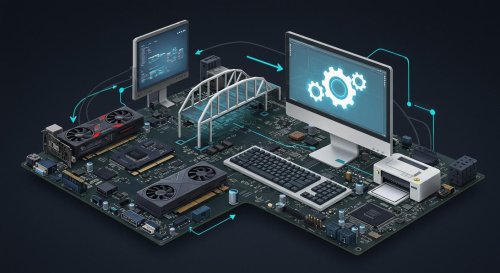
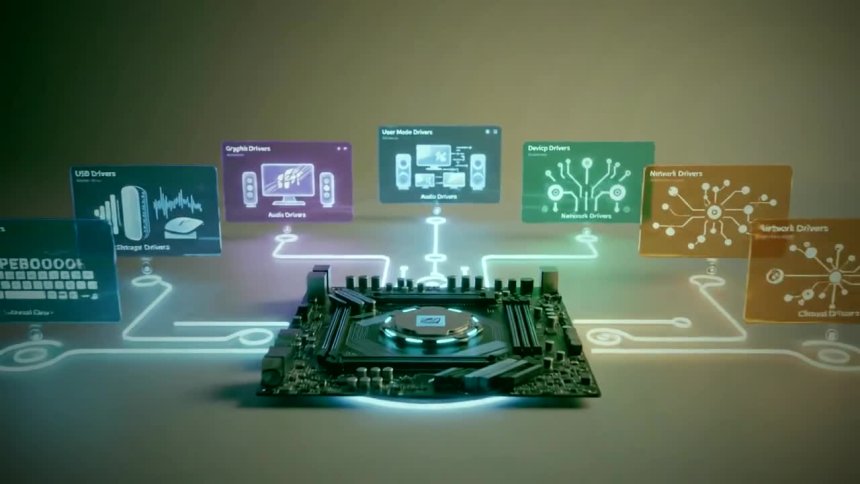
Device drivers are software that allow your computer to communicate with hardware components. These include your printer, graphics card, and more. Updating drivers ensures your hardware functions properly and takes advantage of new features and security updates.
Device drivers play a crucial role in the smooth operation of your computer. Without up-to-date drivers, you may experience hardware malfunctions or poor performance.

Windows Update is a convenient way to ensure your drivers are up-to-date. Follow these steps:

If there are any driver updates available, they will be automatically downloaded and installed.
Device Manager provides granular control over your device drivers. Here's how to use it:
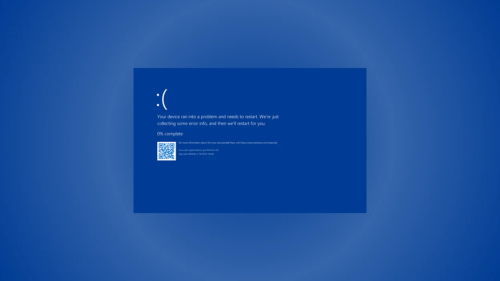
Hardware drivers are essential for your computer's hardware components to communicate effectively with the operating system. Corrupted drivers can cause a multitude of issues, including device malfunctions, system crashes, and performance problems. Fortunately, fixing corrupted drivers is manageable with the right approach. This guide walks you through each step to identify, troubleshoot, and repair corrupted hardware drivers.
Step 1: Identify the Problem
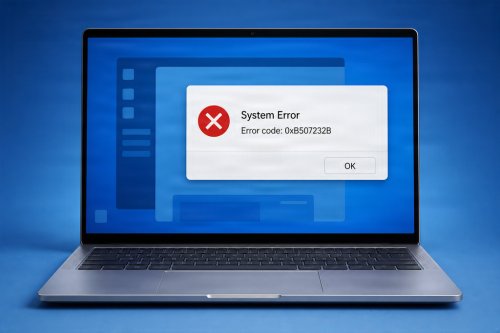
Look for error messages related to device drivers in Device Manager.
Notice any hardware devices not functioning correctly or showing warning icons.
Check the system logs for driver-related errors using Event Viewer.
Step 2: Back Up Your Drivers
Before making changes, back up current drivers using built-in tools or third-party software.
Create a system restore point for easy recovery if needed.
Step 3: Update the Driver
Visit the hardware manufacturer's website to download the latest driver version.
Use Windows Update to check for driver updates automatically.
Use Device Manager: right-click the device, select "Update driver," and follow the prompts.
Step 4: Roll Back or Reinstall Drivers
If the issue started after a recent update, revert to a previous driver version via Device Manager.
Uninstall the driver completely, then reinstall it from a trusted source.
Step 5: Use Troubleshooting Tools
Run the Windows Troubleshooter for hardware and devices.
Use third-party driver repair tools cautiously to scan and fix driver issues.
Step 6: Manually Replace or Fix Drivers
Use the Command Prompt to force driver reinstallation or repair.
Manually replace driver files if corrupt, ensuring they match the correct versions.
Step 7: Check for System Updates and Hardware Issues
Keep your operating system up to date.
Test hardware components for physical damage or connection issues.
Step 8: Seek Professional Help
If the problem persists, consult a professional technician or contact support.
Prevention Tips:
Regularly update your drivers.
Avoid downloading drivers from untrusted sources.
Keep your system protected with antivirus software.
 Like
0
Like
0
 Dislike
0
Dislike
0
 Love
0
Love
0
 Funny
0
Funny
0
 Angry
0
Angry
0
 Sad
0
Sad
0
 Wow
0
Wow
0